

How to set Active Hours for Triage?
August 16, 2022
Watch video
To add this digital front door to your practice home page, follow the steps in our helpful guide.
Once you have set up your triage system, add it to your practice home page


© 2026 iPLATO. All rights reserved
Practice Area
How to set Active Hours for Triage?
August 16, 2022
Watch video
To add this digital front door to your practice home page, follow the steps in our helpful guide.
Once you have set up your triage system, add it to your practice home page
© 2026 iPLATO. All rights reserved
How to set Active Hours for Triage?
August 16, 2022
Once Triage is activated, any of the enabled category’s active times can be customised.
To take action this, please follow these steps:
- Log into your myGP Connect system, go to the left-hand side menu bar and click on Settings
- Then press on myGP Triage at the top of the screen
- By default, you will be in the myGP Triage—Manual section
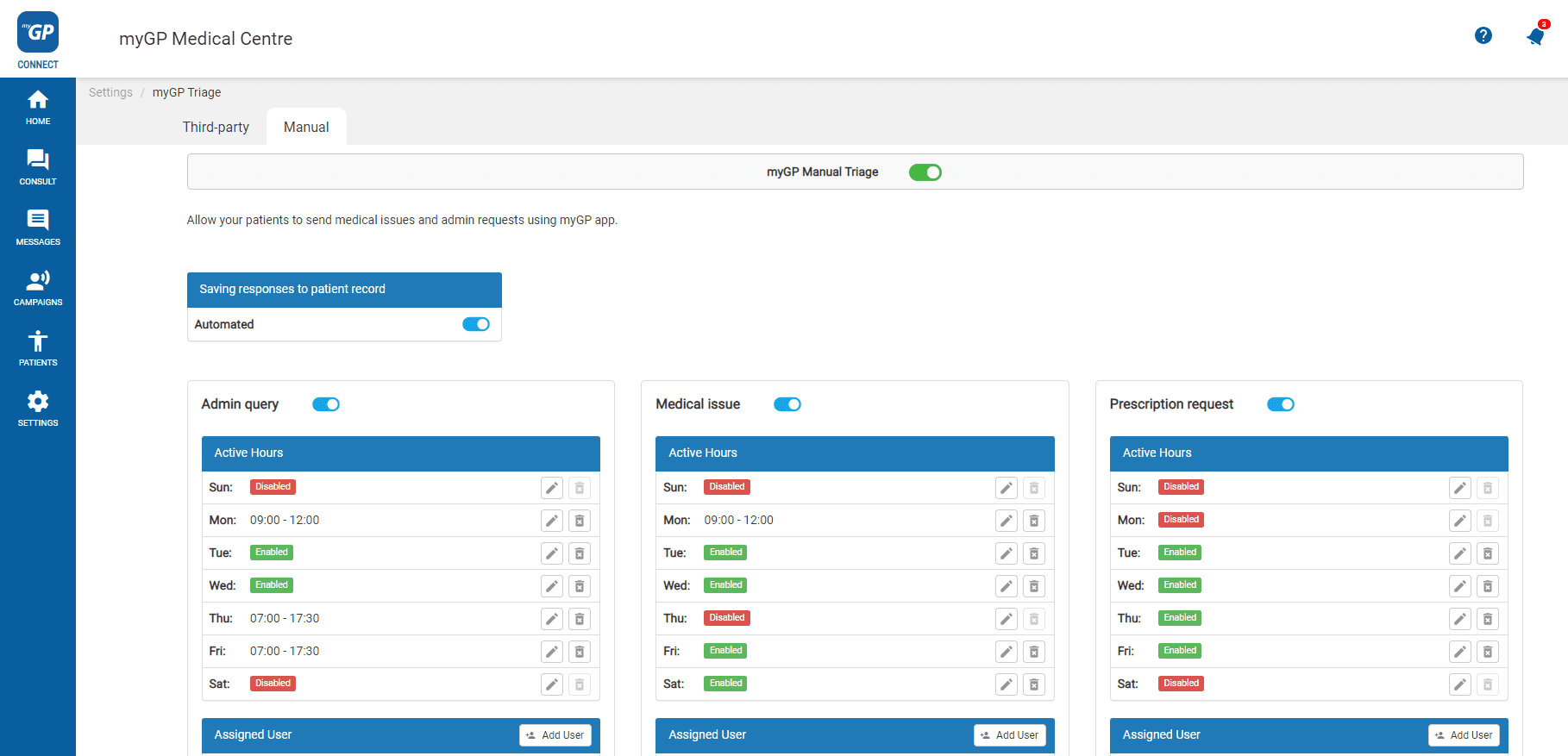
- Refer to the Active Hours section within category tile
- Refer to appropriate Day
- Click the edit icon
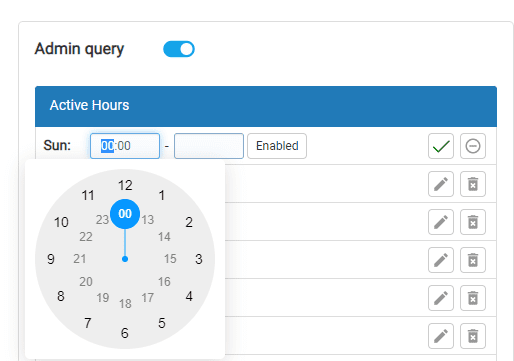
- Input appropriate start and end times, then click tick
- Or click Enabled to have the category open for 24 hours a day
Please note that any set time can be deleted at any point by clicking delete next to entry
© 2026 iPLATO. All rights reserved