

How to assign a user to a Triage category?
August 16, 2022
Watch video
To add this digital front door to your practice home page, follow the steps in our helpful guide.
Once you have set up your triage system, add it to your practice home page


© 2026 iPLATO. All rights reserved
Practice Area
How to assign a user to a Triage category?
August 16, 2022
Watch video
To add this digital front door to your practice home page, follow the steps in our helpful guide.
Once you have set up your triage system, add it to your practice home page
© 2026 iPLATO. All rights reserved
How to assign a user to a Triage category?
August 16, 2022
Any Connect users can be assigned a Triage category. This means they will receive a notification email if any patient requests are received within their assigned category.
To assign a Connect user a myGP Triage category, please follow these steps:
- Log into your myGP Connect system, go to the left-hand side menu bar and click on Settings.
- Then press on myGP Triage at the top of the screen.
- The myGP Triage settings screen will be displayed.
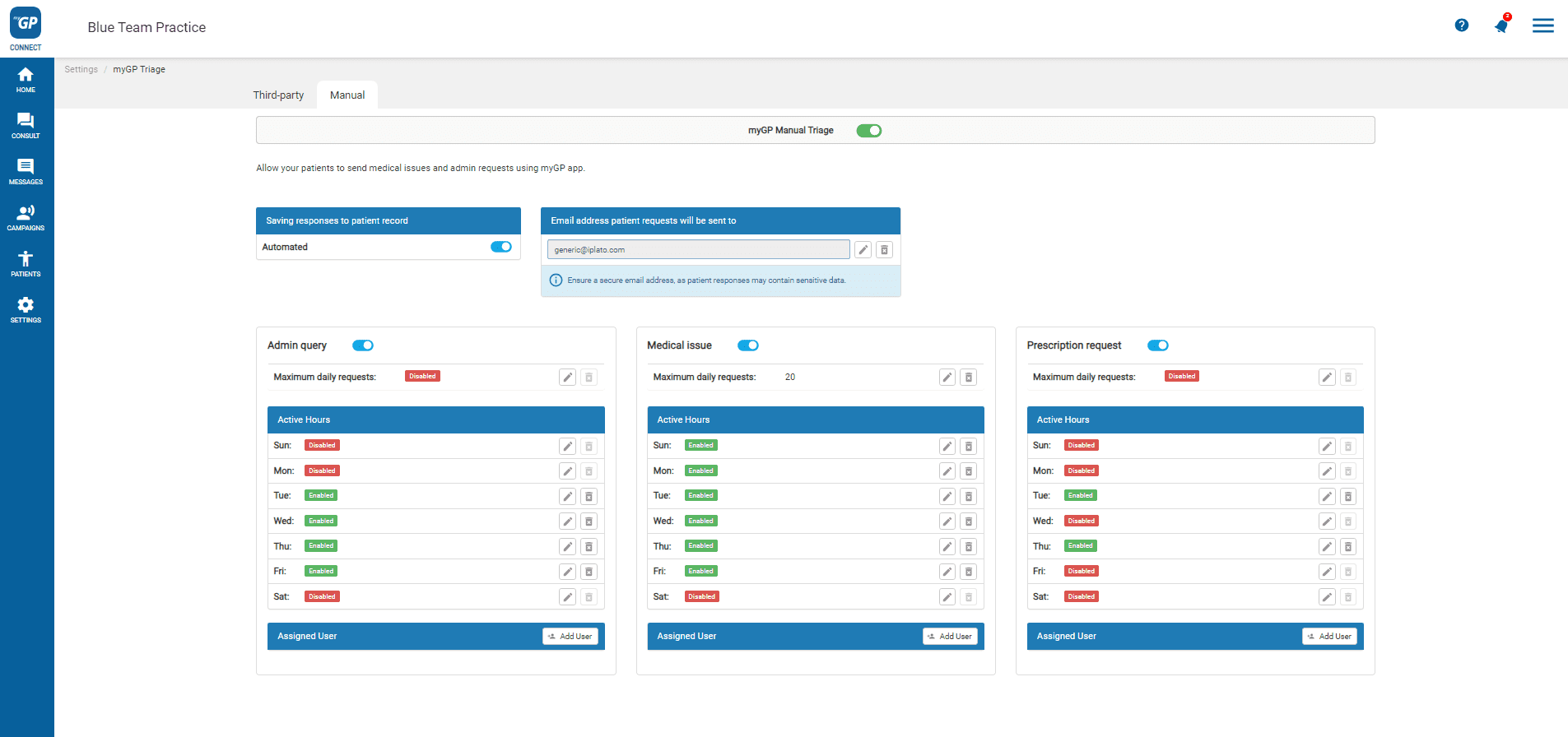
- By default, you will be in the myGP Triage – Manual section
- Underneath each category tile, there is a Add User button on the bottom right

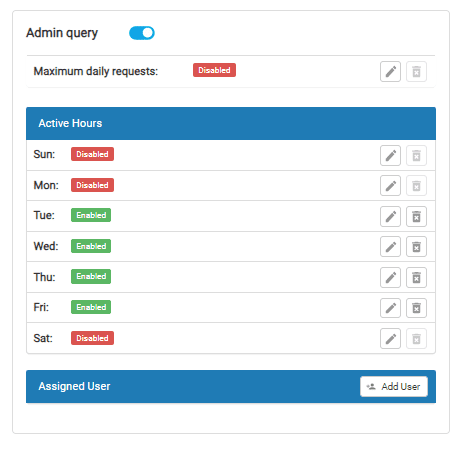
- Click on this and a drop-down menu will appear with any Connect users
- Select the appropriate Connect user
- They will appear as an entry below the tile
© 2026 iPLATO. All rights reserved