

How to activate myGP Triage
June 10, 2020
Watch video
To add this digital front door to your practice home page, follow the steps in our helpful guide.
Once you have set up your triage system, add it to your practice home page


© 2026 iPLATO. All rights reserved
Practice Area
How to activate myGP Triage
June 10, 2020
Watch video
To add this digital front door to your practice home page, follow the steps in our helpful guide.
Once you have set up your triage system, add it to your practice home page
© 2026 iPLATO. All rights reserved
How to activate myGP Triage
June 10, 2020
To activate the myGP Triage feature, please follow these steps:
- Log into your myGP Connect system and go to the left-hand side menu bar and click on Settings.
- Then press on myGP Triage at the top of the screen.
- The myGP Triage settings screen will be displayed.
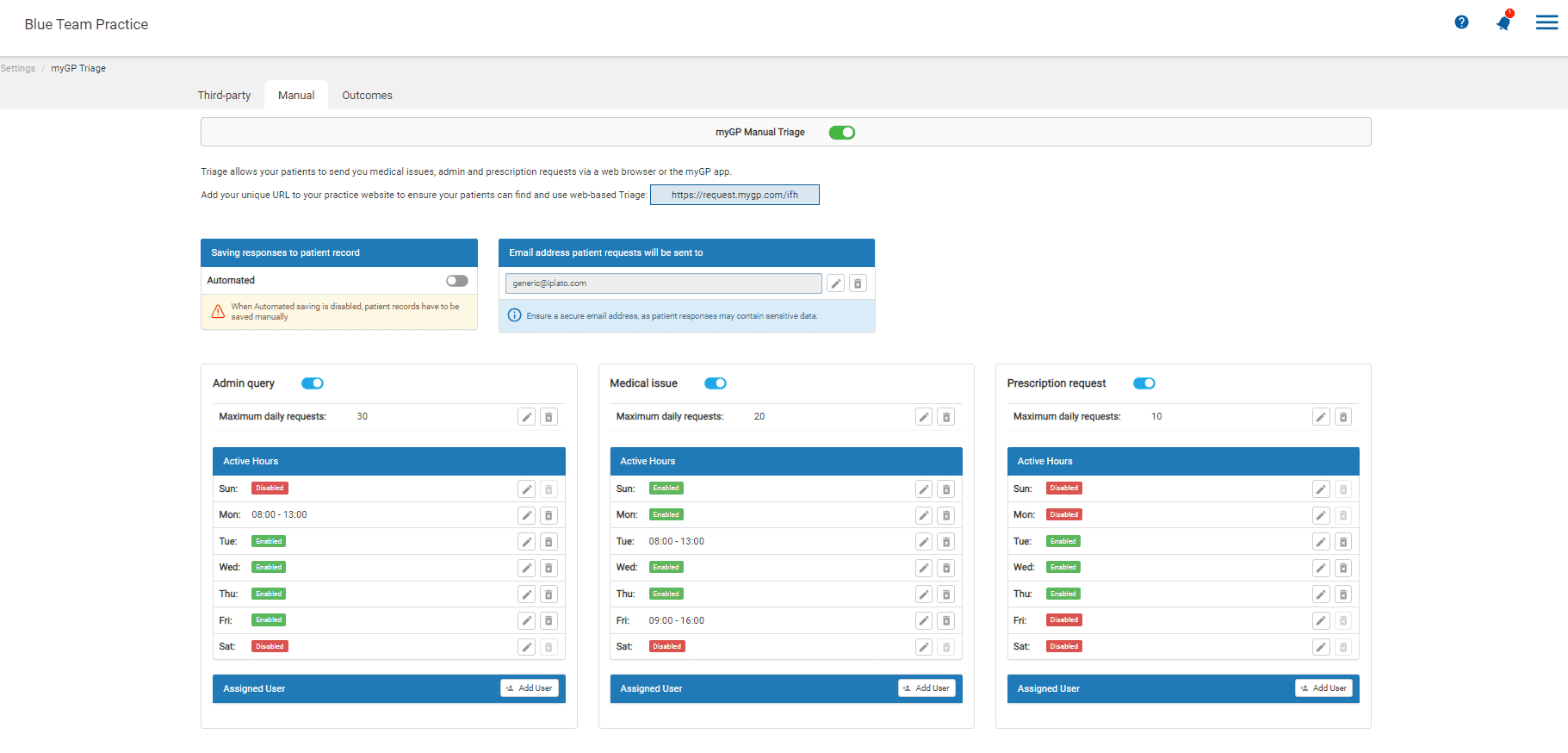
- By default, you will be in the myGP Triage – Manual section.
- The main ON switch is at the top of the screen, complete your settings before switching this on.
- Select an email address to add to receive a copy of patients’ triage requests. This must be an @NHS.net email address or similar (a pop-up giving the full list of approved emails will appear when entering an email)
- Choose whether you would like to have Automated coding of Triage requests activated.
Triage options you can enable
All Triage options will be switched on by default, please pick and choose which you wish to keep enabled:
- Administrate request: This will allow a patient to request test results, a sick note, update contact details, a GP letter, or update contact details
- Medical issues: This will allow a patient to put in a specific request concerning a medical concern
- Prescription requests: This will allow a patient to order a repeat prescription via triage request
To disable it, simply click on the switch next to the category title.
Types of admin requests
Under Admin requests, you are also able to turn on and off specific requests.
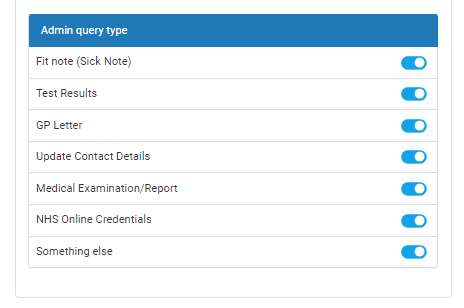
You will notice the ‘Something else‘ option. This is a catch-all option for a patient to use if their inquiry does not match any of the other options.
If you do not want a specific request to be available (for example GP letter), click on it so the slider goes grey and all done!
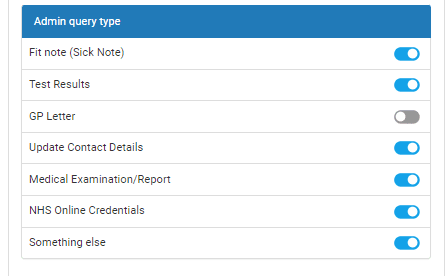
Settings to control the triage requests
- Limit the amount of requests that can received in one day
- Set the days and hours that the triage system is open
- Set specific users to receive certain triage requests
- Set up automatic coding if required
Once you have completed these settings you are ready to turn on your triage system
- At the top of the screen, click on the myGP Manual Triage button to switch on the system.
Add your myGP Triage solution to your practice website
Your unique web link needed to add the myGP Triage solution to your home page can be found at the top of the set up page

Copy and paste this link into your home page, your IT support can help you with this.
TOP TIP: If you already have regular Third-Party switched on, by activating myGP Triage, you will be deactivating it by default.
Please Note: It is a practice’s responsibility to consider the impact on their workflow through additional requests that will come through this method of communication. Please only switch on the functionality if you can safely manage it.
© 2026 iPLATO. All rights reserved