

How do I limit the number of Triage requests
March 28, 2023
Watch video
To add this digital front door to your practice home page, follow the steps in our helpful guide.
Once you have set up your triage system, add it to your practice home page


© 2026 iPLATO. All rights reserved
Practice Area
How do I limit the number of Triage requests
March 28, 2023
Watch video
To add this digital front door to your practice home page, follow the steps in our helpful guide.
Once you have set up your triage system, add it to your practice home page
© 2026 iPLATO. All rights reserved
How do I limit the number of Triage requests
March 28, 2023
You are able to set a limit on the number of Triage requests that are received in any category.
To set a limit on requests, follow these steps:
- Log into your myGP Connect system, go to the left-hand side menu bar and click on Settings
- Then press on myGP Triage at the top of the screen
- By default, you will be in the myGP Triage—Manual section
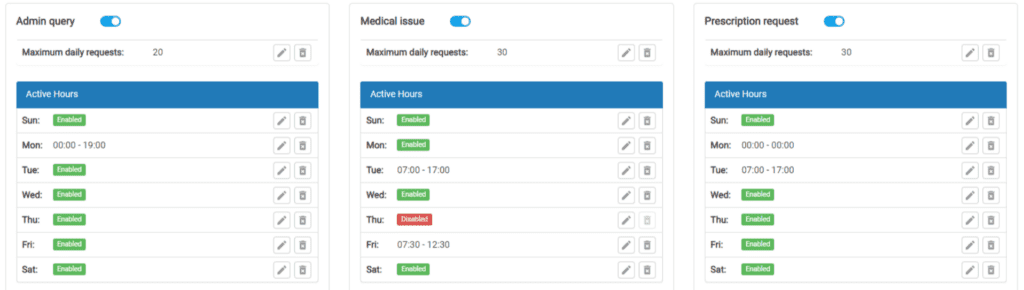
- Next to each category, you will see the maximum Requests
- Select the Edit icon
- Set the maximum daily limit you want for each category (administrative requests, Medical issues, Prescription requests)
- You should carefully consider the number of requests you can handle at your practice on each category per day
- Triage categories that reach their daily limit will automatically close and will not open again until the next available day, as per your configured active hours
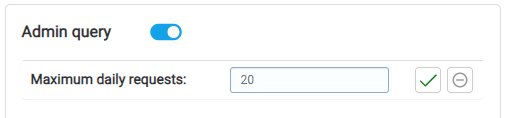
- Enter the upper limit you want to set for your triage requests
- Click the Tick icon to confirm your changes or click on the Cancel icon to dismiss them
Important: Once the daily limit has been reached, the triage option will not open again until the following day.
© 2026 iPLATO. All rights reserved