

How can I see clinical codes assigned to patient request?
August 16, 2022
Watch video
To add this digital front door to your practice home page, follow the steps in our helpful guide.
Once you have set up your triage system, add it to your practice home page


© 2026 iPLATO. All rights reserved
Practice Area
How can I see clinical codes assigned to patient request?
August 16, 2022
Watch video
To add this digital front door to your practice home page, follow the steps in our helpful guide.
Once you have set up your triage system, add it to your practice home page
© 2026 iPLATO. All rights reserved
How can I see clinical codes assigned to patient request?
August 16, 2022
Patients have the ability to action Triage requests if you have enabled the myGP Triage feature within Connect. Practices will also have the option to enable automated codes to each Triage category and patient request.
In order to monitor this, please do the following:

- Log in to myGP Connect
- From Home page click on the Messages tab
- Select Triage Request within the Inbox subsection
- This will bring you to the Triage Request page to monitor requests:

- Click on specific patient request
This will bring you to the myGP Triage Request Details page:
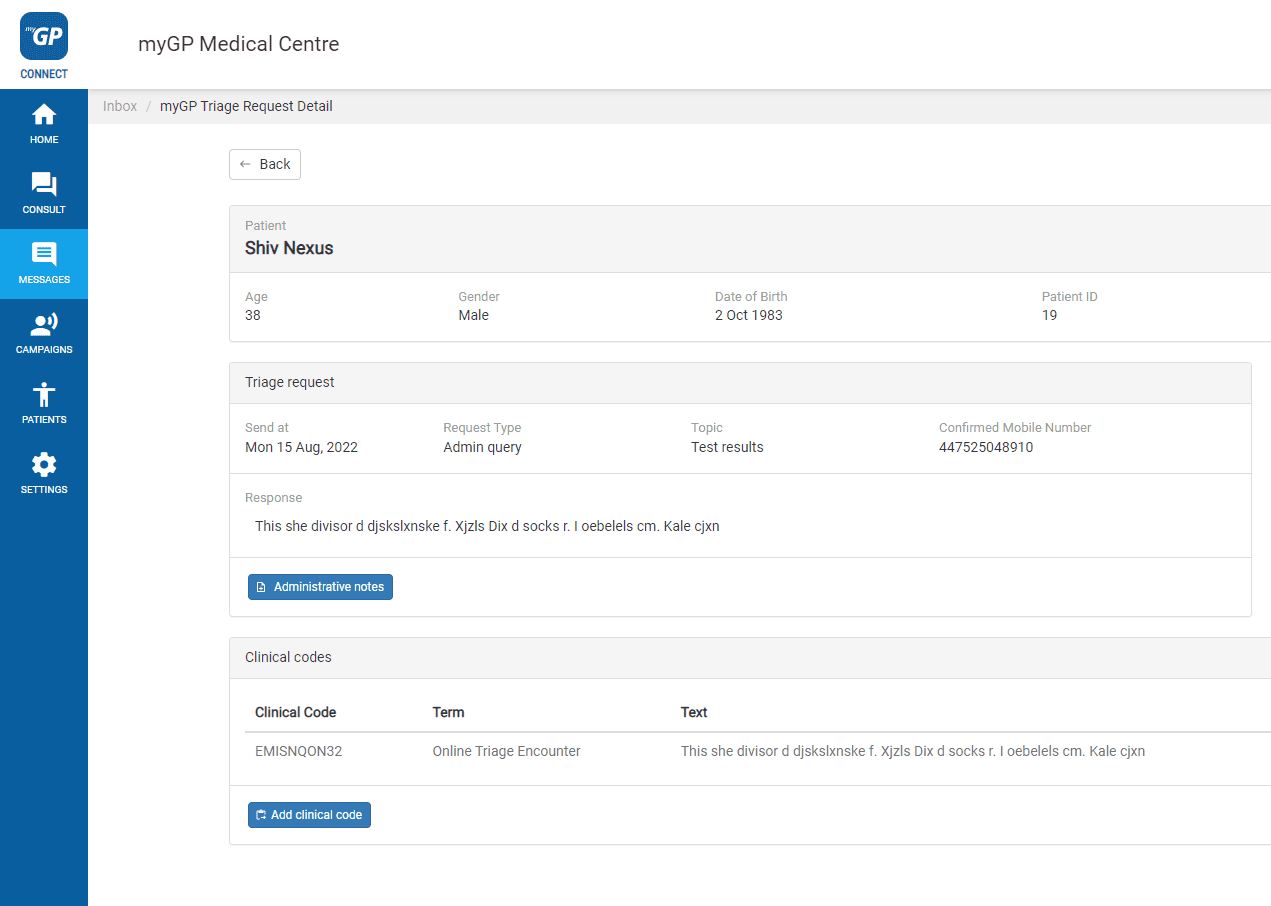
- Refer to Clinical Codes section to see assigned clinical codes
© 2026 iPLATO. All rights reserved