

How can I monitor Triage requests?
March 7, 2022
Watch video
To add this digital front door to your practice home page, follow the steps in our helpful guide.
Once you have set up your triage system, add it to your practice home page


© 2026 iPLATO. All rights reserved
Practice Area
How can I monitor Triage requests?
March 7, 2022
Watch video
To add this digital front door to your practice home page, follow the steps in our helpful guide.
Once you have set up your triage system, add it to your practice home page
© 2026 iPLATO. All rights reserved
How can I monitor Triage requests?
March 7, 2022
Patients have the ability to action Triage requests if you have enabled the myGP Triage feature within Connect. In order to monitor these requests, please do the following:
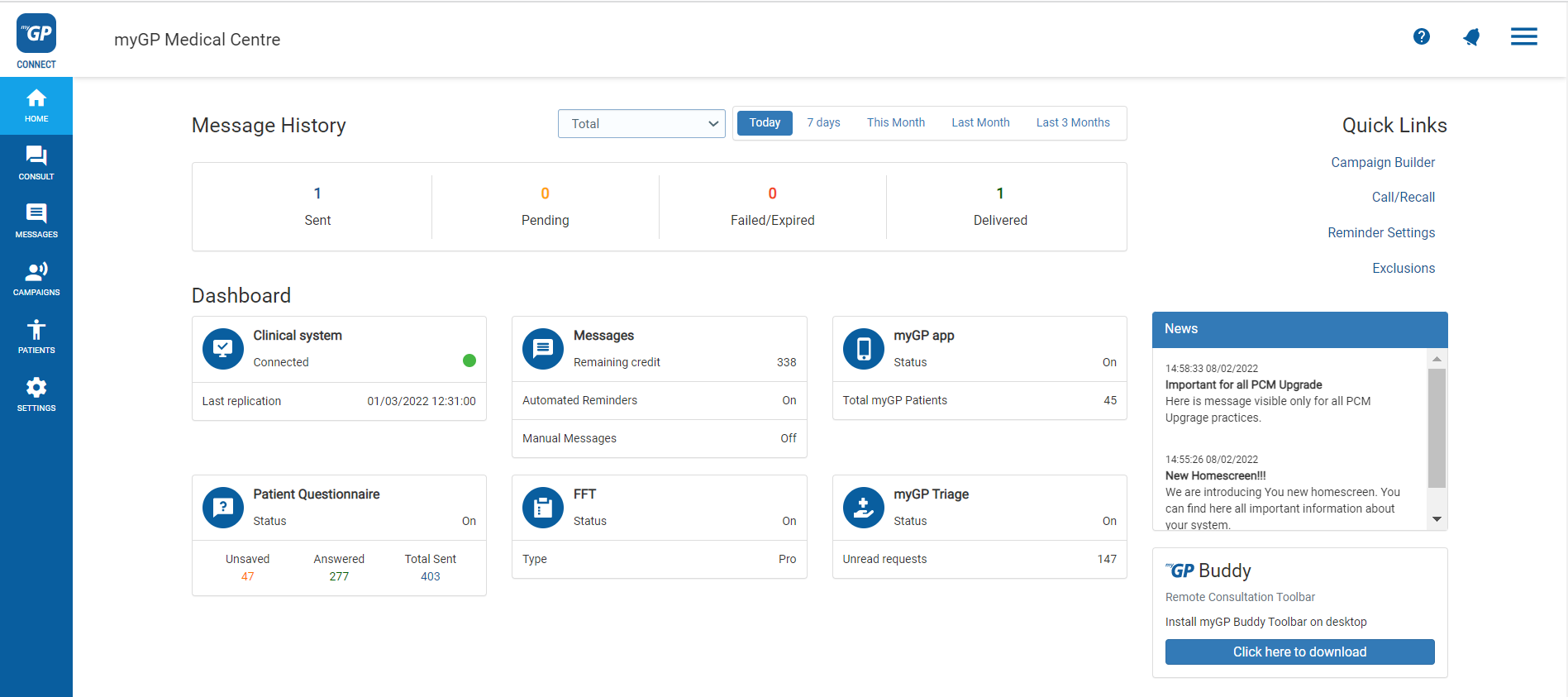
- Log in to myGP Connect
- From Home page click on the Messages tab
- Select Triage Request within the Inbox subsection
- This will bring you to the Triage Request page to monitor requests:
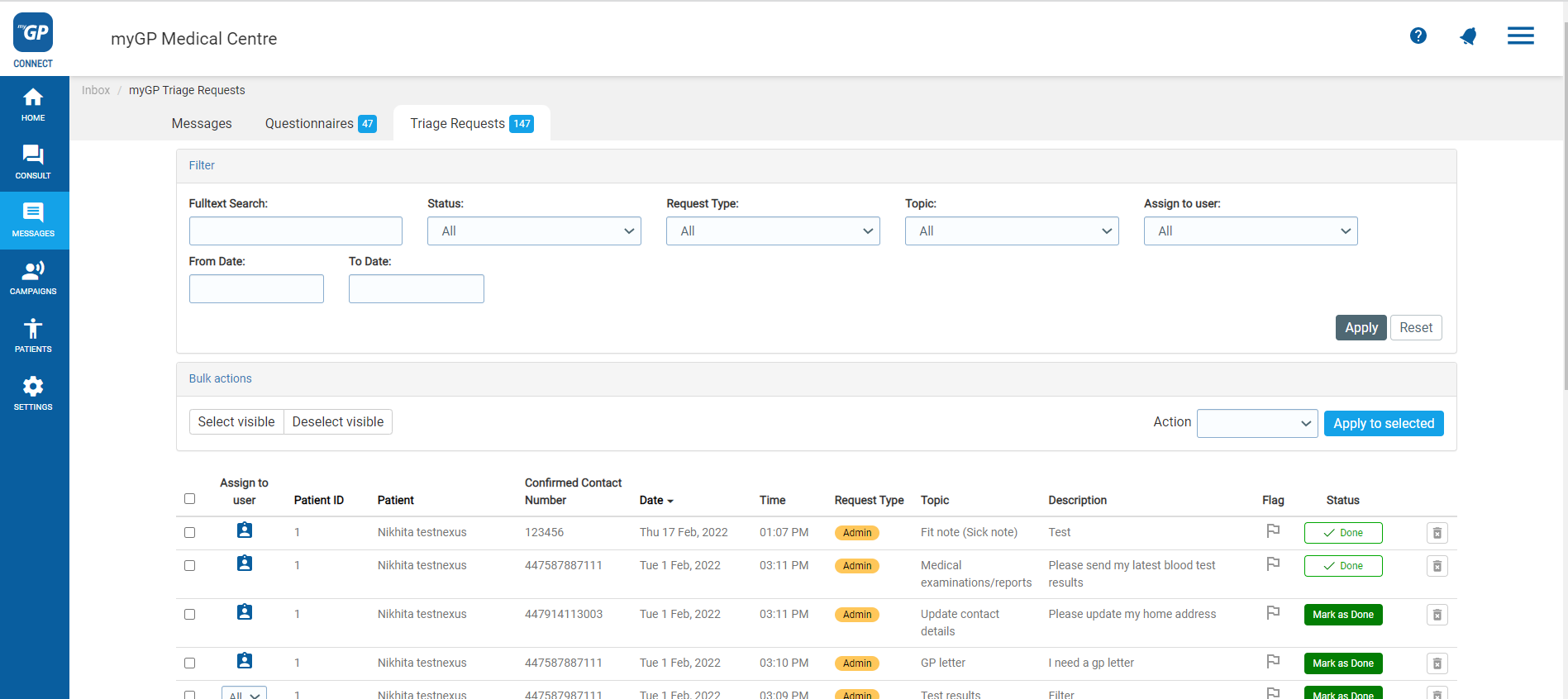
On this page users will be able to track patient requests with the following Filters:
- Fulltext Search: search for a request based on search criteria
- Status: filter search requests based on Open or Closed status
- Request Type: filter requests based request type
- Topic: filter requests based on request topic
- Assign to user: filter requests based on requests assigned to specific user
- From Date/To Date: filter requests based on timespan
Requests are broken down into the following information columns and features:
- Assign to user: assign a specific user a request
- Patient ID: patient’s clinical system ID
- Confirmed Contact Number: patient’s contactable phone number
- Date: specific date the request was received
- Time: specific time the request was received
- Request Type: if request is a Admin query, Medical issue or Repeat prescription request
- Topic: if the Admin request topic is a Fit Note, NHS Online Credentials, GP Letter, Medical examination/report, Test Results or Update contact details
- Description: freehand text that the patient added during the request process
- Flag: option to prioritise request with a Red Flag
- Status: if the request is still open or marked complete
- Outcomes: Shows if an outcome has been assigned to the request
- Archive: option to archive request
© 2026 iPLATO. All rights reserved