

How can I manually code a patient Triage request?
August 16, 2022
Watch video
To add this digital front door to your practice home page, follow the steps in our helpful guide.
Once you have set up your triage system, add it to your practice home page


© 2026 iPLATO. All rights reserved
Practice Area
How can I manually code a patient Triage request?
August 16, 2022
Watch video
To add this digital front door to your practice home page, follow the steps in our helpful guide.
Once you have set up your triage system, add it to your practice home page
© 2026 iPLATO. All rights reserved
How can I manually code a patient Triage request?
August 16, 2022
You can action Triage requests if you have enabled the myGP Triage feature within Connect. They will also have the option to enable automated codes for each Triage category.
If preferred, Patient requests can be manually clinically coded instead:
To action this, please do the following
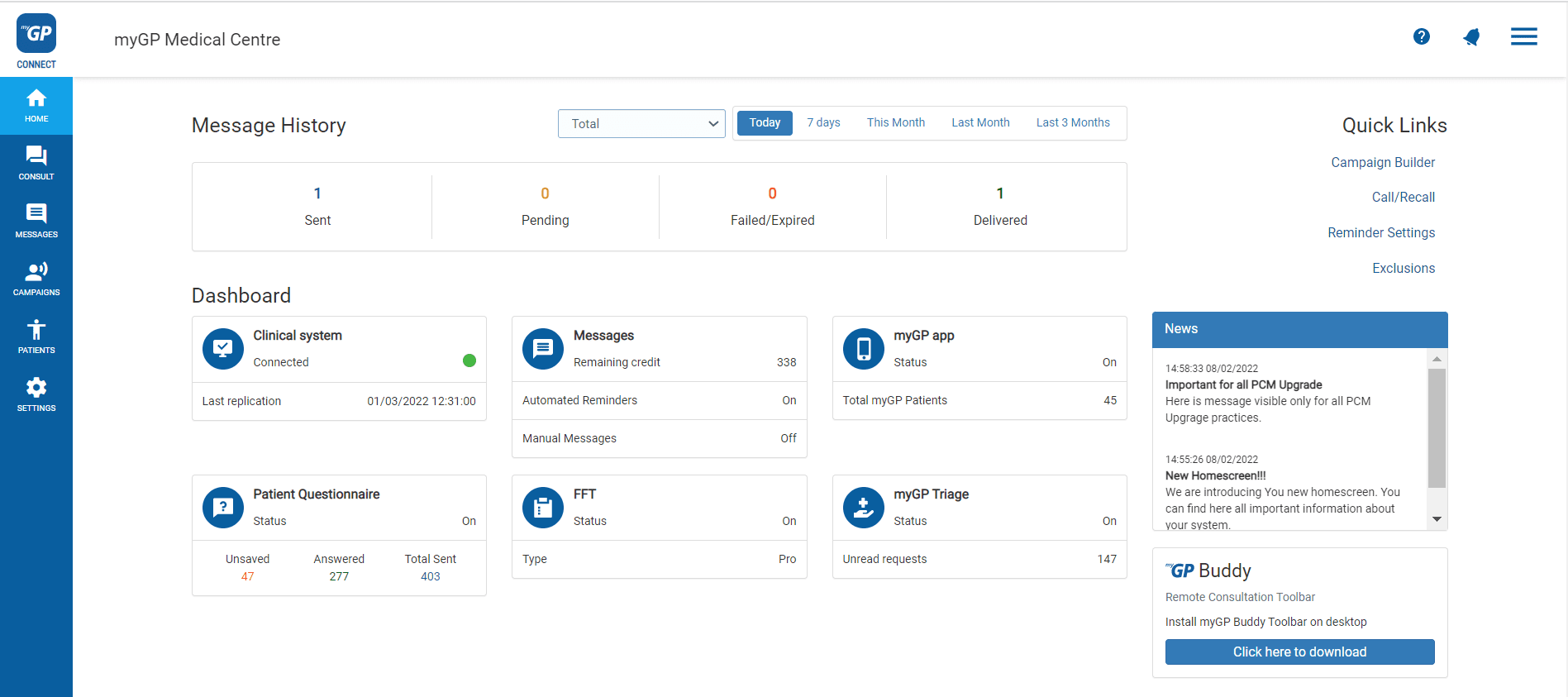
- Log in to myGP Connect
- From Home page click on the Messages tab
- Select Triage Request within the Inbox subsection
- This will bring you to the Triage Request page to monitor requests:

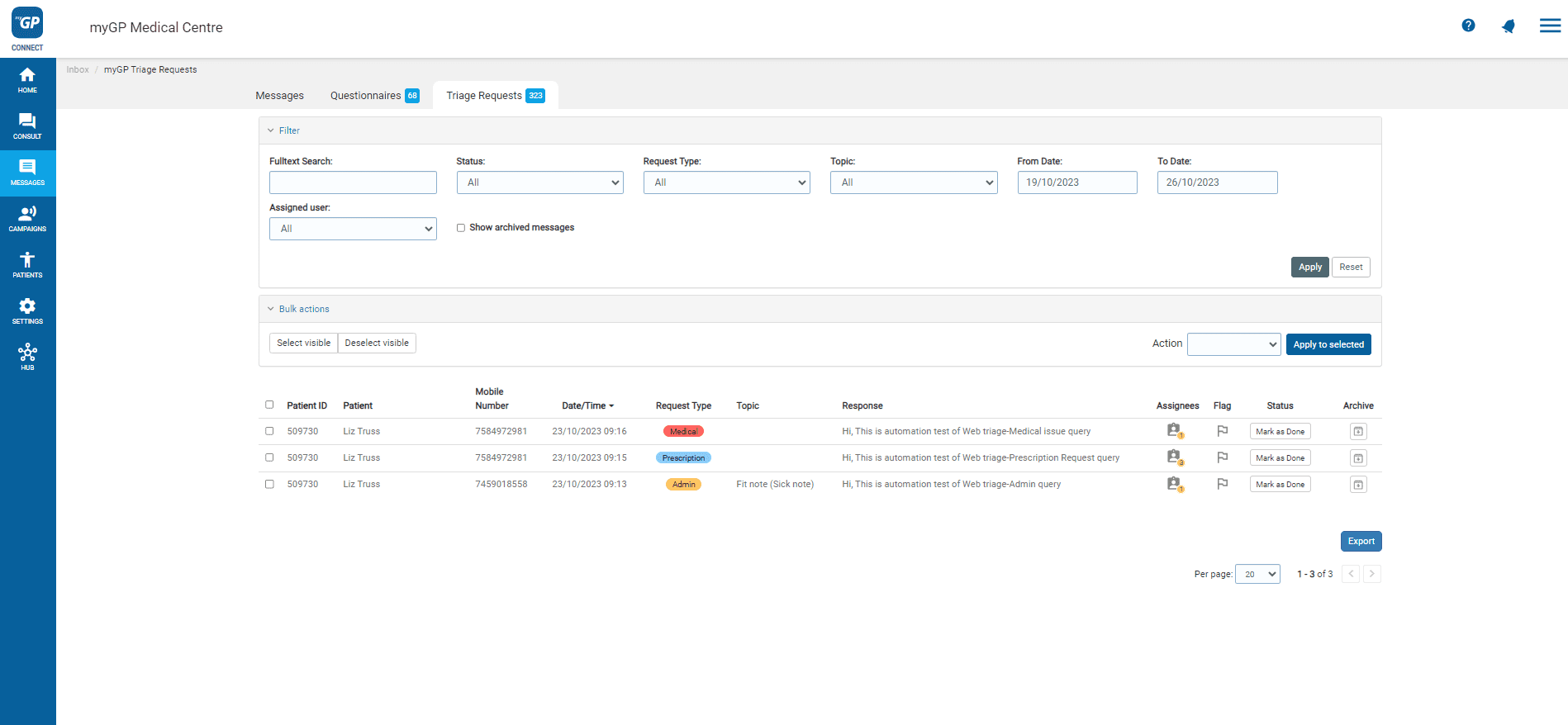
- Click on specific patient request
This will bring you to the myGP Triage Request Details page:
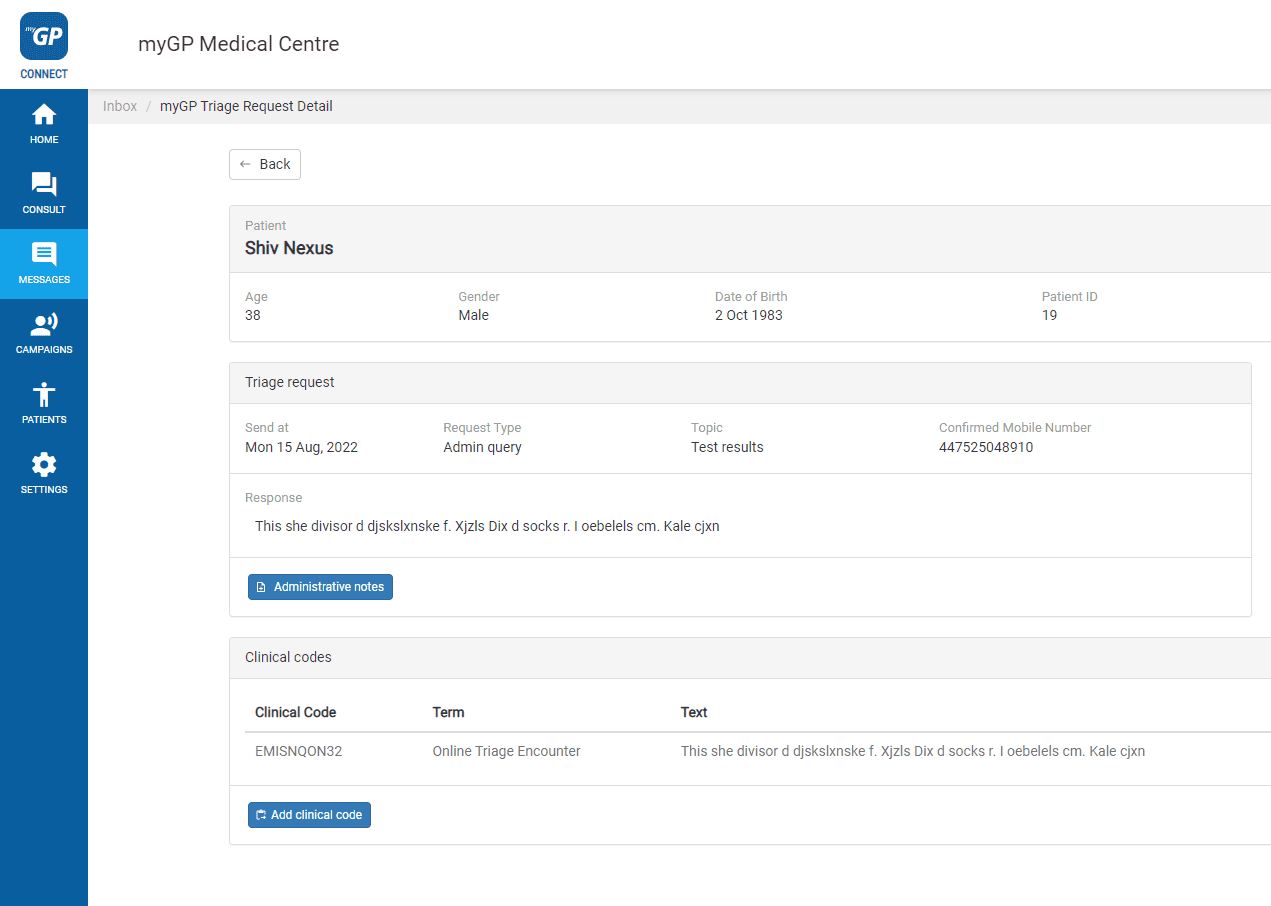
- Click on Add clinical code button
- Choose from National Codes or User Created Codes
- Input Code or Term in the appropriate fields
- Click Add
TOP TIP: Connect is compatible with both Snomed and Read Codes
© 2026 iPLATO. All rights reserved