

How to create a template for Coronavirus Vaccination Campaign
August 3, 2021
Please be aware you are not currently able to save an attachment from a patient directly into the patient record on your clinical system.
What to do if you want to save an attachment into the clinical system
- Save or Download the attachment.
- Manually save this into your clinical system.
- If you need help adding this to your clinical system, please contact your clinical systems technical support.
Will you be adding this feature later?
Yes, at a later point, you will be able to save attachments directly into your clinical system, we will let you know when this becomes available.


© 2026 iPLATO. All rights reserved
Practice Area
How to create a template for Coronavirus Vaccination Campaign
August 3, 2021
Please be aware you are not currently able to save an attachment from a patient directly into the patient record on your clinical system.
What to do if you want to save an attachment into the clinical system
- Save or Download the attachment.
- Manually save this into your clinical system.
- If you need help adding this to your clinical system, please contact your clinical systems technical support.
Will you be adding this feature later?
Yes, at a later point, you will be able to save attachments directly into your clinical system, we will let you know when this becomes available.
© 2026 iPLATO. All rights reserved
How to create a template for Coronavirus Vaccination Campaign
August 3, 2021
Watch video
In certain scenarios, when a practice updates their clinical system, a patient will need to disconnect from the app, then simply reconnect to continue their app experience.
The steps needed, are the following:
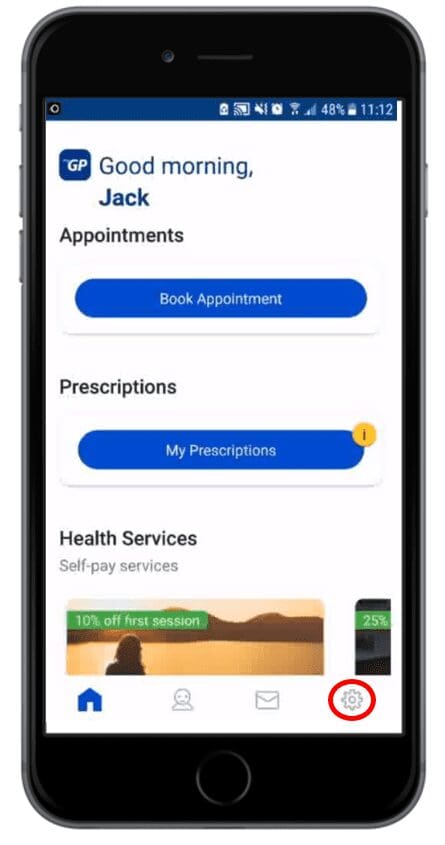
- Patient will need to Log-in to myGP App, then select Settings
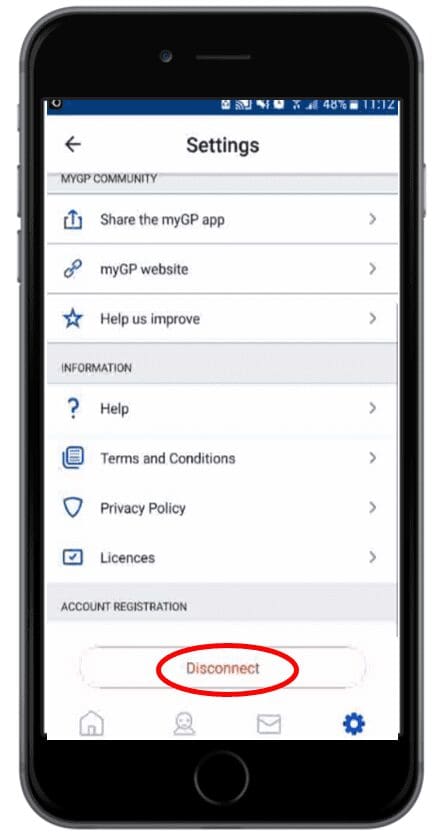
- Select Disconnect
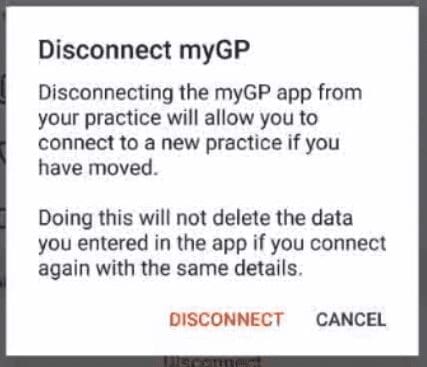
- They will be prompted by a pop-up, they will need to select Disconnect
- The app will then re-route them to Onboard onto the app once again.
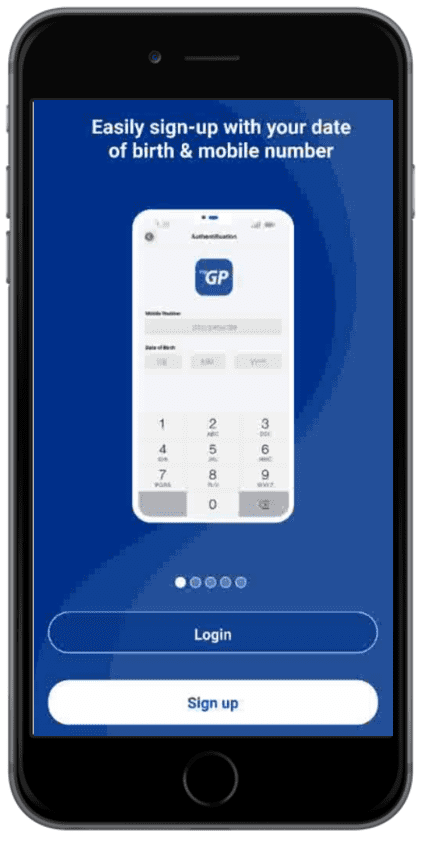
- nce completed, they will be re-connected to the app and with the clinical system update synched.
TOP TIP: It is recommended for the best user experience to use the NHS Login to onboard the myGP app
Additional information:
© 2026 iPLATO. All rights reserved