

What is the Summary page in the Home tab?
January 7, 2021
The Patient Import functionality allows users to seamlessly add multiple patient records to the system using a CSV file.
Steps:
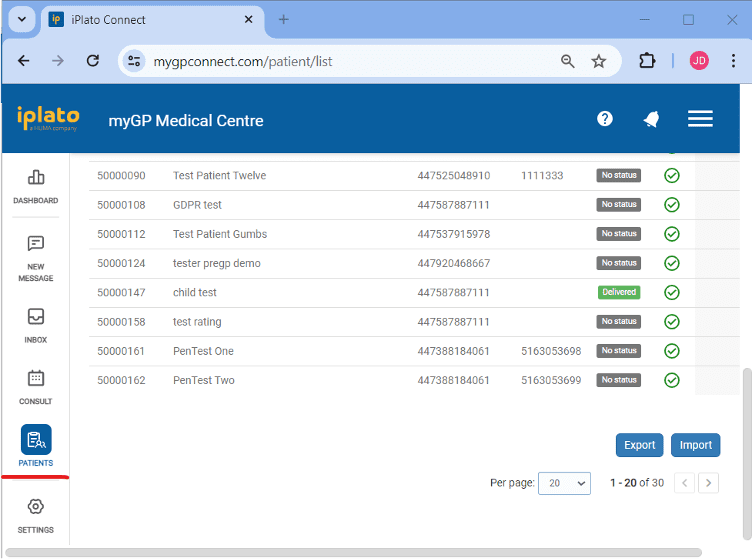
- Navigate to Patient List:
– Go to the Patient List page.
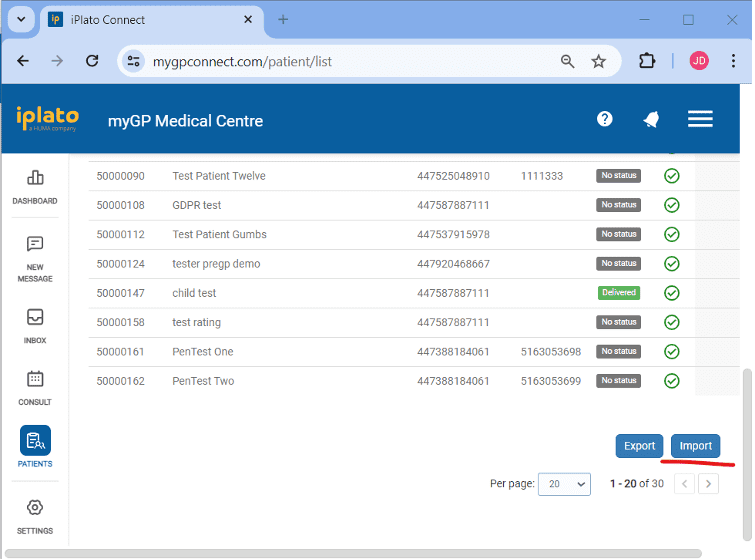
- Initiate Import Process:
– Click on the “Import” button.
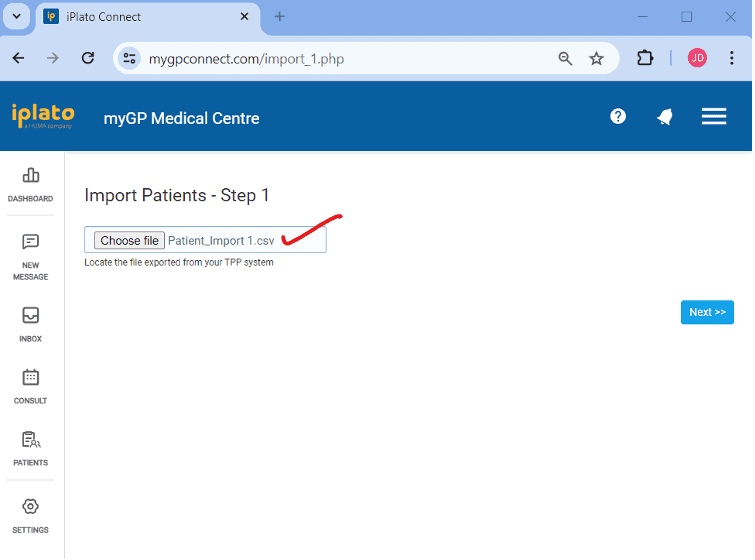
- Upload Patient Data:
– Upload the patient data CSV file and click the “Next” button.
– You can export this file from the TPP system or use the provided reference file and update the patient data accordingly.
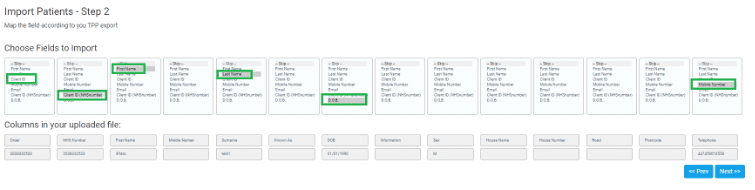
- Map Fields:
– Map the fields according to the data in your CSV file and click “Next.”
- Check for Errors:
– Review any errors that appear in the next steps and click “Next.”
– The allowed formats for Date of Birth are (01/01/1990) and for Mobile Number (447XXXXXXXX), so please ignore errors related to these formats and continue.

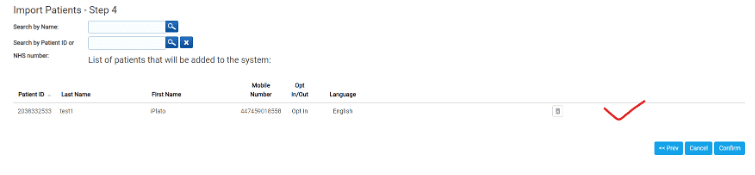
- Review Patient List:
– Verify the list of patients that will be added to the system before clicking the “Confirm” button
- Confirm and Verify:
– Once confirmed, return to the Patient List to ensure the patients have been successfully added

Note: Please use this reference CSV file and change the patient data as per your records. Make sure the data is in text format in the CSV file. Also, go through the recorded video for more information.
iPlato-Instructions_Import-Patient.csv
Please contact help@iplato.com if you encounter any problems.


© 2026 iPLATO. All rights reserved
Practice Area
What is the Summary page in the Home tab?
January 7, 2021
The Patient Import functionality allows users to seamlessly add multiple patient records to the system using a CSV file.
Steps:
- Navigate to Patient List:
– Go to the Patient List page.
- Initiate Import Process:
– Click on the “Import” button.
- Upload Patient Data:
– Upload the patient data CSV file and click the “Next” button.
– You can export this file from the TPP system or use the provided reference file and update the patient data accordingly.
- Map Fields:
– Map the fields according to the data in your CSV file and click “Next.”
- Check for Errors:
– Review any errors that appear in the next steps and click “Next.”
– The allowed formats for Date of Birth are (01/01/1990) and for Mobile Number (447XXXXXXXX), so please ignore errors related to these formats and continue.
- Review Patient List:
– Verify the list of patients that will be added to the system before clicking the “Confirm” button
- Confirm and Verify:
– Once confirmed, return to the Patient List to ensure the patients have been successfully added
Note: Please use this reference CSV file and change the patient data as per your records. Make sure the data is in text format in the CSV file. Also, go through the recorded video for more information.
iPlato-Instructions_Import-Patient.csv
Please contact help@iplato.com if you encounter any problems.
© 2026 iPLATO. All rights reserved
What is the Summary page in the Home tab?
January 7, 2021
The Summary page is the first page you will be defaulted to after logging in to your myGP Connect system.
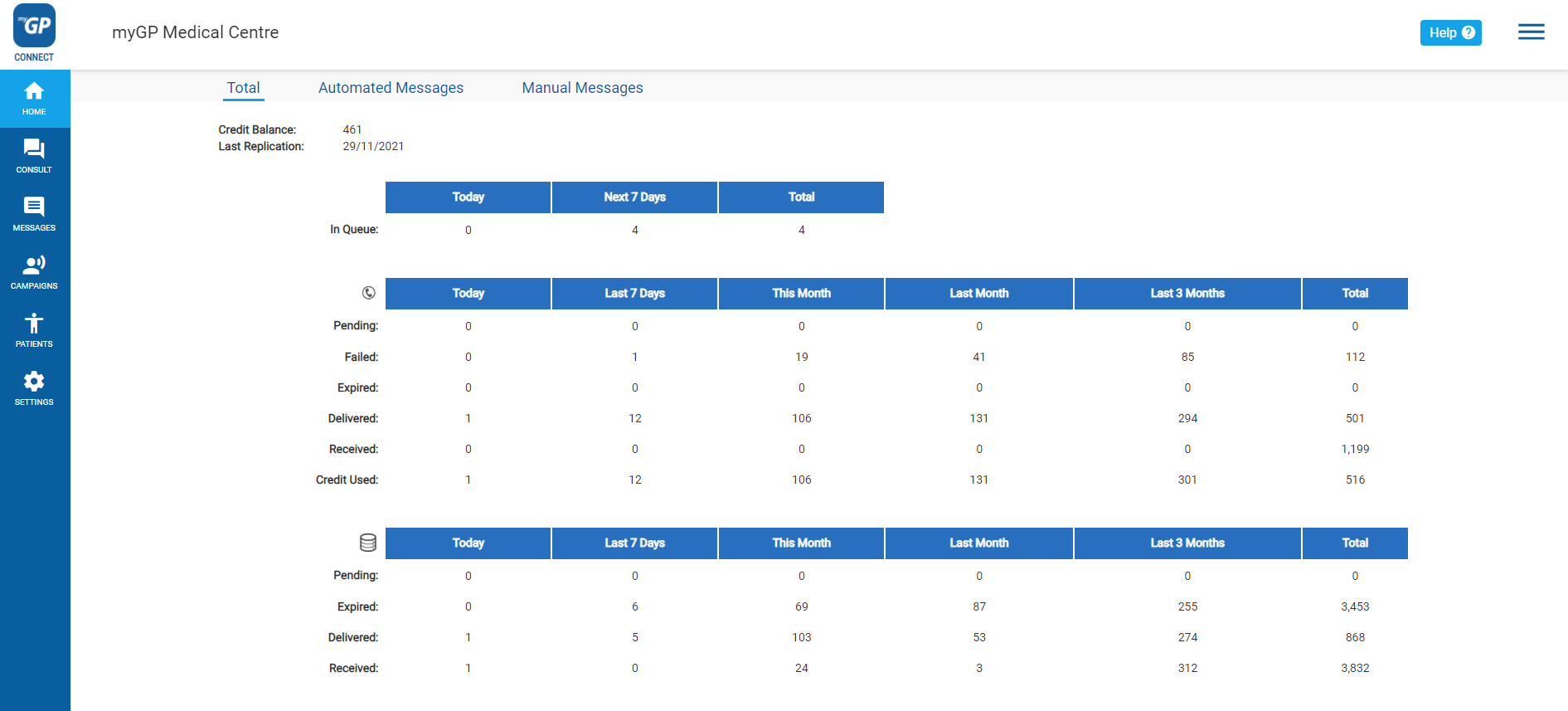
Here is a breakdown of what each element means:
- Credit Balance: your current amount of credits to send out SMS texts
- Last Replication: the last date that your clinical system and myGP Connect synched
- In Queue: any message in Outbox that have been generated and are awaiting to be sent out
The column represented by the Telephone Receiver icon, displays any traffic from you regular SMS texts:
- Pending: any messages that are in process of being sent
- Failed: any messages that been cancelled due to the receivers contact number not being valid
- Expired: any messages that have been cancelled due to the receivers phone being switched off for over 72 hours
- Delivered: any messages that have been successfully delivered
- Received: any messages that your practice have received from a message reply
- Credits Used: a breakdown of how many credits have been used
The column represented by the Coin Pile, displays any traffic from your Data Messages:
- Pending: any messages that are in process of being sent
- Expired: any messages that have been cancelled due to the receivers phone being switched off for over 72 hours
- Delivered: any messages that have been successfully delivered
- Received: any messages that your practice have received from a message reply
© 2026 iPLATO. All rights reserved