

What is Multi-Factor Authentication or MFA?
February 13, 2023
The Patient Import functionality allows users to seamlessly add multiple patient records to the system using a CSV file.
Steps:
- Navigate to Patient List:
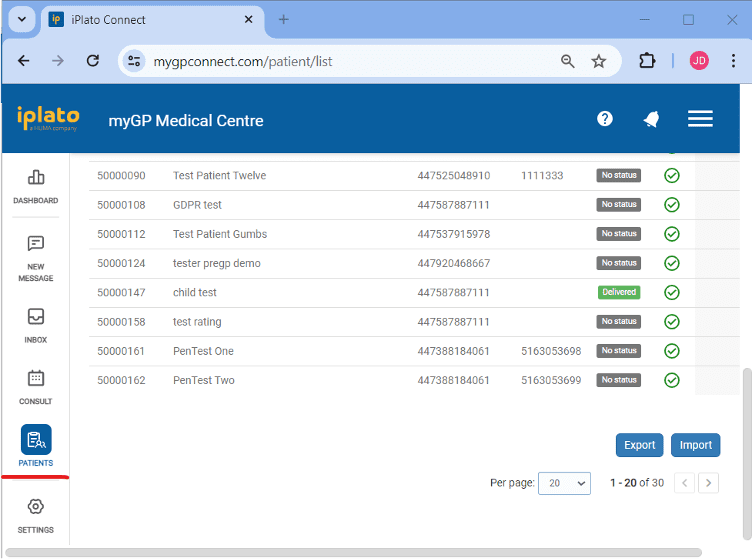
– Go to the Patient List page.
- Initiate Import Process:
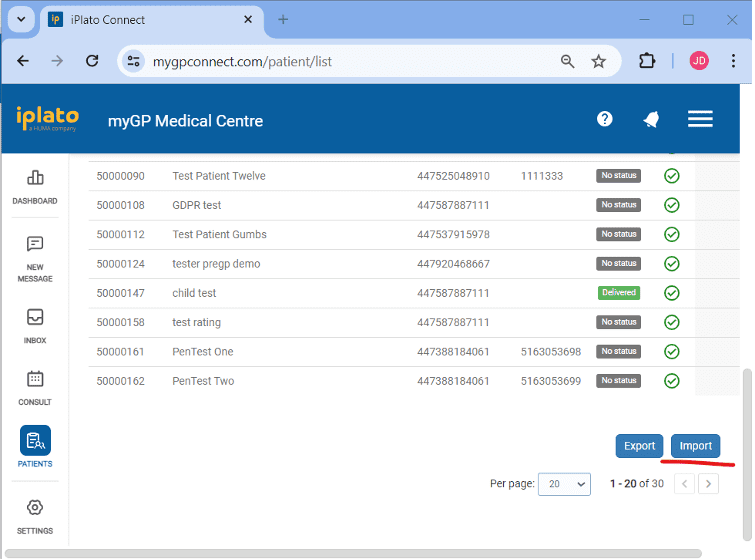
– Click on the “Import” button.
- Upload Patient Data:
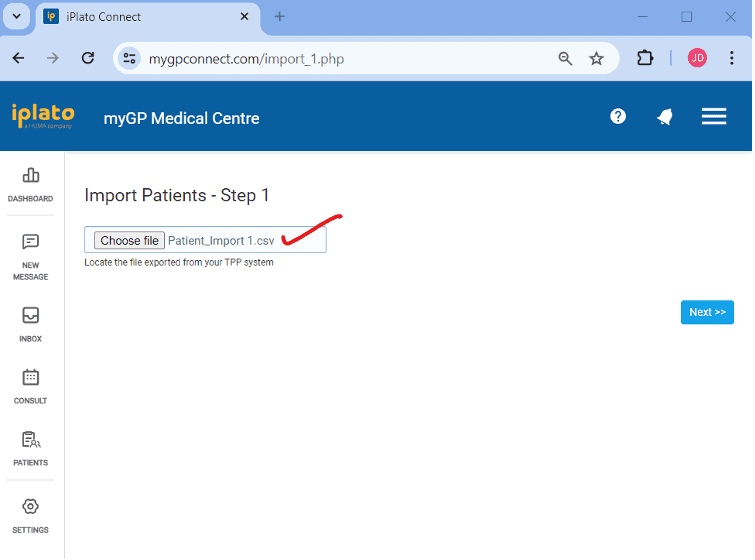
– Upload the patient data CSV file and click the “Next” button.
– You can export this file from the TPP system or use the provided reference file and update the patient data accordingly.
- Map Fields:
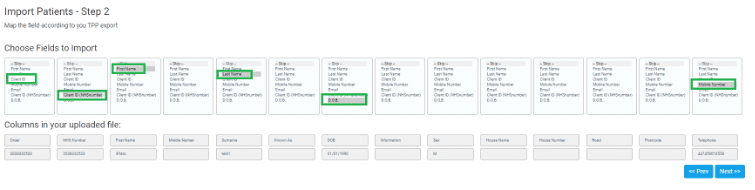
– Map the fields according to the data in your CSV file and click “Next.”
- Check for Errors:
– Review any errors that appear in the next steps and click “Next.”
– The allowed formats for Date of Birth are (01/01/1990) and for Mobile Number (447XXXXXXXX), so please ignore errors related to these formats and continue.

- Review Patient List:
– Verify the list of patients that will be added to the system before clicking the “Confirm” button
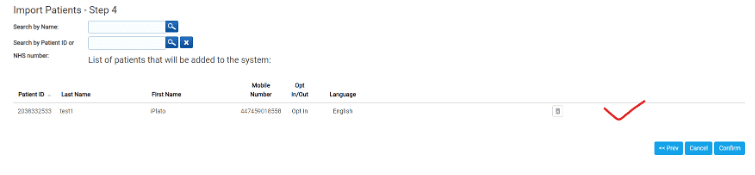
- Confirm and Verify:
– Once confirmed, return to the Patient List to ensure the patients have been successfully added

Note: Please use this reference CSV file and change the patient data as per your records. Make sure the data is in text format in the CSV file. Also, go through the recorded video for more information.
iPlato-Instructions_Import-Patient.csv
Please contact help@iplato.com if you encounter any problems.


© 2026 iPLATO. All rights reserved
Practice Area
What is Multi-Factor Authentication or MFA?
February 13, 2023
The Patient Import functionality allows users to seamlessly add multiple patient records to the system using a CSV file.
Steps:
- Navigate to Patient List:
– Go to the Patient List page.
- Initiate Import Process:
– Click on the “Import” button.
- Upload Patient Data:
– Upload the patient data CSV file and click the “Next” button.
– You can export this file from the TPP system or use the provided reference file and update the patient data accordingly.
- Map Fields:
– Map the fields according to the data in your CSV file and click “Next.”
- Check for Errors:
– Review any errors that appear in the next steps and click “Next.”
– The allowed formats for Date of Birth are (01/01/1990) and for Mobile Number (447XXXXXXXX), so please ignore errors related to these formats and continue.
- Review Patient List:
– Verify the list of patients that will be added to the system before clicking the “Confirm” button
- Confirm and Verify:
– Once confirmed, return to the Patient List to ensure the patients have been successfully added
Note: Please use this reference CSV file and change the patient data as per your records. Make sure the data is in text format in the CSV file. Also, go through the recorded video for more information.
iPlato-Instructions_Import-Patient.csv
Please contact help@iplato.com if you encounter any problems.
© 2026 iPLATO. All rights reserved
What is Multi-Factor Authentication or MFA?
February 13, 2023
MFA stands for Multi-Factor Authentication, also known as Two-Factor Authentication. This provides an additional layer of security to the login process with iPLATO. It ensures you are who you say you are and protects sensitive data from cyber-attacks.
What does this mean to me?
When signing into an existing account, you will be asked to set up MFA to verify your identity. Once completed, you can choose to save your device, so you will not have to repeat this for 90 days.
How do I set up MFA?
When you log in, you’ll be given the option to verify your identity by SMS or email (SMS is preferred). A six-digit code will then be sent to you on the mobile number or email address we hold on file. Enter this six-digit code into myGP Connect to complete the MFA process. You can then continue as normal.
Logging in with MFA for the first time
- Go to www.mygpconnect.com
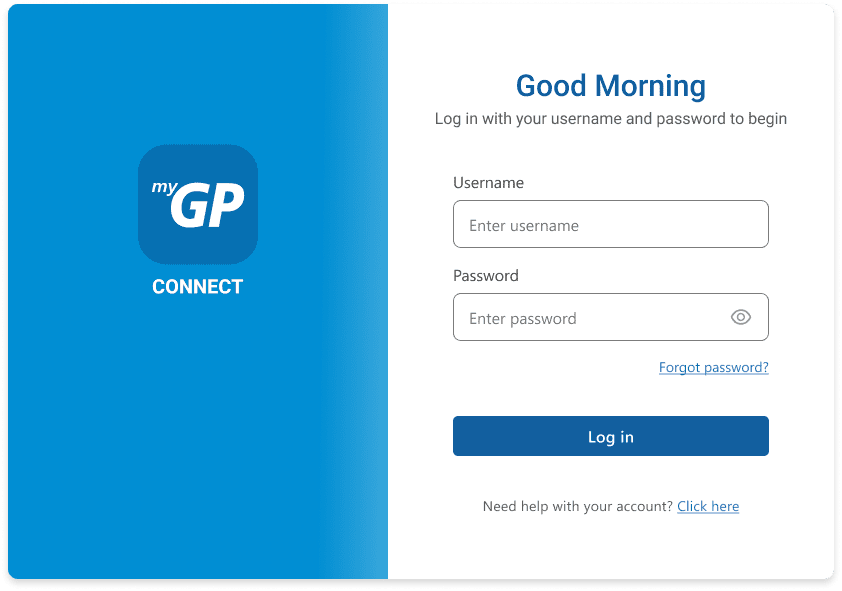
- Enter your Username and Password
- Click Login
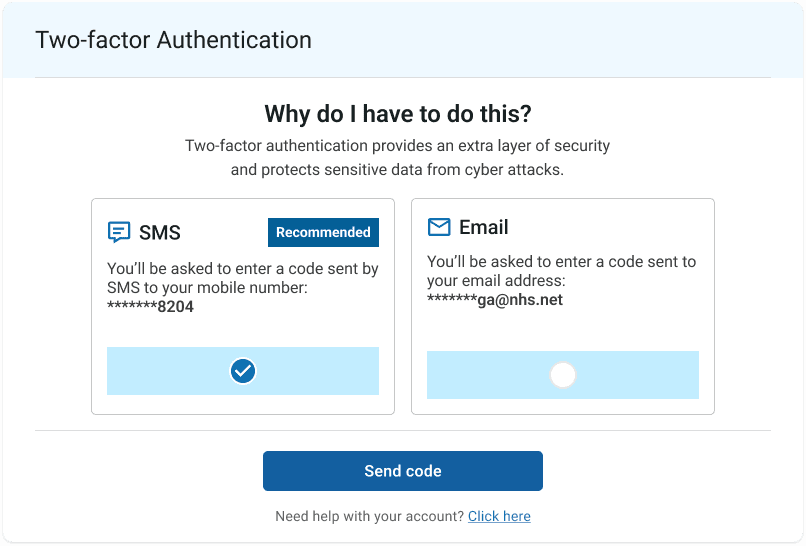
- You will be asked to select either SMS or email to receive a 6-digit authentication code (If you do not have a mobile number on your user profile you will not be given the option to use SMS)

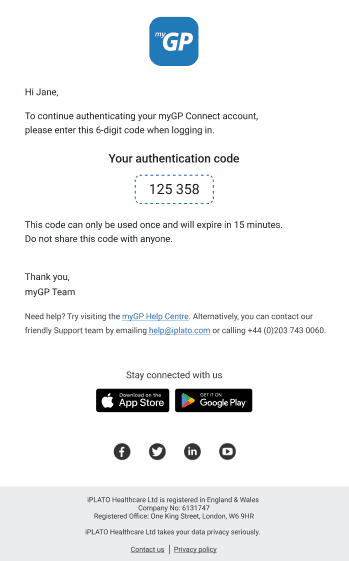
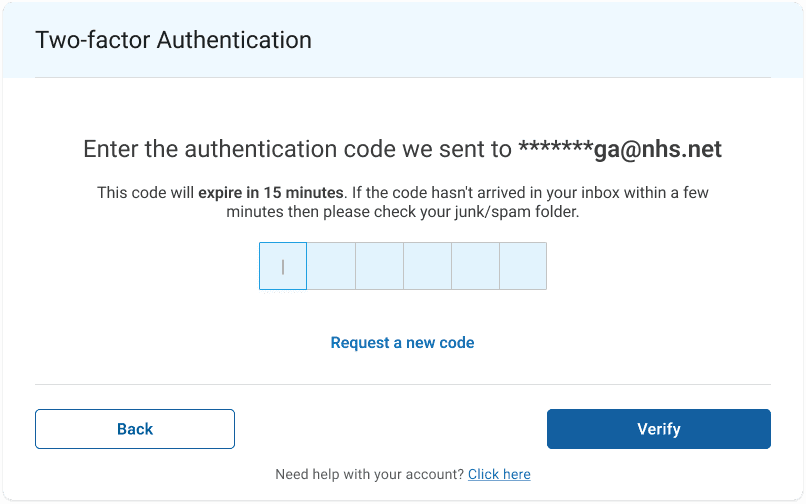
- Once entered you will have completed your MFA 2-Step authentication
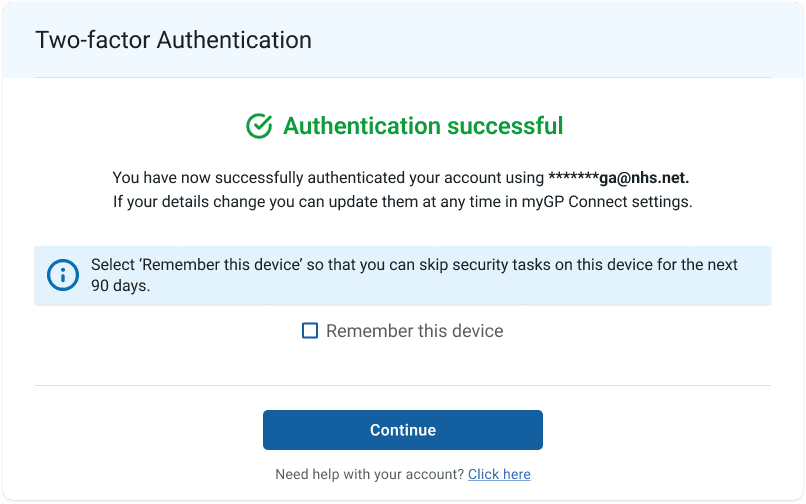
- To save time when you next log in, click REMEMBER THIS DEVICE
When will I need to do MFA again?
As long as you clicked REMEMBER THIS DEVICE, you will not have to complete MFA for 90 days.
You may have to do MFA sooner if:
- You change the computer you are working from
- You change the browser you are using to log into the myGP Connect system
- You log into a different myGP Connect account if you also work at a different site
For more information on why MFA is important to the NHS, please visit the NHS webpage on this.
© 2026 iPLATO. All rights reserved