

/
iPLATO Toolbar and Remote Consultation/
Technical requirements – remote consultation toolbar
Managing Templates
November 8, 2021
This article describes the technical requirements for the myGP desktop app.
Windows administrator rights
Windows Administrator rights are not explicitly required to install the myGP toolbar client. A regular user should be able to install on their own.
If all installation of applications are blocked for non-administrator users, local IT Support team will be required to provide assistance during installation or will need to whitelist the myGP toolbar application
Installation and folder read/write access
myGP Buddy uses the OneClick install solution from Microsoft. If you require an enterprise level installation solution, please contact myGP Support to discuss this.
Read/write access is required to these folders:
C:UsersUsername
C:UsersUsernameAppDataLocalApps2.0
C:UsersUsernameAppDataLocal
Where access to the above folders are blocked, myGP toolbar may be able to install, but would not be permitted to function.
Anti-virus
myGP Buddy could get blocked by anti-virus software. We advise that myGP is whitelisted on any CCG/CSU managed anti-virus solutions.
We work with the major anti-virus suppliers to verify the myGP toolbar application, which should reduce anti-virus software from blocking or generating errors when myGP Buddy is run.
Firewall requirements
Port 443 (HTTPS) is open
No restrictions to the address:
https://buddyapi.iplato.net/
Whitelist access to the following IP addresses:
- 212.237.215.25
- 3.8.158.27
Firewall solutions should not block the myGP Buddy application.
Proxy settings
Ensure any proxy that is in use permits access to the following domains:
- mygp.com
- iplato.net
Minimum PC requirements
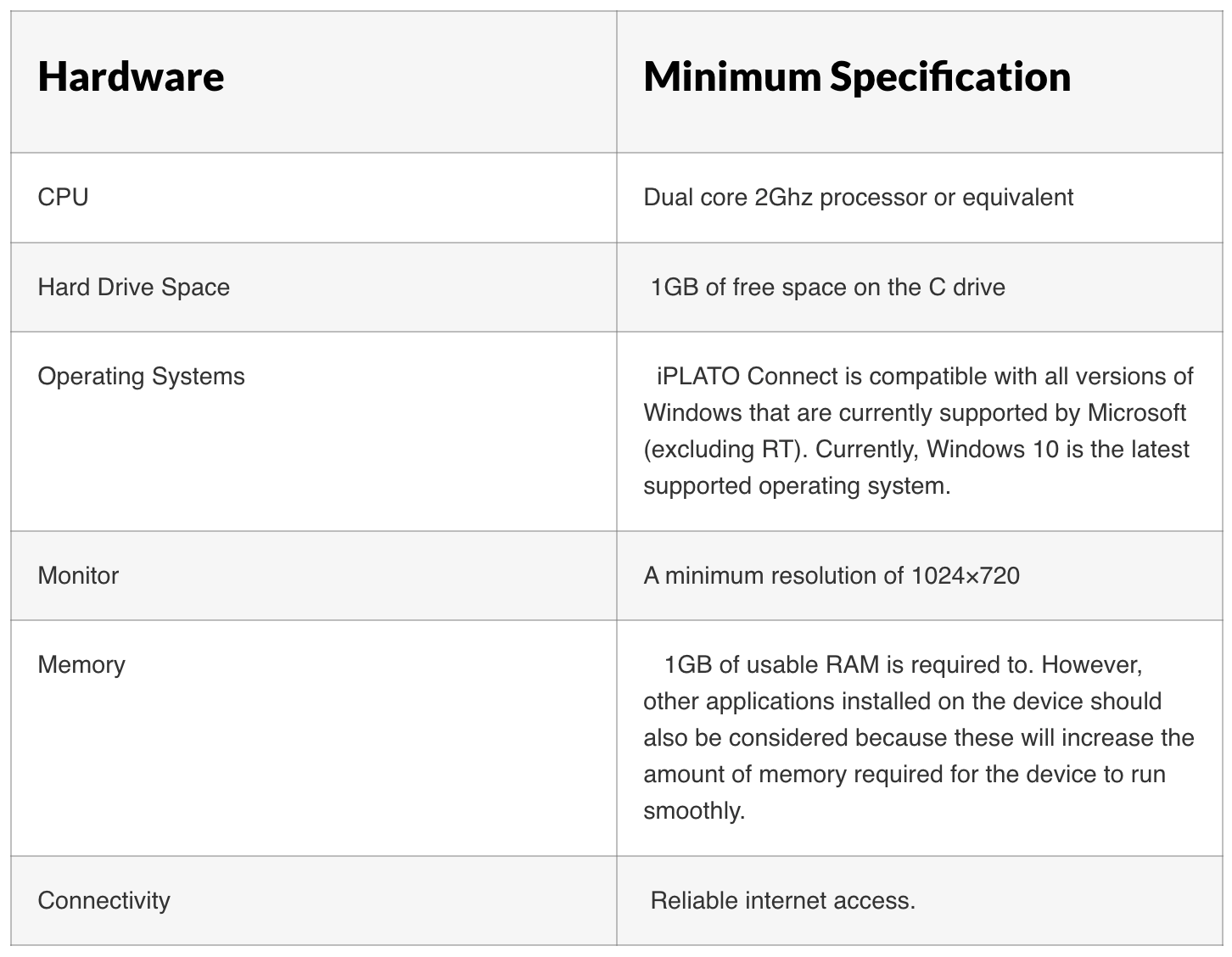
Compatible clinical systems
myGP is compatible with the following clinical systems:
- EMIS Web
- SystmOne
Video consultations
To ensure the smooth running of the video consultation functionality, ensure that the below technical requirements have been met:


© 2026 iPLATO. All rights reserved
Practice Area
/
iPLATO Toolbar and Remote Consultation/
Technical requirements – remote consultation toolbar
Managing Templates
November 8, 2021
This article describes the technical requirements for the myGP desktop app.
Windows administrator rights
Windows Administrator rights are not explicitly required to install the myGP toolbar client. A regular user should be able to install on their own.
If all installation of applications are blocked for non-administrator users, local IT Support team will be required to provide assistance during installation or will need to whitelist the myGP toolbar application
Installation and folder read/write access
myGP Buddy uses the OneClick install solution from Microsoft. If you require an enterprise level installation solution, please contact myGP Support to discuss this.
Read/write access is required to these folders:
C:UsersUsername
C:UsersUsernameAppDataLocalApps2.0
C:UsersUsernameAppDataLocal
Where access to the above folders are blocked, myGP toolbar may be able to install, but would not be permitted to function.
Anti-virus
myGP Buddy could get blocked by anti-virus software. We advise that myGP is whitelisted on any CCG/CSU managed anti-virus solutions.
We work with the major anti-virus suppliers to verify the myGP toolbar application, which should reduce anti-virus software from blocking or generating errors when myGP Buddy is run.
Firewall requirements
Port 443 (HTTPS) is open
No restrictions to the address:
https://buddyapi.iplato.net/
Whitelist access to the following IP addresses:
- 212.237.215.25
- 3.8.158.27
Firewall solutions should not block the myGP Buddy application.
Proxy settings
Ensure any proxy that is in use permits access to the following domains:
- mygp.com
- iplato.net
Minimum PC requirements
Compatible clinical systems
myGP is compatible with the following clinical systems:
- EMIS Web
- SystmOne
Video consultations
To ensure the smooth running of the video consultation functionality, ensure that the below technical requirements have been met:
© 2026 iPLATO. All rights reserved
Managing Templates
November 8, 2021
With the iPLATO Toolbar you will have several options available when using Templates.
To access your Templates:
- Click on the ip icon on your Toolbar
- Select Templates
- This will bring you to the Templates section:
Here you have the following options:
Within Current Templates
- My Templates: templates you made and only you can see
- Team Templates: templates made available to every user
- Questionnaires: pre-defined templates made by iPLATO
- + New Template: making a new template
Within + New Template:
- Title: give your new template a title
- Category: select a category for your new template, either select an existing one from the drop down or type one and it will be saved as a new category when you save the template
- Message: type i the box you new message template, you can use pre set tags for the patients first name by clicking on <>
- Allow responses: by ticking this option, you give the patient the option to respond by default whenever you use this template
- Add an additional code (Optional): add an additional read code if needed
- Cancel: cancel the current new template
- Save Template: save the new template
© 2026 iPLATO. All rights reserved