

/
iPLATO Toolbar and Remote Consultation/
Technical requirements – remote consultation toolbar
Making a Video Call
April 12, 2022
This article describes the technical requirements for the myGP desktop app.
Windows administrator rights
Windows Administrator rights are not explicitly required to install the myGP toolbar client. A regular user should be able to install on their own.
If all installation of applications are blocked for non-administrator users, local IT Support team will be required to provide assistance during installation or will need to whitelist the myGP toolbar application
Installation and folder read/write access
myGP Buddy uses the OneClick install solution from Microsoft. If you require an enterprise level installation solution, please contact myGP Support to discuss this.
Read/write access is required to these folders:
C:UsersUsername
C:UsersUsernameAppDataLocalApps2.0
C:UsersUsernameAppDataLocal
Where access to the above folders are blocked, myGP toolbar may be able to install, but would not be permitted to function.
Anti-virus
myGP Buddy could get blocked by anti-virus software. We advise that myGP is whitelisted on any CCG/CSU managed anti-virus solutions.
We work with the major anti-virus suppliers to verify the myGP toolbar application, which should reduce anti-virus software from blocking or generating errors when myGP Buddy is run.
Firewall requirements
Port 443 (HTTPS) is open
No restrictions to the address:
https://buddyapi.iplato.net/
Whitelist access to the following IP addresses:
- 212.237.215.25
- 3.8.158.27
Firewall solutions should not block the myGP Buddy application.
Proxy settings
Ensure any proxy that is in use permits access to the following domains:
- mygp.com
- iplato.net
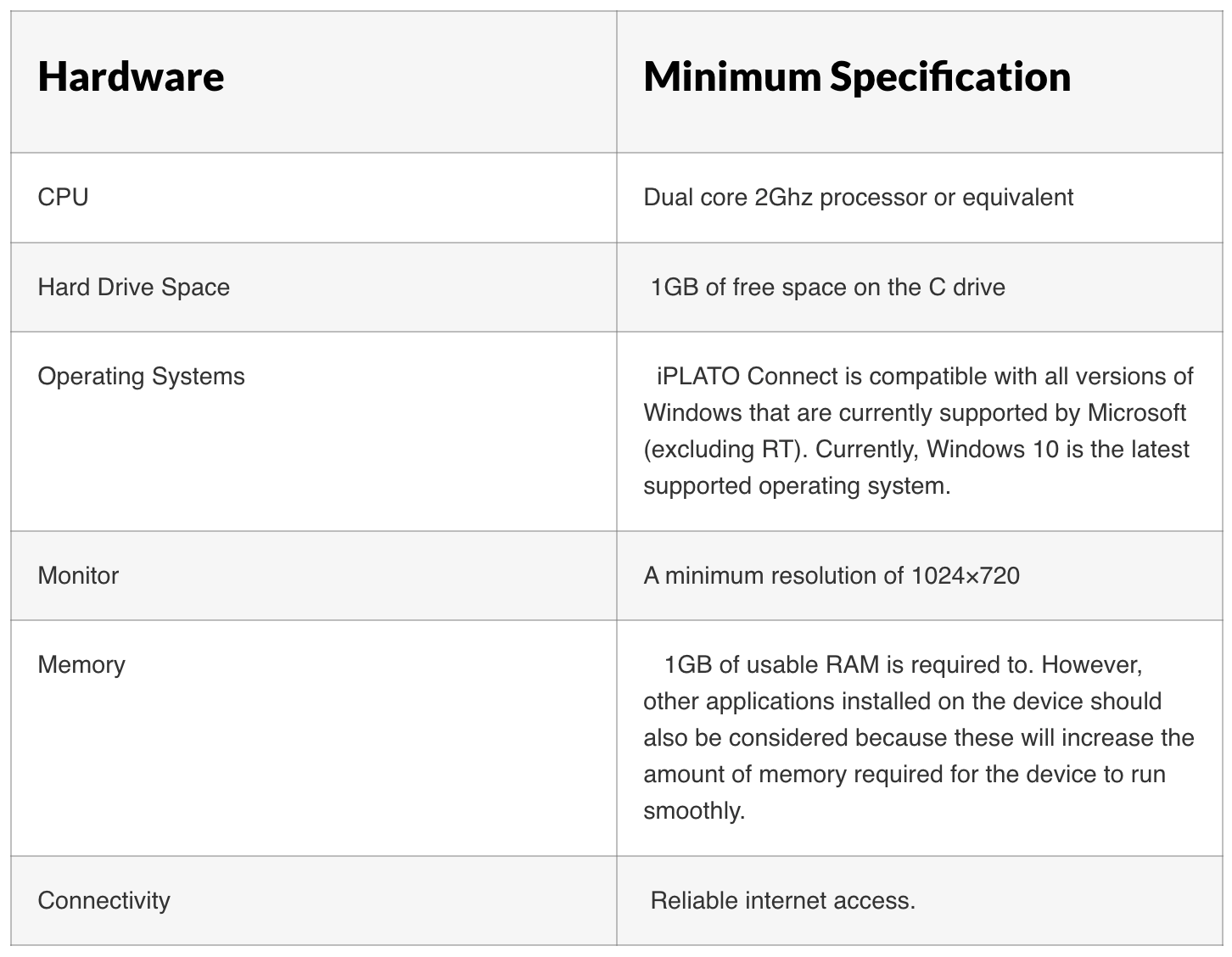
Minimum PC requirements
Compatible clinical systems
myGP is compatible with the following clinical systems:
- EMIS Web
- SystmOne
Video consultations
To ensure the smooth running of the video consultation functionality, ensure that the below technical requirements have been met:


© 2026 iPLATO. All rights reserved
Practice Area
/
iPLATO Toolbar and Remote Consultation/
Technical requirements – remote consultation toolbar
Making a Video Call
April 12, 2022
This article describes the technical requirements for the myGP desktop app.
Windows administrator rights
Windows Administrator rights are not explicitly required to install the myGP toolbar client. A regular user should be able to install on their own.
If all installation of applications are blocked for non-administrator users, local IT Support team will be required to provide assistance during installation or will need to whitelist the myGP toolbar application
Installation and folder read/write access
myGP Buddy uses the OneClick install solution from Microsoft. If you require an enterprise level installation solution, please contact myGP Support to discuss this.
Read/write access is required to these folders:
C:UsersUsername
C:UsersUsernameAppDataLocalApps2.0
C:UsersUsernameAppDataLocal
Where access to the above folders are blocked, myGP toolbar may be able to install, but would not be permitted to function.
Anti-virus
myGP Buddy could get blocked by anti-virus software. We advise that myGP is whitelisted on any CCG/CSU managed anti-virus solutions.
We work with the major anti-virus suppliers to verify the myGP toolbar application, which should reduce anti-virus software from blocking or generating errors when myGP Buddy is run.
Firewall requirements
Port 443 (HTTPS) is open
No restrictions to the address:
https://buddyapi.iplato.net/
Whitelist access to the following IP addresses:
- 212.237.215.25
- 3.8.158.27
Firewall solutions should not block the myGP Buddy application.
Proxy settings
Ensure any proxy that is in use permits access to the following domains:
- mygp.com
- iplato.net
Minimum PC requirements
Compatible clinical systems
myGP is compatible with the following clinical systems:
- EMIS Web
- SystmOne
Video consultations
To ensure the smooth running of the video consultation functionality, ensure that the below technical requirements have been met:
© 2026 iPLATO. All rights reserved
Making a Video Call
April 12, 2022
This article describes how to call a patient with video consultations using iPLATO Toolbar.
Requirements
- You will need to have the User Permission of Clinician or All Access
- A webcam and echo-reducing microphone/headset plugged in
- The technical requirements for Remote Consultation have been met
Select the patient
- Make sure the patient is selected in your clinical system, you can navigate to the Consultation screen if you wish.
- The patient will be automatically synced into iPLATO Toolbar.
- Learn more about selecting patients here.
Consent status
As video calls need to send the patient an SMS invite to the call, it is important to understand the different consent statuses.
No SMS consent
- No SMS consent means that the patient has not consented to receiving SMS messages
- You will be provided a warning of this, but you can still send the message if the patient has given you permission to send them a message
- If the patient does not give you permission, we recommend falling back to a telephone consultation
Sending Invitation Link
In advance of the video call, you will need to invite the patient to the browser based call room.
- Click on Camera Icon
- Click ‘Create a Video Consultation’ and send the patient an invitation
The message will be sent to the selected patient’s mobile phone.
The invitation will be confirmed as sent, from here the practice has the option to either Join the Call or Copy Link for the video invitation.
Starting a video call
Click on ‘Join the call’ to enter the video consultation room.
Options available during the call
During a video call, there are a number of options available to clinicians:
- Cam button gives you the following options;
The ability to switch camera if more than one is available
Background effects
Disable videos
Video settings
Turn camera on or off
- Mic button gives you the following options;
The ability to switch microphones if more than one is available
The ability to switch between different sound output if available
Noise reduction
Audio settings
Mute/unmute microphone
- Share button – share screen with patient
- Record – ability to start or retrieve recording.
- Chat button – additional text chat option
- People button – monitor attendees
Leave button – end the video call participation
The patient will have similar options available to them.
Trouble connecting the call or bad quality
If you are having trouble getting the video call to connect, or if the call starts but you experience poor video and audio quality that does not improve, it is best practice to roll-back to a telephone consultation with the patient.
This will save time trying to diagnose what is wrong. Focus on treating the patient over fixing the technology live on the patient’s call.
iPLATO Toolbar Remote Consultation is built on the leading video call platform for clinical consultations. The majority of problems experienced will relate to the patient’s phone/device, internet connection, or a network issue on the practice or patient side.
Check our service status to see if we are aware of a problem.
I have a problem
If we have not been able to answer your question, or you think your video calls are not working within iPLATO Toolbar, contact our Support team to help you.
© 2026 iPLATO. All rights reserved