

/
iPLATO Toolbar and Remote Consultation/
Technical requirements – remote consultation toolbar
How to troubleshoot common issues
November 8, 2021
This article describes the technical requirements for the myGP desktop app.
Windows administrator rights
Windows Administrator rights are not explicitly required to install the myGP toolbar client. A regular user should be able to install on their own.
If all installation of applications are blocked for non-administrator users, local IT Support team will be required to provide assistance during installation or will need to whitelist the myGP toolbar application
Installation and folder read/write access
myGP Buddy uses the OneClick install solution from Microsoft. If you require an enterprise level installation solution, please contact myGP Support to discuss this.
Read/write access is required to these folders:
C:UsersUsername
C:UsersUsernameAppDataLocalApps2.0
C:UsersUsernameAppDataLocal
Where access to the above folders are blocked, myGP toolbar may be able to install, but would not be permitted to function.
Anti-virus
myGP Buddy could get blocked by anti-virus software. We advise that myGP is whitelisted on any CCG/CSU managed anti-virus solutions.
We work with the major anti-virus suppliers to verify the myGP toolbar application, which should reduce anti-virus software from blocking or generating errors when myGP Buddy is run.
Firewall requirements
Port 443 (HTTPS) is open
No restrictions to the address:
https://buddyapi.iplato.net/
Whitelist access to the following IP addresses:
- 212.237.215.25
- 3.8.158.27
Firewall solutions should not block the myGP Buddy application.
Proxy settings
Ensure any proxy that is in use permits access to the following domains:
- mygp.com
- iplato.net
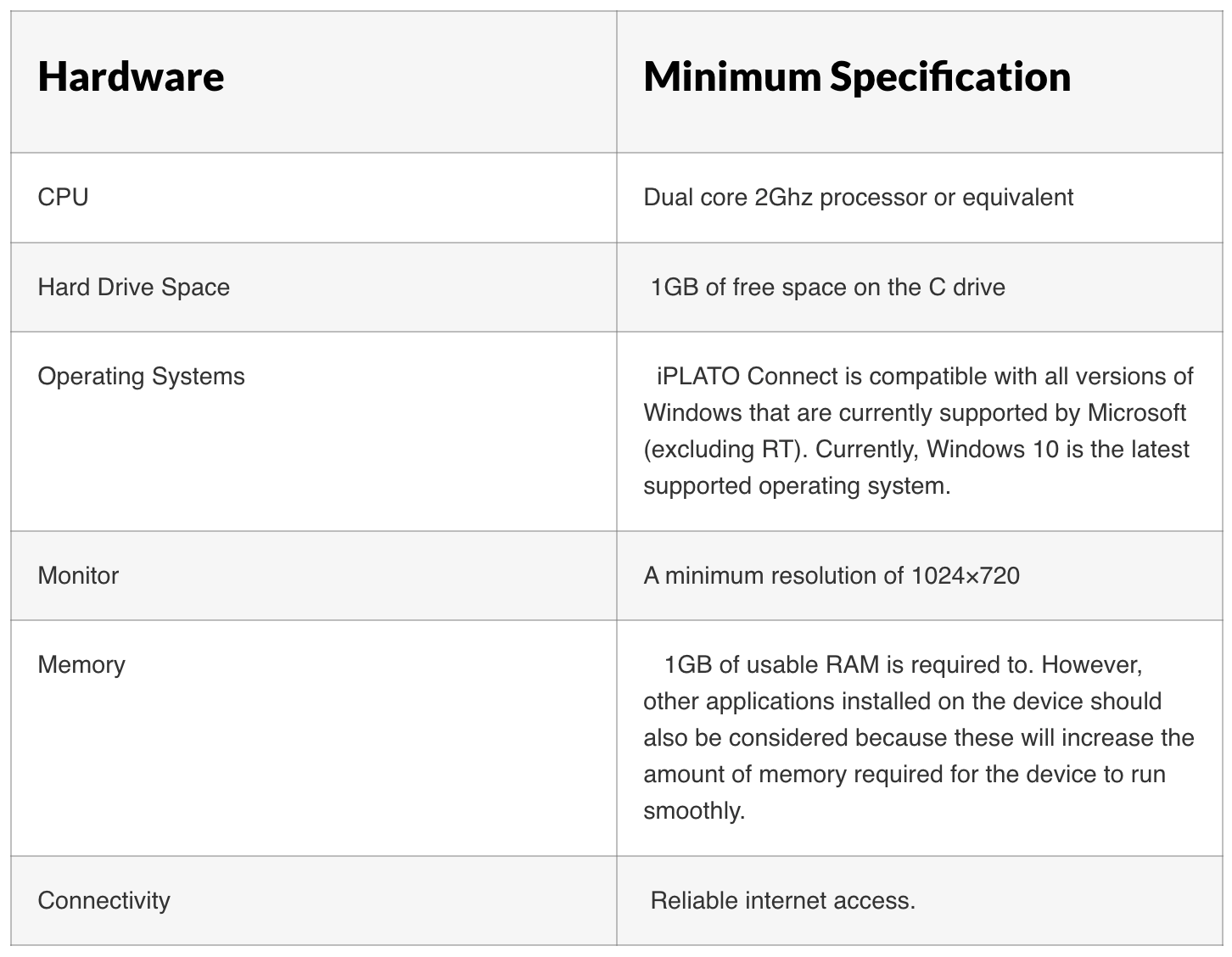
Minimum PC requirements
Compatible clinical systems
myGP is compatible with the following clinical systems:
- EMIS Web
- SystmOne
Video consultations
To ensure the smooth running of the video consultation functionality, ensure that the below technical requirements have been met:


© 2026 iPLATO. All rights reserved
Practice Area
/
iPLATO Toolbar and Remote Consultation/
Technical requirements – remote consultation toolbar
How to troubleshoot common issues
November 8, 2021
This article describes the technical requirements for the myGP desktop app.
Windows administrator rights
Windows Administrator rights are not explicitly required to install the myGP toolbar client. A regular user should be able to install on their own.
If all installation of applications are blocked for non-administrator users, local IT Support team will be required to provide assistance during installation or will need to whitelist the myGP toolbar application
Installation and folder read/write access
myGP Buddy uses the OneClick install solution from Microsoft. If you require an enterprise level installation solution, please contact myGP Support to discuss this.
Read/write access is required to these folders:
C:UsersUsername
C:UsersUsernameAppDataLocalApps2.0
C:UsersUsernameAppDataLocal
Where access to the above folders are blocked, myGP toolbar may be able to install, but would not be permitted to function.
Anti-virus
myGP Buddy could get blocked by anti-virus software. We advise that myGP is whitelisted on any CCG/CSU managed anti-virus solutions.
We work with the major anti-virus suppliers to verify the myGP toolbar application, which should reduce anti-virus software from blocking or generating errors when myGP Buddy is run.
Firewall requirements
Port 443 (HTTPS) is open
No restrictions to the address:
https://buddyapi.iplato.net/
Whitelist access to the following IP addresses:
- 212.237.215.25
- 3.8.158.27
Firewall solutions should not block the myGP Buddy application.
Proxy settings
Ensure any proxy that is in use permits access to the following domains:
- mygp.com
- iplato.net
Minimum PC requirements
Compatible clinical systems
myGP is compatible with the following clinical systems:
- EMIS Web
- SystmOne
Video consultations
To ensure the smooth running of the video consultation functionality, ensure that the below technical requirements have been met:
© 2026 iPLATO. All rights reserved
How to troubleshoot common issues
November 8, 2021
his article covers how to troubleshoot some common issues you might face with iPLATO Toolbar.
iPLATO Toolbar not loading a patient
On the first use of the iPLATO toolbar on a new PC terminal, you will need to accept a pop-up or yellow notification banner. This will allow the Toolbar to integrate with the clinical system client running on your terminal.
If the Toolbar is not able to select a patient, this is one of the most common reasons why.
If you have accepted this permission, close the Toolbar and open it again to make sure that it is able to re-establish a connection to the clinical system client.
Video calls dropping, or have low quality
Video calls within iPLATO are built on the leading video consultation platform in the industry – specially designed for this purpose.
Internet speed and stability
The quality of the video stream portion of the call will decrease in quality, before the audio quality. This is to protect the stability of the call, so you can keep talking.
However, there can be a number of issues that can lead to a video call dropping. This is, more often than not, related to internet speed or signal strength (WiFi and 3G/4G/5G signal).
Surgery speed and technical readiness
If you are concerned that your surgery’s internet speed is too low, or that there is a network issue, you can use this diagnostic tool to check for issues. You can ignore the browser support elements of the test.
Treating a patient if there are video call issues
In line with NHS best-practice, we recommend that if a video call will not work with a particular patient, you should fall-back to a telephone consultation.
The iPLATO Toolbar is not responding
The Toolbar is a very lightweight app, so there should be minimal reasons why it should stop responding.
If you need to force close the Toolbar you can do the following:
- Hold down the CTRL+ALT+Delete keys on your keyboard.
- Select Task Manager
- Right-click and end the iPLATO Toolbar application.
- Close the Task Manager window
- Open the Toolbar again as normal.
- This should clear any issues that are blocking the Toolbar from working.
If you continue to have issues, check out our Service Status page for any known issues.
© 2026 iPLATO. All rights reserved