

/
iPLATO Toolbar and Remote Consultation/
Technical requirements – remote consultation toolbar
Can I use the iPLATO Toolbar from my home PC/Laptop?
July 27, 2022
This article describes the technical requirements for the myGP desktop app.
Windows administrator rights
Windows Administrator rights are not explicitly required to install the myGP toolbar client. A regular user should be able to install on their own.
If all installation of applications are blocked for non-administrator users, local IT Support team will be required to provide assistance during installation or will need to whitelist the myGP toolbar application
Installation and folder read/write access
myGP Buddy uses the OneClick install solution from Microsoft. If you require an enterprise level installation solution, please contact myGP Support to discuss this.
Read/write access is required to these folders:
C:UsersUsername
C:UsersUsernameAppDataLocalApps2.0
C:UsersUsernameAppDataLocal
Where access to the above folders are blocked, myGP toolbar may be able to install, but would not be permitted to function.
Anti-virus
myGP Buddy could get blocked by anti-virus software. We advise that myGP is whitelisted on any CCG/CSU managed anti-virus solutions.
We work with the major anti-virus suppliers to verify the myGP toolbar application, which should reduce anti-virus software from blocking or generating errors when myGP Buddy is run.
Firewall requirements
Port 443 (HTTPS) is open
No restrictions to the address:
https://buddyapi.iplato.net/
Whitelist access to the following IP addresses:
- 212.237.215.25
- 3.8.158.27
Firewall solutions should not block the myGP Buddy application.
Proxy settings
Ensure any proxy that is in use permits access to the following domains:
- mygp.com
- iplato.net
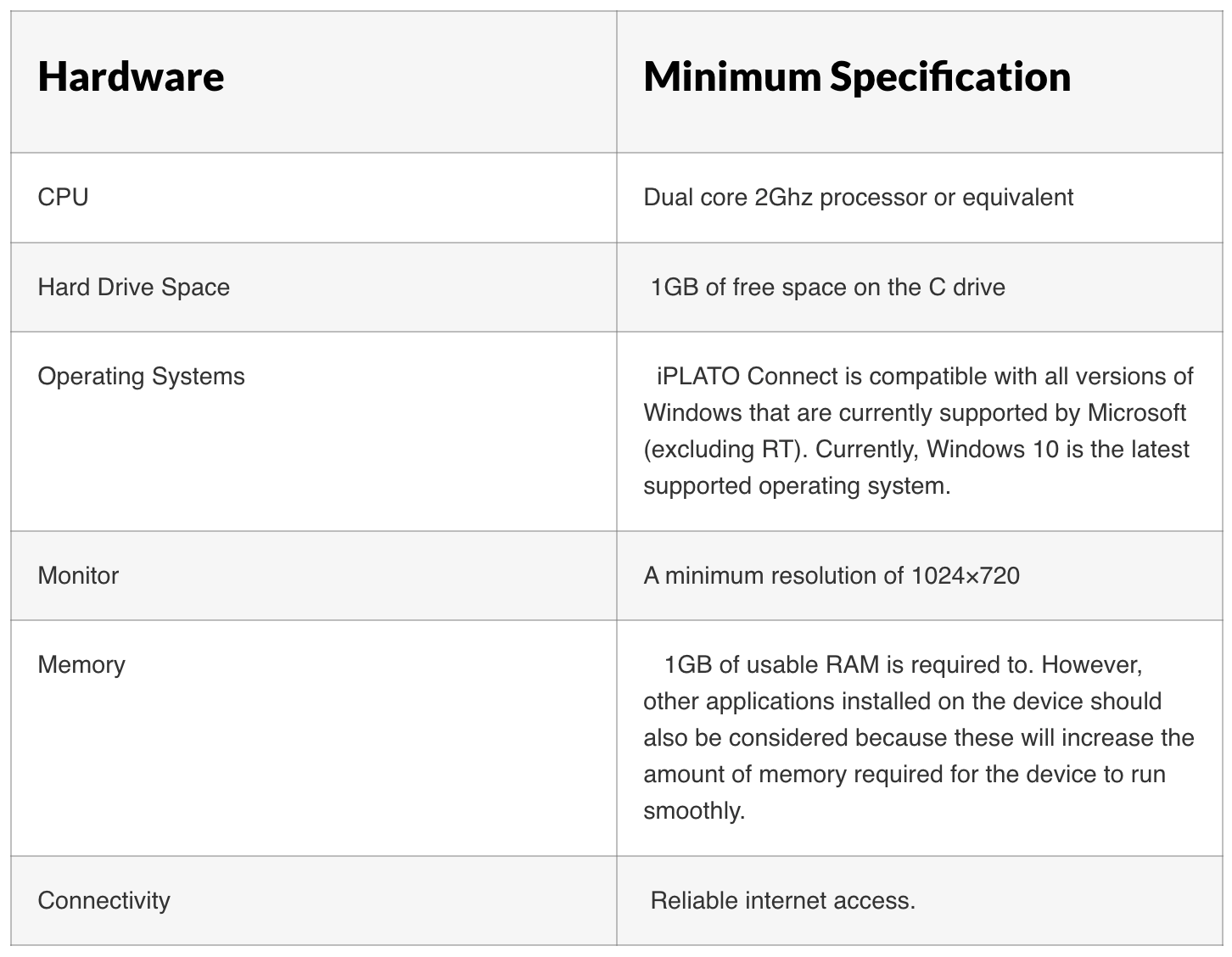
Minimum PC requirements
Compatible clinical systems
myGP is compatible with the following clinical systems:
- EMIS Web
- SystmOne
Video consultations
To ensure the smooth running of the video consultation functionality, ensure that the below technical requirements have been met:


© 2026 iPLATO. All rights reserved
Practice Area
/
iPLATO Toolbar and Remote Consultation/
Technical requirements – remote consultation toolbar
Can I use the iPLATO Toolbar from my home PC/Laptop?
July 27, 2022
This article describes the technical requirements for the myGP desktop app.
Windows administrator rights
Windows Administrator rights are not explicitly required to install the myGP toolbar client. A regular user should be able to install on their own.
If all installation of applications are blocked for non-administrator users, local IT Support team will be required to provide assistance during installation or will need to whitelist the myGP toolbar application
Installation and folder read/write access
myGP Buddy uses the OneClick install solution from Microsoft. If you require an enterprise level installation solution, please contact myGP Support to discuss this.
Read/write access is required to these folders:
C:UsersUsername
C:UsersUsernameAppDataLocalApps2.0
C:UsersUsernameAppDataLocal
Where access to the above folders are blocked, myGP toolbar may be able to install, but would not be permitted to function.
Anti-virus
myGP Buddy could get blocked by anti-virus software. We advise that myGP is whitelisted on any CCG/CSU managed anti-virus solutions.
We work with the major anti-virus suppliers to verify the myGP toolbar application, which should reduce anti-virus software from blocking or generating errors when myGP Buddy is run.
Firewall requirements
Port 443 (HTTPS) is open
No restrictions to the address:
https://buddyapi.iplato.net/
Whitelist access to the following IP addresses:
- 212.237.215.25
- 3.8.158.27
Firewall solutions should not block the myGP Buddy application.
Proxy settings
Ensure any proxy that is in use permits access to the following domains:
- mygp.com
- iplato.net
Minimum PC requirements
Compatible clinical systems
myGP is compatible with the following clinical systems:
- EMIS Web
- SystmOne
Video consultations
To ensure the smooth running of the video consultation functionality, ensure that the below technical requirements have been met:
© 2026 iPLATO. All rights reserved
/
iPLATO Toolbar and Remote Consultation/
Can I use the iPLATO Toolbar from my home PC/Laptop?
Can I use the iPLATO Toolbar from my home PC/Laptop?
July 27, 2022
As long as your device reaches the technical requirements that the iPLATO Toolbar asks for, then it can be run from a home device without an issue.
Keep in mind though, it will only work when interacting directly with a clinical system.
CLICK HERE for the technical requirements of the iPLATO Toolbar.
© 2026 iPLATO. All rights reserved