

/
iPLATO Toolbar and Remote Consultation/
Technical requirements – remote consultation toolbar
Activating the iPLATO toolbar in EMIS Web
November 8, 2021
This article describes the technical requirements for the myGP desktop app.
Windows administrator rights
Windows Administrator rights are not explicitly required to install the myGP toolbar client. A regular user should be able to install on their own.
If all installation of applications are blocked for non-administrator users, local IT Support team will be required to provide assistance during installation or will need to whitelist the myGP toolbar application
Installation and folder read/write access
myGP Buddy uses the OneClick install solution from Microsoft. If you require an enterprise level installation solution, please contact myGP Support to discuss this.
Read/write access is required to these folders:
C:UsersUsername
C:UsersUsernameAppDataLocalApps2.0
C:UsersUsernameAppDataLocal
Where access to the above folders are blocked, myGP toolbar may be able to install, but would not be permitted to function.
Anti-virus
myGP Buddy could get blocked by anti-virus software. We advise that myGP is whitelisted on any CCG/CSU managed anti-virus solutions.
We work with the major anti-virus suppliers to verify the myGP toolbar application, which should reduce anti-virus software from blocking or generating errors when myGP Buddy is run.
Firewall requirements
Port 443 (HTTPS) is open
No restrictions to the address:
https://buddyapi.iplato.net/
Whitelist access to the following IP addresses:
- 212.237.215.25
- 3.8.158.27
Firewall solutions should not block the myGP Buddy application.
Proxy settings
Ensure any proxy that is in use permits access to the following domains:
- mygp.com
- iplato.net
Minimum PC requirements
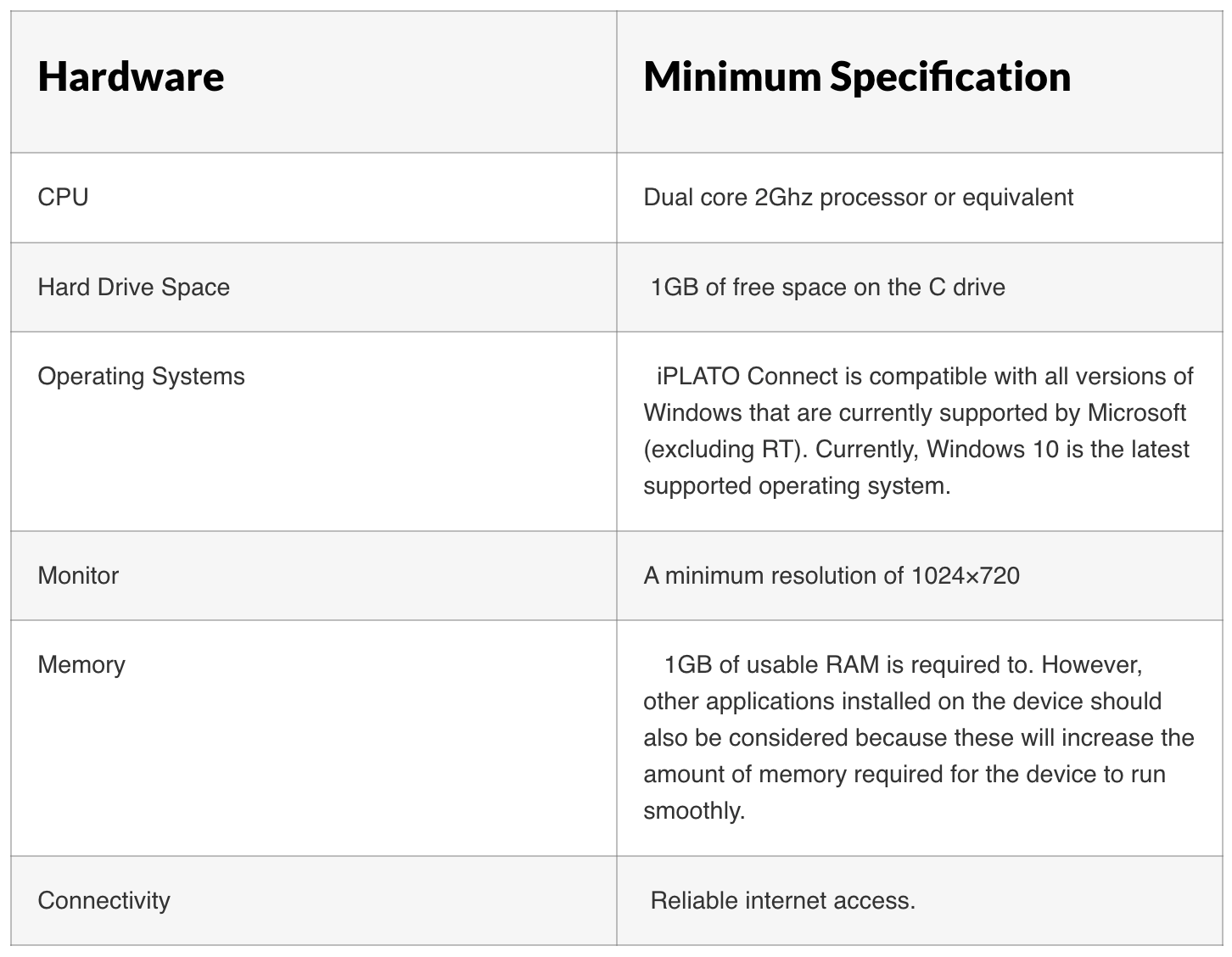
Compatible clinical systems
myGP is compatible with the following clinical systems:
- EMIS Web
- SystmOne
Video consultations
To ensure the smooth running of the video consultation functionality, ensure that the below technical requirements have been met:


© 2026 iPLATO. All rights reserved
Practice Area
/
iPLATO Toolbar and Remote Consultation/
Technical requirements – remote consultation toolbar
Activating the iPLATO toolbar in EMIS Web
November 8, 2021
This article describes the technical requirements for the myGP desktop app.
Windows administrator rights
Windows Administrator rights are not explicitly required to install the myGP toolbar client. A regular user should be able to install on their own.
If all installation of applications are blocked for non-administrator users, local IT Support team will be required to provide assistance during installation or will need to whitelist the myGP toolbar application
Installation and folder read/write access
myGP Buddy uses the OneClick install solution from Microsoft. If you require an enterprise level installation solution, please contact myGP Support to discuss this.
Read/write access is required to these folders:
C:UsersUsername
C:UsersUsernameAppDataLocalApps2.0
C:UsersUsernameAppDataLocal
Where access to the above folders are blocked, myGP toolbar may be able to install, but would not be permitted to function.
Anti-virus
myGP Buddy could get blocked by anti-virus software. We advise that myGP is whitelisted on any CCG/CSU managed anti-virus solutions.
We work with the major anti-virus suppliers to verify the myGP toolbar application, which should reduce anti-virus software from blocking or generating errors when myGP Buddy is run.
Firewall requirements
Port 443 (HTTPS) is open
No restrictions to the address:
https://buddyapi.iplato.net/
Whitelist access to the following IP addresses:
- 212.237.215.25
- 3.8.158.27
Firewall solutions should not block the myGP Buddy application.
Proxy settings
Ensure any proxy that is in use permits access to the following domains:
- mygp.com
- iplato.net
Minimum PC requirements
Compatible clinical systems
myGP is compatible with the following clinical systems:
- EMIS Web
- SystmOne
Video consultations
To ensure the smooth running of the video consultation functionality, ensure that the below technical requirements have been met:
© 2026 iPLATO. All rights reserved
Activating the iPLATO toolbar in EMIS Web
November 8, 2021
These are the steps required to activate the iPLATO Toolbar when using the EMIS Web clinical system.
You will need to:
- Complete organisation level configuration within EMAS Manager
- Permit the iPLATO Toolbar to access EMIS Web on first use, per user.
Configure EMAS Manager to activate the iPLATO Toolbar for your organisation
Step 1 – Ensure partner product activated
- Access EMAS Manager – Click EMIS bubble > System Tools > EMAS Manager
- At the bottom left of the screen, press Partner API tab
- Within the navigation panel, select Patient Care Messaging for England sites, it would be My Health Text for Wales sites (this is the listing within EMIS Web of the myGP platform suite of solutions)
- If this partner product is active, a green tick will be displayed
- If the partner product is not active, activate it by click on the tick symbol in the top left of the EMIS
Step 2 – Edit partner product users
- On the ribbon, select Edit Users
- Tick each user who will need access to the Toolbar
- EMIS Web will ask for a password. You can enter any password, you will not need to note this down or pass it onto any user
- Once completed, press OK
- The Toolbar will be active for these users
Step 3 – Setup partner product login access
- Select Login Access on the ribbon
- For each user who you wish to be able to use the Toolbar, tick both Auto Login and Allow Login
- Once completed, press OK
At this stage, the organisation level configuration for the Toolbar has been completed.
Permit the iPLATO Toolbar to access EMIS Web on first use
This is required on the first use of the Toolbar for each user.
These steps should be completed by end-users:
- Open the EMIS Web application.
- Open the iPLATO Toolbar and log in with your iPLATO Connect username and password.
- Within EMIS Web, an activation screen will pop up. Enter your EMIS Web username and password
- Press activate
This is a one-time action and will only need to be completed again if a user logs into another machine with the iPLATO Toolbar.
© 2026 iPLATO. All rights reserved