

How to activate preGP?
July 8, 2020
Now that you have the myGP preGP service activated, there are a few areas you should consider as part of the ongoing upkeep of the service. This will ensure your practice always gets the most out of preGP.
Appointments Available Online in myGP
PreGP works best when you have available appointments in the myGP app. Having available appointments means:
- Reduced workload for your admin staff
- Improves the opportunity for myGP preGP to trigger and show signposts
- Helps reduce unnecessary GP appointments
- Empowers patients by helping them access their healthcare options
- Adding New Local Services
As new services are commissioned in the local health economy, you will likely want to add these to preGP as alternatives to a GP appointment.
We recommend that you do not exceed 6 services within preGP as this will lead to excessive scrolling within the Local Services sign-posting screen of the app. This will make this sign-posting screen less effective and may also lead to confusion amongst patients.
Adding New Local Services
As new services are commissioned in the local health economy, you will likely want to add these to preGP as alternatives to a GP appointment.
We recommend that you do not exceed 6 services within preGP as this will lead to excessive scrolling within the Local Services sign-posting screen of the app. This will make this sign-posting screen less effective and may also lead to confusion amongst patients.
Click here to learn more
Managing Telephone and Nurse Appointments
preGP requires your practice to use timed slots and have specific Slot Types for Telephone and Nurse appointments. This is due to these Slot Types being hidden from the normal booking functionality within myGP.
If you need to change the behaviour of Nurse and Telephone appointments within preGP, we would recommend contacting our Support team so we can discuss your needs in depth.
New Clinicians
When new doctors and nurses join your surgery, you should update your settings for myGP and myGP preGP. Once you have added available appointments to your new Session Holder in your clinical system, they will appear within myGP settings (please allow up to 30 minutes for the new Session holder to appear in myGP Connect).
Click here to Learn more
What should we do if we have concerns about any increased appointment usage?
PreGP is a new way for patients to interact with your practice, preGP leads to improved avoidance of unnecessary GP appointments, deploying your clinical resources more accurately to patients who need it. The service uses education rather than “triaging” to signpost patients to alternatives to GP appointments and you should start to see benefits within Month 1. PreGP helps empower patients by giving them the ability to keep their original GP appointment if they need too.
Patients may have seen an alternative clinician (such as a pharmacist) as sign-posted and decided/been advised to still see a GP. For example, this could mean a patient sees both a nurse and a GP. But, in reality this should be true for only a limited number of patient interactions.
We would advise to allow the service to perform as naturally as possible without intervening too early to adjust any configuration. If you have any concerns after using preGP for around 3 months, you should speak to the Support team for guidance on any adjustments that can be made to your configuration.


© 2026 iPLATO. All rights reserved
Practice Area
How to activate preGP?
July 8, 2020
Now that you have the myGP preGP service activated, there are a few areas you should consider as part of the ongoing upkeep of the service. This will ensure your practice always gets the most out of preGP.
Appointments Available Online in myGP
PreGP works best when you have available appointments in the myGP app. Having available appointments means:
- Reduced workload for your admin staff
- Improves the opportunity for myGP preGP to trigger and show signposts
- Helps reduce unnecessary GP appointments
- Empowers patients by helping them access their healthcare options
- Adding New Local Services
As new services are commissioned in the local health economy, you will likely want to add these to preGP as alternatives to a GP appointment.
We recommend that you do not exceed 6 services within preGP as this will lead to excessive scrolling within the Local Services sign-posting screen of the app. This will make this sign-posting screen less effective and may also lead to confusion amongst patients.
Adding New Local Services
As new services are commissioned in the local health economy, you will likely want to add these to preGP as alternatives to a GP appointment.
We recommend that you do not exceed 6 services within preGP as this will lead to excessive scrolling within the Local Services sign-posting screen of the app. This will make this sign-posting screen less effective and may also lead to confusion amongst patients.
Click here to learn more
Managing Telephone and Nurse Appointments
preGP requires your practice to use timed slots and have specific Slot Types for Telephone and Nurse appointments. This is due to these Slot Types being hidden from the normal booking functionality within myGP.
If you need to change the behaviour of Nurse and Telephone appointments within preGP, we would recommend contacting our Support team so we can discuss your needs in depth.
New Clinicians
When new doctors and nurses join your surgery, you should update your settings for myGP and myGP preGP. Once you have added available appointments to your new Session Holder in your clinical system, they will appear within myGP settings (please allow up to 30 minutes for the new Session holder to appear in myGP Connect).
Click here to Learn more
What should we do if we have concerns about any increased appointment usage?
PreGP is a new way for patients to interact with your practice, preGP leads to improved avoidance of unnecessary GP appointments, deploying your clinical resources more accurately to patients who need it. The service uses education rather than “triaging” to signpost patients to alternatives to GP appointments and you should start to see benefits within Month 1. PreGP helps empower patients by giving them the ability to keep their original GP appointment if they need too.
Patients may have seen an alternative clinician (such as a pharmacist) as sign-posted and decided/been advised to still see a GP. For example, this could mean a patient sees both a nurse and a GP. But, in reality this should be true for only a limited number of patient interactions.
We would advise to allow the service to perform as naturally as possible without intervening too early to adjust any configuration. If you have any concerns after using preGP for around 3 months, you should speak to the Support team for guidance on any adjustments that can be made to your configuration.
© 2026 iPLATO. All rights reserved
How to activate preGP?
July 8, 2020
Once you have all of your signpost in place and are ready to activate your preGP feature, please do the following steps:
- Log in to your myGP Connect system
- Click on preGP – Care Navigation found on the left-hand side menu
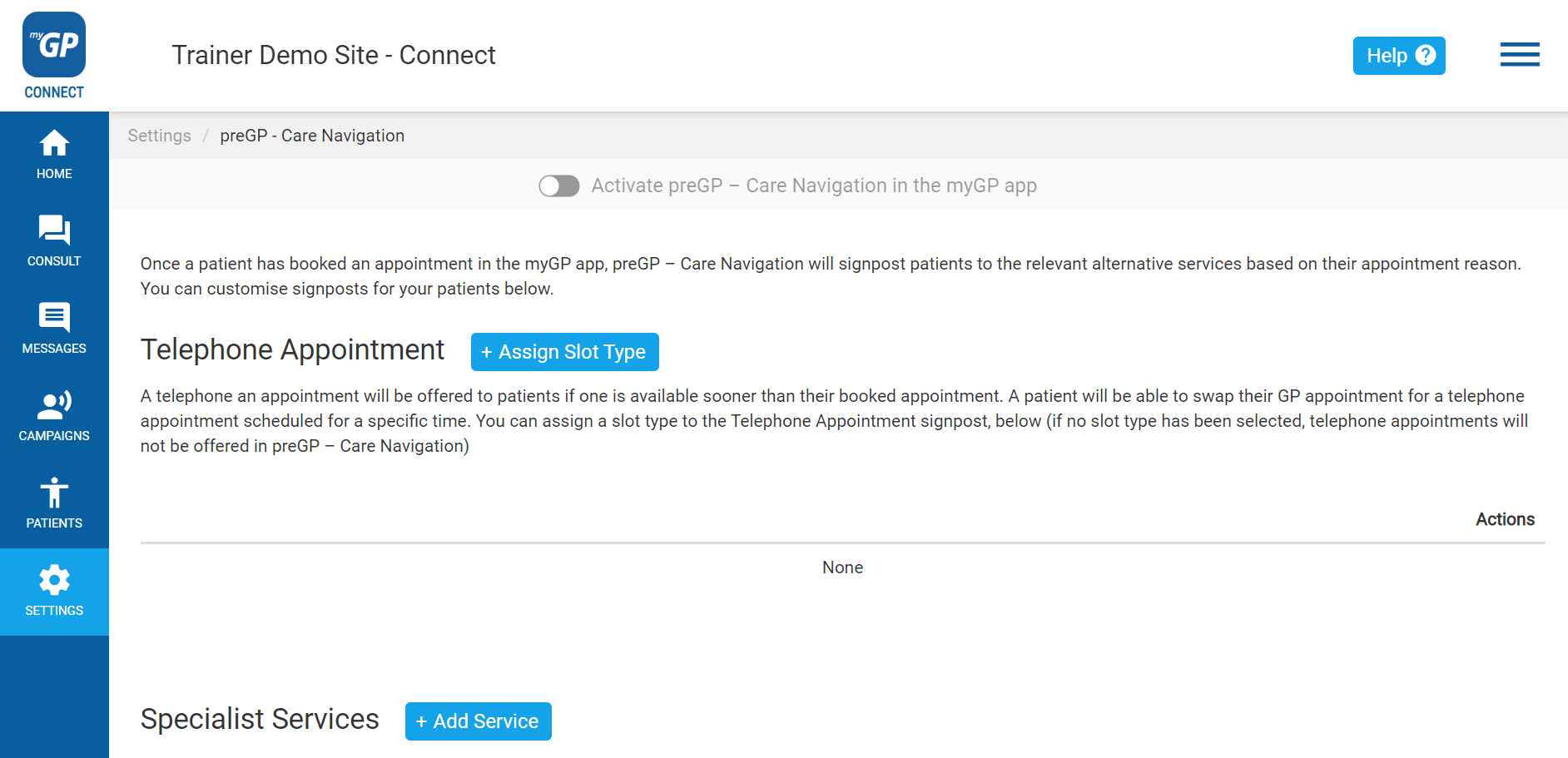
- Refer to the Activate preGP – Care Navigation on myGP app switch
- Click on the grey switch
- You will receive a consent pop-up box:
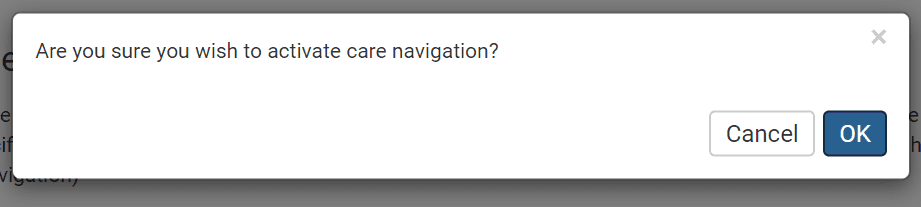
- Click OK to consent
- The pop-up on the main page will disappear and the switch will now be blue
preGP has now been activated and signposting will begin on the myGP app.
TOP TIP: If you wish to deactivate preGP at a later point, you can by following these same steps and then notifying us at training@iplato.com
© 2026 iPLATO. All rights reserved