

/
The NHS app and iPLATO campaign messaging/
All you need to know about NHS app messaging
NHS login
March 4, 2024
What is happening?
All practices have been given a target of getting 80% of their patients on the NHS app by the end of 2024.
What is NHS app messaging?
Glad you asked.
In December 2022 iPLATO became one of the first to integrate with the NHS app in England, sending messages to patients using the NHS app rather than via SMS.
From iPLATO, this means messages that go via the NHS include:
- Patient Questionanires
- Batch messages including Key word replies
- Appointment Reminders
This means that you have already been sending messages via the NHS app, for free!
We can even tell you when a patient reads their message. Have a look at our page on Read Receipts.
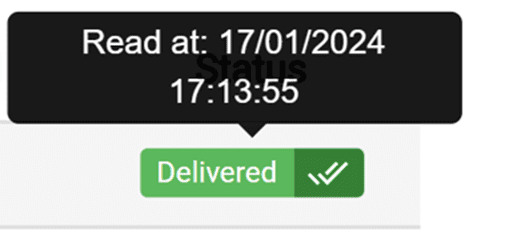
How do I send messages to the NHS app from iPLATO?
- Easy! Just send your messages as normal, your iPLATO system does the hard work for you and will automatically send the message to a patient’s NHS app if they have one.
- This includes asking for a patient response via a keyword, CLICK HERE for more details on keyword replies.
Does a patient need to do anything in the NHS app to receive messages?
- Yes, only patients who have enabled notifications in the NHS app can receive messages from you this way.
- However, once this is done, all future messages will be sent via the app, keeping everything in one place.
- Not only that, the process is seamless for the patient, once they have logged into the NHS app, they don’t have to enter a DOB or authenticate any other way to receive messages.
Which of my patients has the NHS app?
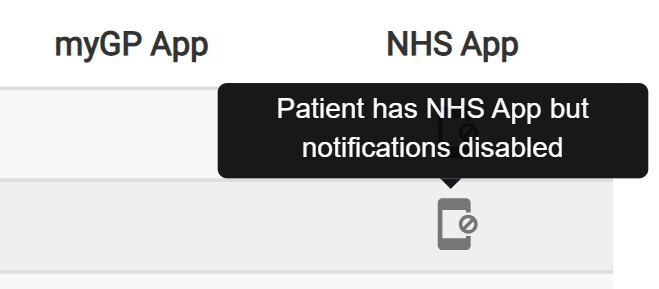
- We can show you who at your practice has downloaded the NHS app, not only that we can also show you who has also turned on their notifications in the NHS app.
- This is important because only the patients who have enabled notifications will be able to receive messages via the NHS app, so you will want to let your patients know this to get the most out of it.
- CLICK HERE to see how to search for your NHS app patients.
How to promote NHS app use at your surgery
The NHS has provided resources for you to use to help get the word out! The following are all from the NHS.
- An overview for your practice on how to use NHS app and messaging.
- Messaging templates to let patients know about the app and what to do.
- Templates and banners to use for your website and social media channels.
- NHS page for patients
- NHS guide for patients to turn on notifications in the NHS app.
Great! What’s next?
- Appointment Reminder messaging within the NHS app has already been released!
How does this work?
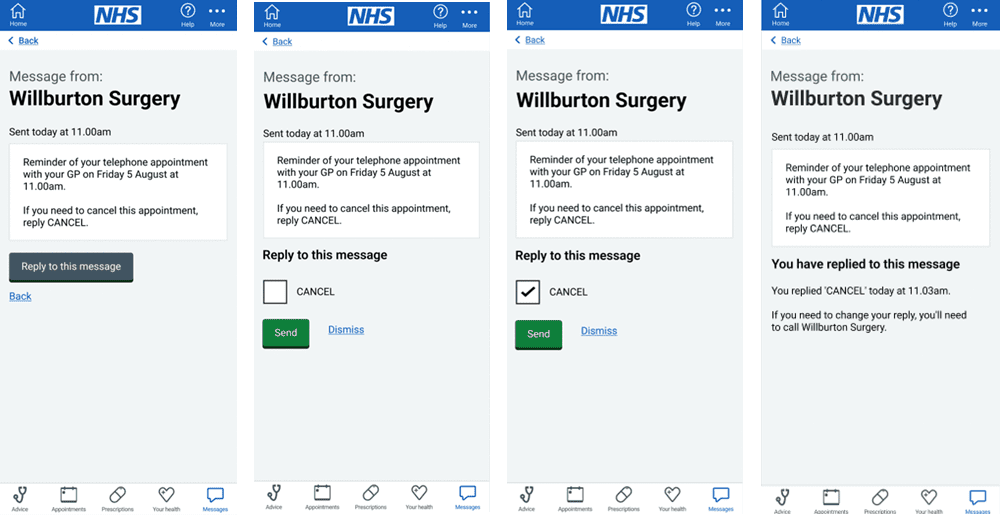
- Simple, all within the NHS app, the patient won’t leave the app, the option to reply will be right there as a selectable response.
- And even better, you don’t have to change anything, you carry on using iPLATO just as you always have.
- Have a look at the below example to see how it could work.
Sending links in the NHS app
A top tip when sending messages out to patients is to use links to provide more infomration, so you dont have to cram it all into the SMS.
It is vital that when sending a link, you send the whole link, including the http:// at the beginning of the web page. The reason for this is that links that start www. in the NHS app do not open, the full link is needed.
If you need to, simply copy the full link out of the address bar and paste, like the example below.



© 2026 iPLATO. All rights reserved
Practice Area
/
The NHS app and iPLATO campaign messaging/
All you need to know about NHS app messaging
NHS login
March 4, 2024
What is happening?
All practices have been given a target of getting 80% of their patients on the NHS app by the end of 2024.
What is NHS app messaging?
Glad you asked.
In December 2022 iPLATO became one of the first to integrate with the NHS app in England, sending messages to patients using the NHS app rather than via SMS.
From iPLATO, this means messages that go via the NHS include:
- Patient Questionanires
- Batch messages including Key word replies
- Appointment Reminders
This means that you have already been sending messages via the NHS app, for free!
We can even tell you when a patient reads their message. Have a look at our page on Read Receipts.
How do I send messages to the NHS app from iPLATO?
- Easy! Just send your messages as normal, your iPLATO system does the hard work for you and will automatically send the message to a patient’s NHS app if they have one.
- This includes asking for a patient response via a keyword, CLICK HERE for more details on keyword replies.
Does a patient need to do anything in the NHS app to receive messages?
- Yes, only patients who have enabled notifications in the NHS app can receive messages from you this way.
- However, once this is done, all future messages will be sent via the app, keeping everything in one place.
- Not only that, the process is seamless for the patient, once they have logged into the NHS app, they don’t have to enter a DOB or authenticate any other way to receive messages.
Which of my patients has the NHS app?
- We can show you who at your practice has downloaded the NHS app, not only that we can also show you who has also turned on their notifications in the NHS app.
- This is important because only the patients who have enabled notifications will be able to receive messages via the NHS app, so you will want to let your patients know this to get the most out of it.
- CLICK HERE to see how to search for your NHS app patients.
How to promote NHS app use at your surgery
The NHS has provided resources for you to use to help get the word out! The following are all from the NHS.
- An overview for your practice on how to use NHS app and messaging.
- Messaging templates to let patients know about the app and what to do.
- Templates and banners to use for your website and social media channels.
- NHS page for patients
- NHS guide for patients to turn on notifications in the NHS app.
Great! What’s next?
- Appointment Reminder messaging within the NHS app has already been released!
How does this work?
- Simple, all within the NHS app, the patient won’t leave the app, the option to reply will be right there as a selectable response.
- And even better, you don’t have to change anything, you carry on using iPLATO just as you always have.
- Have a look at the below example to see how it could work.
Sending links in the NHS app
A top tip when sending messages out to patients is to use links to provide more infomration, so you dont have to cram it all into the SMS.
It is vital that when sending a link, you send the whole link, including the http:// at the beginning of the web page. The reason for this is that links that start www. in the NHS app do not open, the full link is needed.
If you need to, simply copy the full link out of the address bar and paste, like the example below.
© 2026 iPLATO. All rights reserved
NHS login
March 4, 2024
What is NHS login?
NHS login allows you to access lots of different health and care websites and apps with just one set of login details. You can securely access many digital health and care services with one email address and password.
What do I need to create an NHS login?
You will need:
- an email address (with more than 6 characters)
- a mobile phone number
If you don’t have a mobile phone number, you can register with a landline phone number.
You may also be asked to provide some additional information to prove who you are. This may include your:
- date of birth
- NHS number
- name
- postcode
How do I create an NHS login?
You can create an NHS login by clicking the “Continue to NHS login” button on the myGP Triage sign in page, or any other health and care website where you see this button:
After clicking the “Continue to NHS login” button, follow these steps:
- Enter your email address and click Continue
- Create a password and click Continue
- A 6-digit security code will be sent to your email
- Locate the code in your email, enter this code to verify your email address and click Continue
- Enter your mobile phone number and click Continue. You can also enter a landline phone number if you don’t have a mobile phone number
- A 6-digit security code will be sent by text message to your mobile phone. If you have entered a landline phone number, the security code will be read to you in an automated call to your landline phone
- Enter this code and click Continue. A new security code will be sent to you every time you log in unless you select “remember this device and stop sending security codes”
Why was my sign in unsuccessful?
There are several reasons why the NHS login process may be unsuccessful:
- Incorrect GP surgery – You might not be registered at the GP surgery that you are trying to access.
Action: Double-check that you are attempting to access the GP surgery that you are registered with. The surgery’s name and address are at the top of every page on the myGP Triage service. - No data sharing consent – You must agree to share data with iPlato during the NHS login process. Without sharing your data, we will not be able to confirm your identity using NHS login.
Action: You can make a request by signing in with myGP. This is a simple identity verification process that matches your date of birth and mobile phone number with records held by your GP surgery. - Underage – You can only use the myGP Triage service if you are aged 16 years or older.
Action: If you are under 16 years old, please call your GP surgery for all types of requests and medical issues. - Inactive GP surgery – The GP surgery you are trying to access may no longer use the myGP Triage service.
Action: If your GP surgery is using the myGP Triage service then a link or promotional banner should be displayed on their website. If you cannot see a link or banner on their website, follow other instructions on how to contact your GP. - Other – there may be another reason which is not listed.
Action: Refer to the NHS Login Help Centre.
© 2026 iPLATO. All rights reserved