

What is the Practice Information section?
July 3, 2020
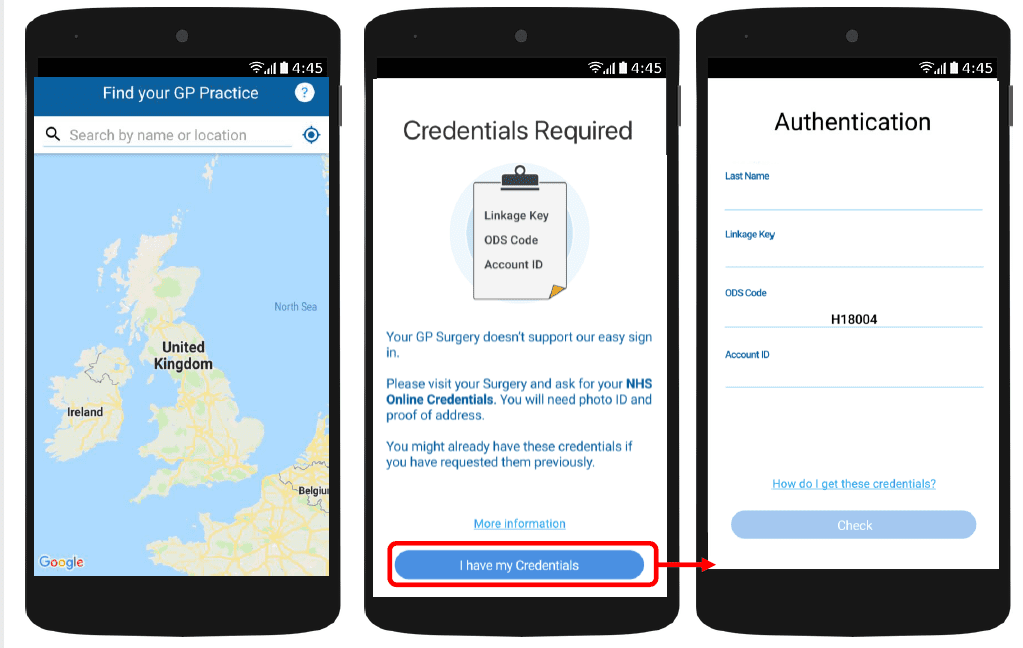
With myGP app Onboarding, after a patient searches for their practice and myGP picks up that they are not
part of the easy sign in (Practice using PCM/Connect). They then will be asked to use their NHS Online Credentials.
Once correctly entered, they can access the myGP app after the following steps:
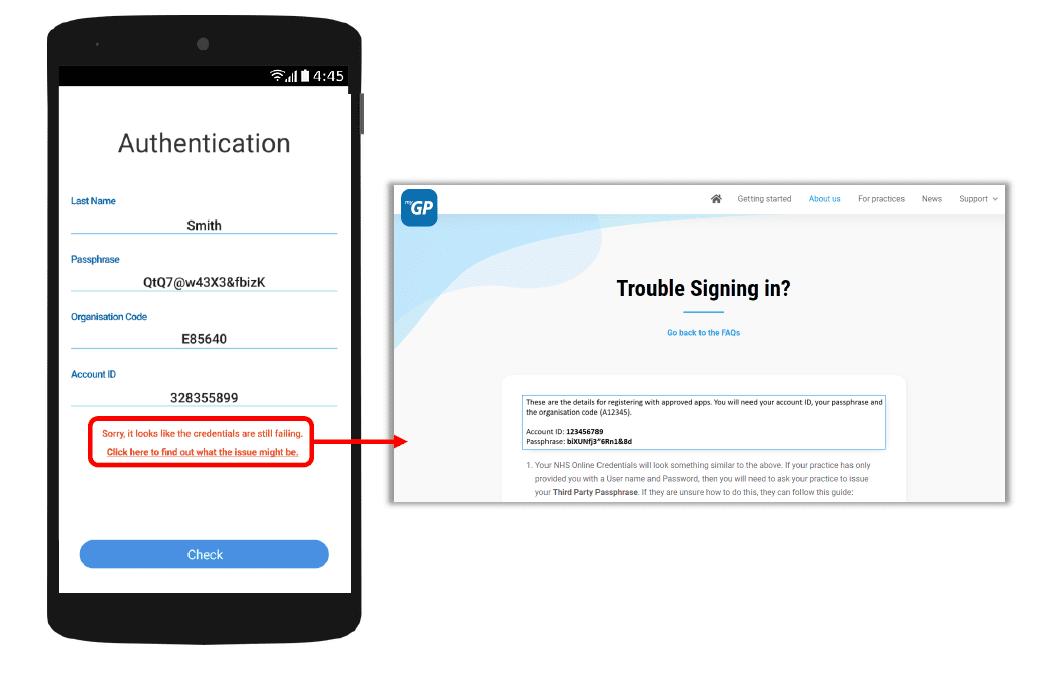
If they have issues entering details, the error response will link them to the myGP FAQ to provide further help.


© 2026 iPLATO. All rights reserved
Practice Area
What is the Practice Information section?
July 3, 2020
With myGP app Onboarding, after a patient searches for their practice and myGP picks up that they are not
part of the easy sign in (Practice using PCM/Connect). They then will be asked to use their NHS Online Credentials.
Once correctly entered, they can access the myGP app after the following steps:
If they have issues entering details, the error response will link them to the myGP FAQ to provide further help.
© 2026 iPLATO. All rights reserved
What is the Practice Information section?
July 3, 2020
Watch video
When a patient downloads the myGP app they will have access to a GP Surgery details page. This will break down all the basic information of the practice they are registered too.
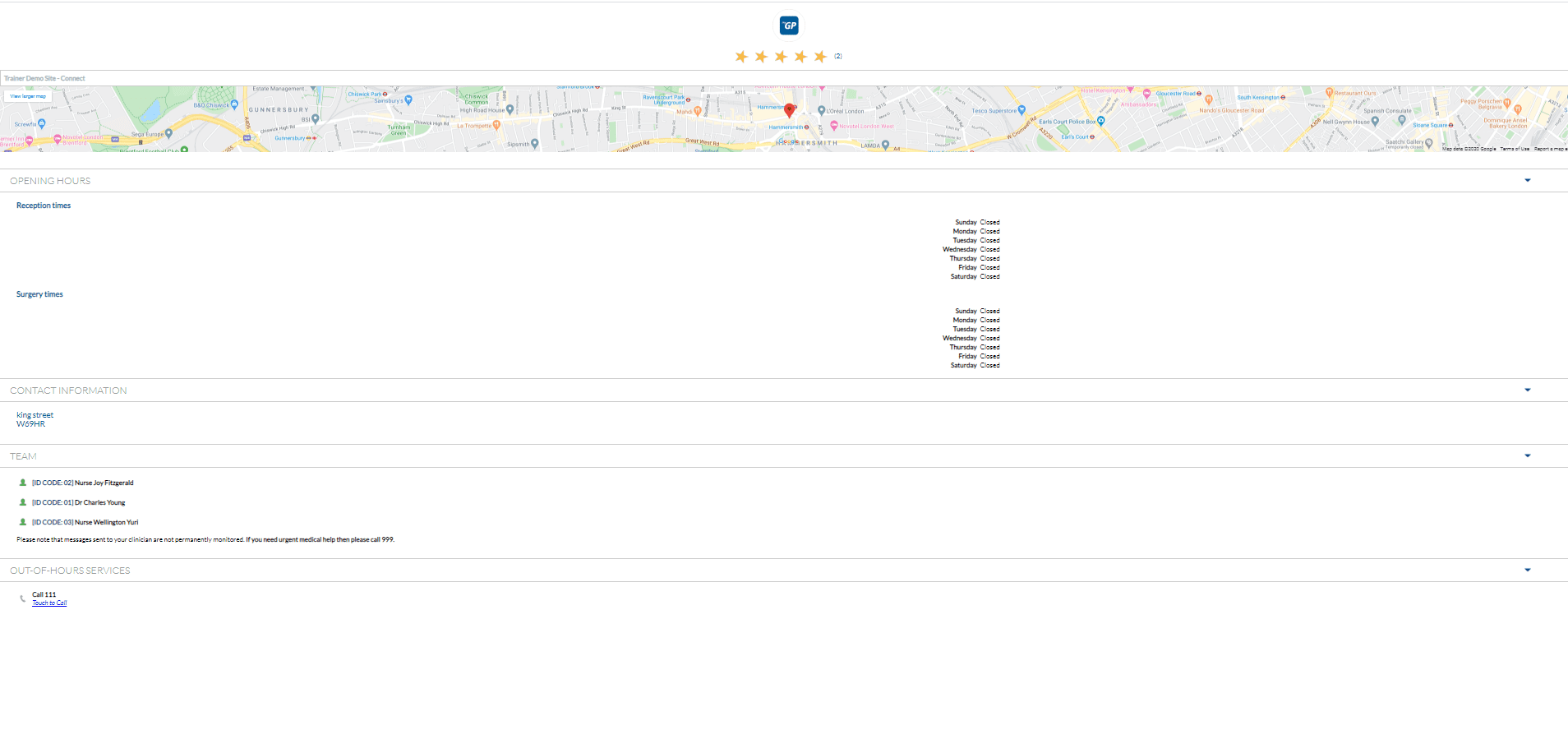
The information will be filled in automatically via NHS Choices when your system is installed, however, if you wish to update or amend any of the information, you can do so. Please follow these steps:
- Log in to your myGP Connect system
- Click on Settings found on the left-hand side menu
- Click on Practice Information
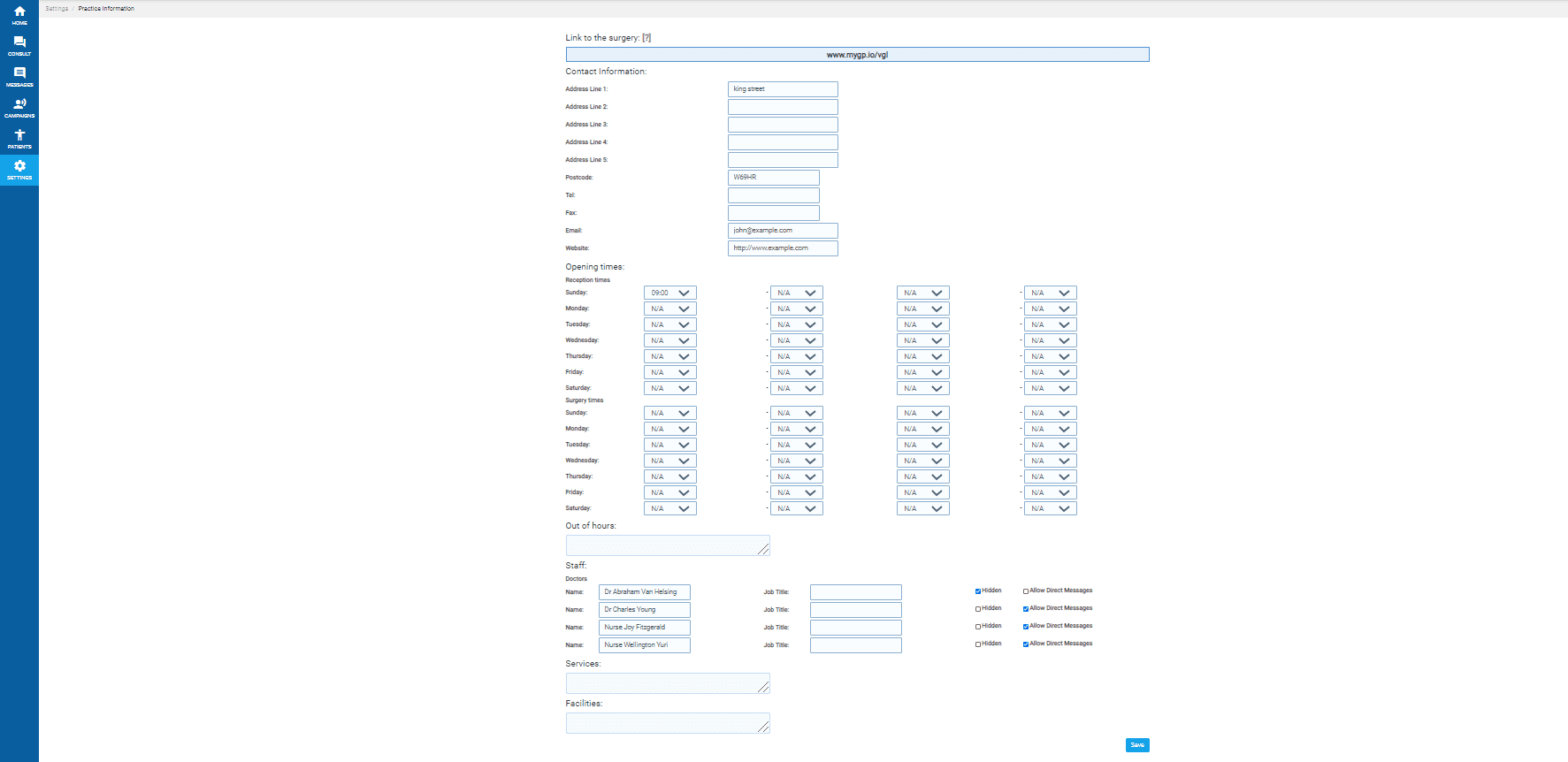
- In Contact Information, you can update any information by filling the text fields
- In Opening Times, you can adjust practice hours via both Reception and Surgery working hours
- In Staff, any clinicians from your clinical system will appear. If you wish for them not to show on the app then tick the Hidden button
- You have the option of adding in additional text for Out of Hours, Service or Facility
- To save any updates, click Save at the bottom of the screen.
Please Note: hiding staff member from this screen will not effect which clinicians are bookable via the myGP app.
TOP TIP: to see what the page will look like from the patient’s view on the app, copy the URL found in the blue field at the top of the page, then paste it into a new browser page and hit enter.
© 2026 iPLATO. All rights reserved