

myGP Connect Migration
November 3, 2020
With myGP app Onboarding, after a patient searches for their practice and myGP picks up that they are not
part of the easy sign in (Practice using PCM/Connect). They then will be asked to use their NHS Online Credentials.
Once correctly entered, they can access the myGP app after the following steps:
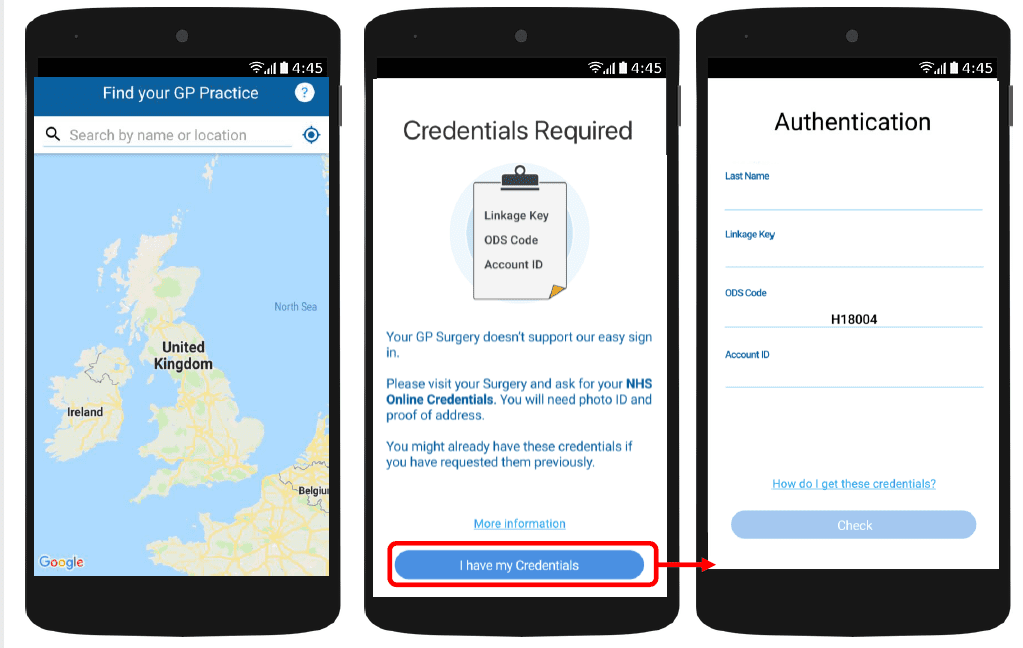
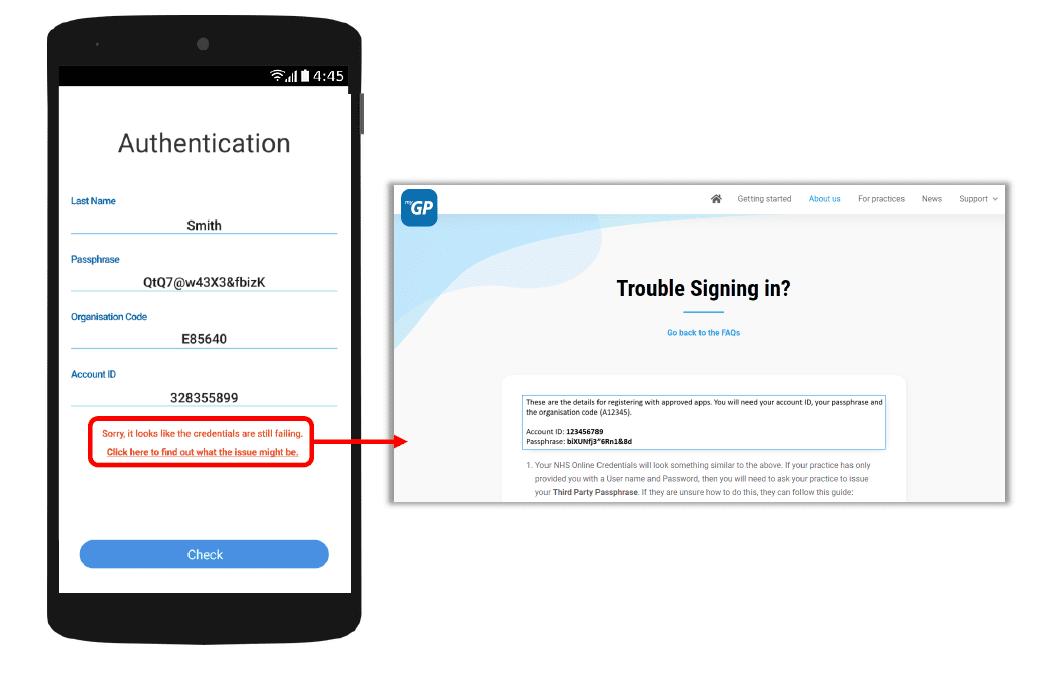
If they have issues entering details, the error response will link them to the myGP FAQ to provide further help.


© 2026 iPLATO. All rights reserved
Practice Area
myGP Connect Migration
November 3, 2020
With myGP app Onboarding, after a patient searches for their practice and myGP picks up that they are not
part of the easy sign in (Practice using PCM/Connect). They then will be asked to use their NHS Online Credentials.
Once correctly entered, they can access the myGP app after the following steps:
If they have issues entering details, the error response will link them to the myGP FAQ to provide further help.
© 2026 iPLATO. All rights reserved
myGP Connect Migration
November 3, 2020
Congratulations, you have moved over to myGP Connect, our next-generation platform replacing Patient Care Messaging.
myGP Connect uses the latest technology, allowing us to bring you amazing new functionality and products. Our interface is modern, intuitive, and future-proofed.
All of your settings and historical data is right where you left it. Whilst we have modernised the user interface, it is still familiar. This means its very easy to learn myGP Connect.
In this section, we have a number of text guides and videos to help teach all you need to know about myGP Connect and how this brand new software works.
If you need more information, click here for the full Help website.
myGP Connect Migration Guide
Want a quick guide to find out where everything now lives in your new myGP Connect system?
You will find our Guide by clicking here.
Video Guides
Alternatively, if you prefer updating your knowledge in a visual manner, we have several informative Video Tutorials that cover all new features and locations of your new software.
Changing settings for Appointment Reminders
Whilst your settings have been migrated for Appointment Reminders, its easy to adjust any of the settings in myGP Connect.
Watch video
User Permissions
Watch video
To ensure the right members of staff have access to the right functionality, myGP Connect has a range of user permissions that can be applied to users. The administrators of myGP Connect should ensure that clinicians are added and have the correct level of authority to access Remote Consultations.
Click here to see the help guide on User Permissions.
How to find patient details
You can find patient demographic details and the status of sent messages in the Patients tab of myGP Connect. This replaces the Phonebook tab in PCM.
Watch video
Overview of the Messages tab
The Inbox, Outbox, and Sent… box, are all available in the Messages tab of myGP Connect.
Watch video
How to send a Campaign
The Campaigns functionality has had a fresh lick of paint, but it remains familia
Watch video
Adjusting settings for the myGP App
We’ve moved all of your settings over to myGP Connect, but its easy to make any adjustments you need.
Watch video
Configuring preGP Care Navigation (additional purchase)
All of your old settings for preGP have been migrated. As part of your migration, we have upgraded you preGP Care Navigation 2. However, there are number of enhancements you can make by tweaking the settings of preGP Care Navigation.
Please note: We’ve migrated your settings from preGP1. All you need to do is to link your specialist and local services to the relevant appointment reasons. In the meantime, your old preGP1 settings are active. They will be switched off when you save all your preGP2 services.
Watch video
And that’s it!
Welcome to myGP Connect. We are excited by the possibilities our new platform brings. We will be releasing even more great enhancements and new products in the near future. Watch this space!
© 2026 iPLATO. All rights reserved