

How to enable Slot Types for the myGP app
With myGP app Onboarding, after a patient searches for their practice and myGP picks up that they are not
part of the easy sign in (Practice using PCM/Connect). They then will be asked to use their NHS Online Credentials.
Once correctly entered, they can access the myGP app after the following steps:
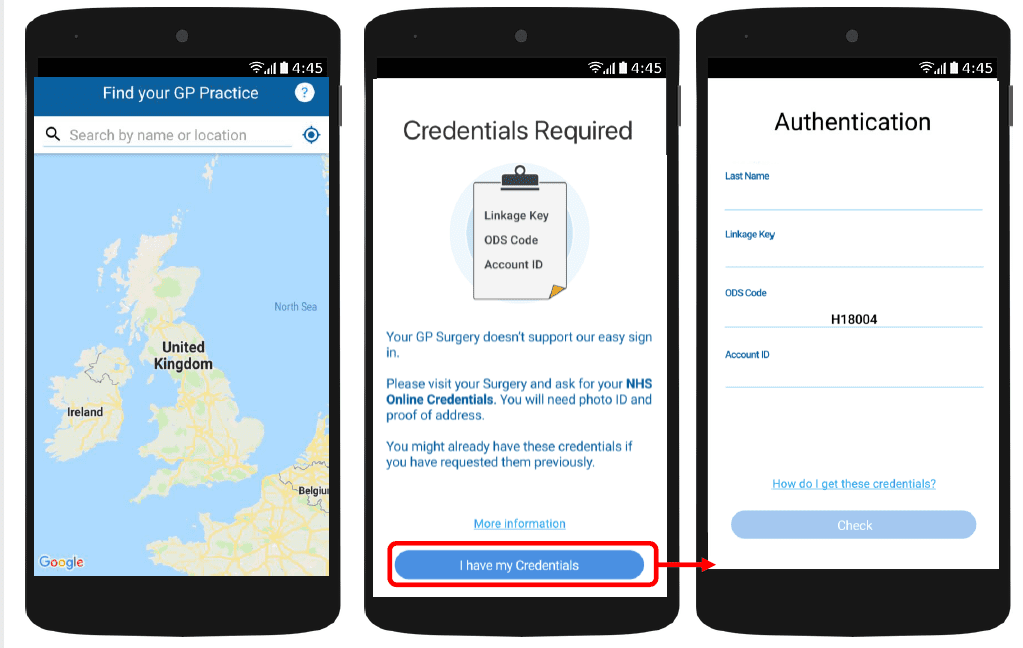
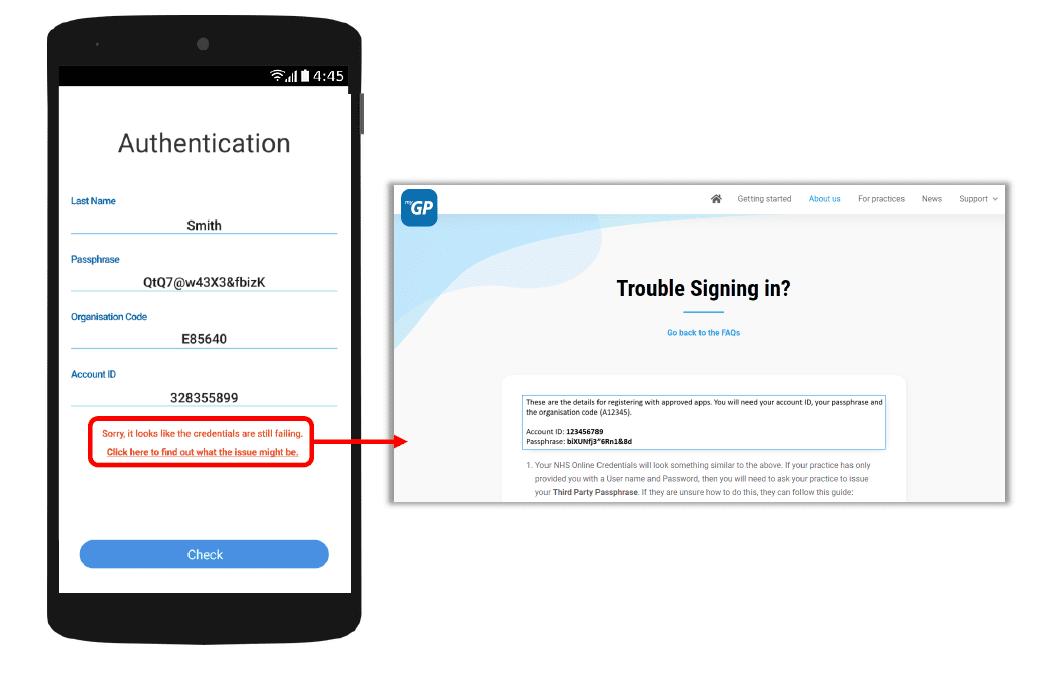
If they have issues entering details, the error response will link them to the myGP FAQ to provide further help.


© 2026 iPLATO. All rights reserved
Practice Area
How to enable Slot Types for the myGP app
With myGP app Onboarding, after a patient searches for their practice and myGP picks up that they are not
part of the easy sign in (Practice using PCM/Connect). They then will be asked to use their NHS Online Credentials.
Once correctly entered, they can access the myGP app after the following steps:
If they have issues entering details, the error response will link them to the myGP FAQ to provide further help.
© 2026 iPLATO. All rights reserved
How to enable Slot Types for the myGP app
Watch video
This is the information page for enabling a Slot Type for myGP app.
Requirements
All clinical systems: myGP Connect will pick up timed appointments only
Branches: this is how myGP Connect will pick up on specific clinical systems:
- EMIS: it will pick up practice branch locations, no configuration is needed
- SystmOne/Vision: for branches to show within the myGP app, they will need to have a Slot Type per branch, or alternatively, practices can duplicate a Session Holder per branch with the preferred Slot Type
How to Enable
In order to assign a slot type as an available appointment on the myGP app, please do the following steps:
- Log in to your myGP Connect system
- Click on myGP Appointments found on the left-hand side menu
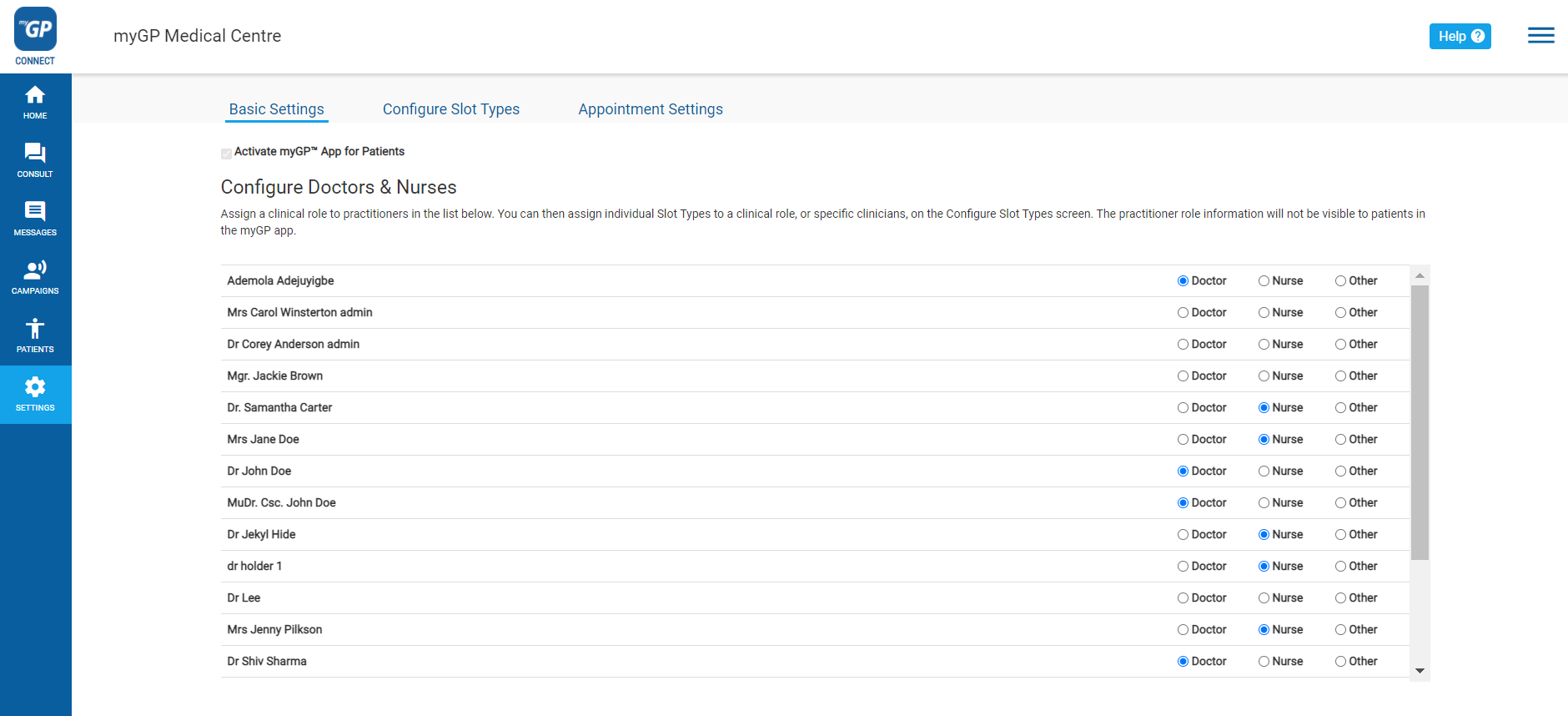
- From the three sub-tabs, click Configure Slot Types
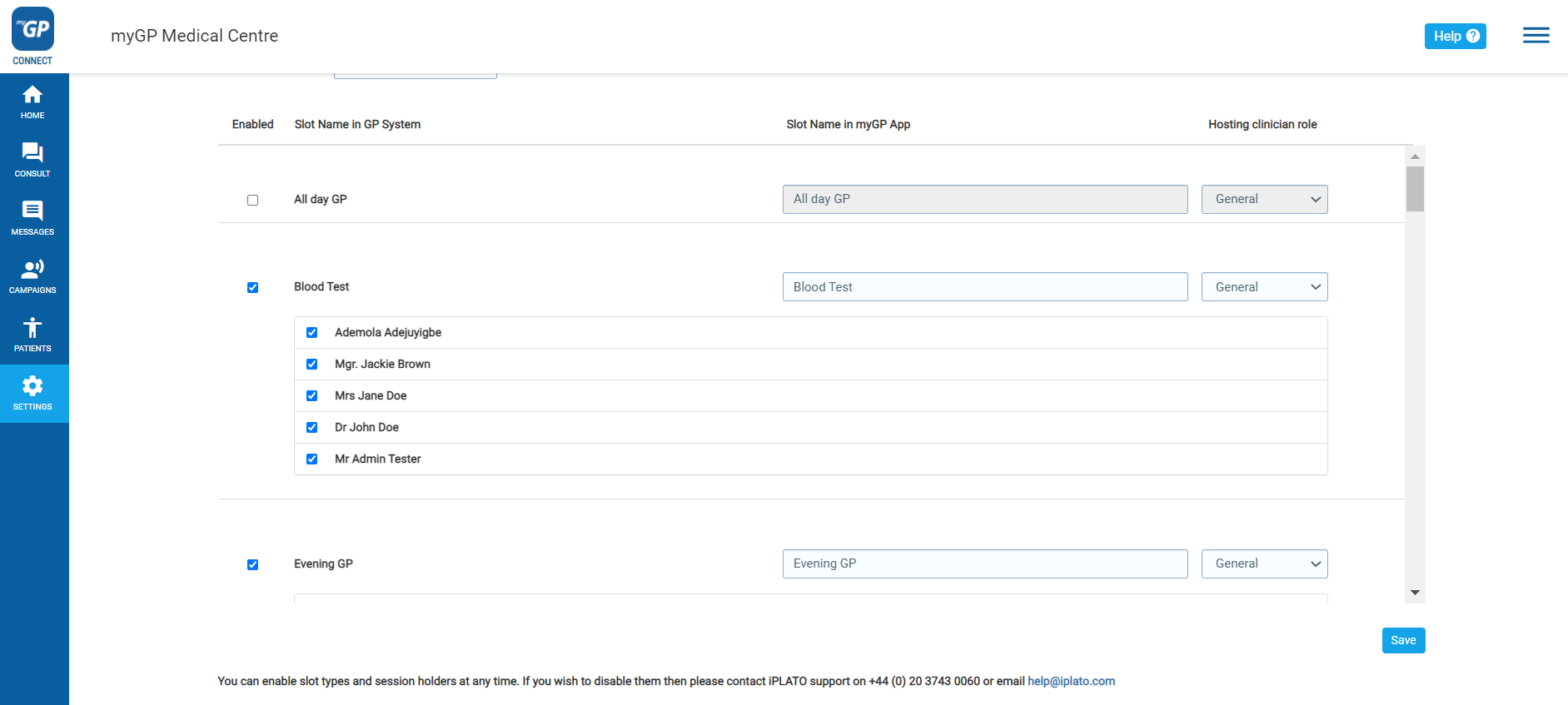
On this page you will see all slots from your clinical system. To enable a slot for the app:
- Choose a slot from the list
- Tick the box next to the slot title in the Enable column
This will open up the slot and show you any clinician that is linked to the slot over the assigned appointment settings.
- Un-tick any clinicians you do not want to make available for online booking
- If necessary, rename the slot for the app display via the text field from the column Slot Name in myGP App
- Scroll to the bottom of page and click Save
TOP TIP: if you wish to filter your list of clinicians once the slot is enabled, refer to the Hosting clinician role column. In this drop down you can choose the filter options of Doctor or Nurse in order to clear out other clinicians in the list.
Please Note: if a new Clinician is added to your clinical system, it will pick up in myGP Connect if they are assigned to a Slot Type. However they will be un-ticked by default, so must be manually re-ticked if you wish them available for booking on the app. Online bookable appointments marked in your clinical system will not be visible to the myGP app. This must be configured as per the above instructions. Additionally we pick up Blocked or Embargoed slots on your TPP/SystmOne and EMIS clinical systems. With Vision we will only pick up Blocked.
© 2026 iPLATO. All rights reserved