

How to create a Trigger Word
July 1, 2020
It is important to note that if the patient does confirm a change in contact details, these are not automatically updated on the patients’ record.
Below is the coding that will be shown based on the patients’ answers
New mobile number given
- Snomed: 428481002
- EMIS Read code V2: 915J.
- TPP Read code V3: XaQgn
- Term: Information provided by patient via digital questionnaire.
New landline number given
- Snomed: 184103008
- EMIS Read code V2: 9159.
- TPP Read code V3: .9159
- Term: Information provided by patient via digital questionnaire.
New home address number given
- Snomed: 184097001
- EMIS Read code V2: 9153.
- TPP Read code V3: .9153
- Term: Information provided by patient via digital questionnaire.
New email number given
- Snomed: 424966008
- EMIS Read code V2: 915K.
- TPP Read code V3: XaYak
- Term: Information provided by patient via digital questionnaire.
IMPORTANT – Staff should then update the patients’ details and record themselves with the new information.


© 2026 iPLATO. All rights reserved
Practice Area
How to create a Trigger Word
July 1, 2020
It is important to note that if the patient does confirm a change in contact details, these are not automatically updated on the patients’ record.
Below is the coding that will be shown based on the patients’ answers
New mobile number given
- Snomed: 428481002
- EMIS Read code V2: 915J.
- TPP Read code V3: XaQgn
- Term: Information provided by patient via digital questionnaire.
New landline number given
- Snomed: 184103008
- EMIS Read code V2: 9159.
- TPP Read code V3: .9159
- Term: Information provided by patient via digital questionnaire.
New home address number given
- Snomed: 184097001
- EMIS Read code V2: 9153.
- TPP Read code V3: .9153
- Term: Information provided by patient via digital questionnaire.
New email number given
- Snomed: 424966008
- EMIS Read code V2: 915K.
- TPP Read code V3: XaYak
- Term: Information provided by patient via digital questionnaire.
IMPORTANT – Staff should then update the patients’ details and record themselves with the new information.
© 2026 iPLATO. All rights reserved
How to create a Trigger Word
July 1, 2020
Watch video
- Click on Campaigns found on the left-hand side menu
- Click on Trigger Words
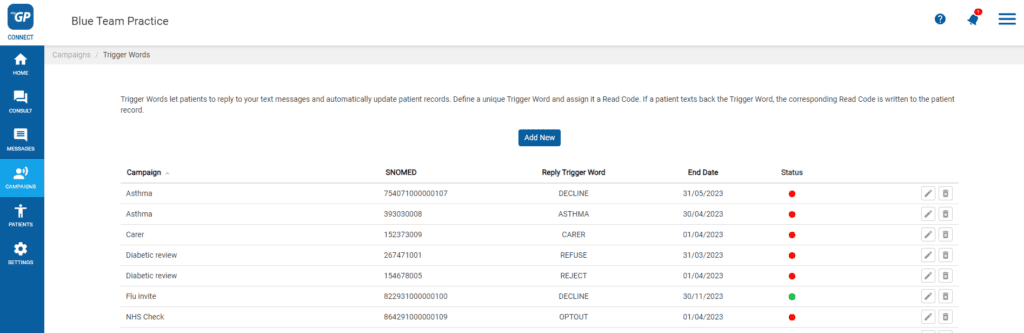
- Click Add New
- The Add Campaign pop-up box will appear
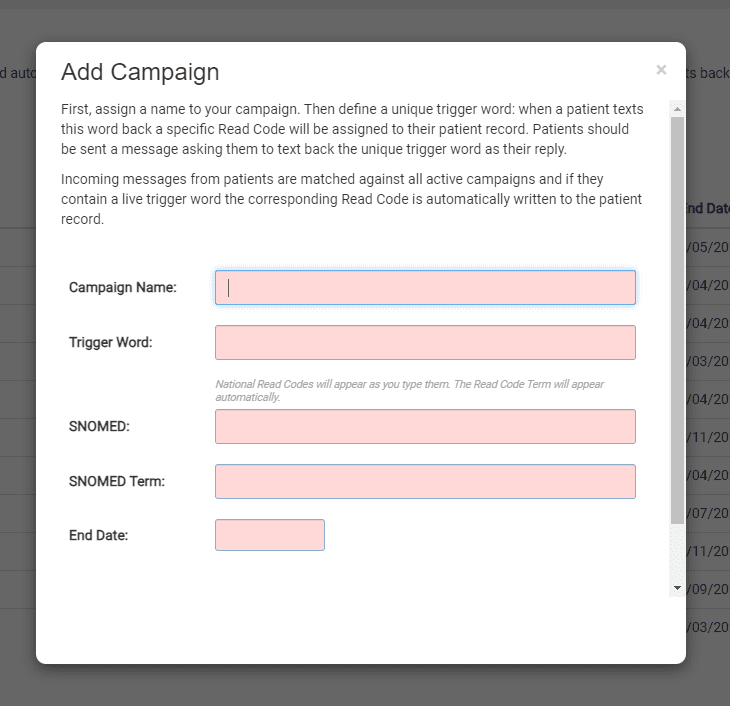
- Fill in the Campaign Name field (e.g. Flu Invitation)
- Fill in the Trigger Word (e.g. DECLINE)
- Assign the clinical code with the Snomed Code field
- The Snomed Code Term will automatically be filled in
- Click on the End Date
- From the calendar pop-up, choose an appropriate date for the Trigger Word to end
- Click Save
This will activate your Trigger Word and save it as an entry on the main screen.
Please Note: If you run multiple campaigns simultaneously, make sure each campaign has a unique Trigger Word assigned to them. If active campaigns contain the same Trigger Word, it can complicate the clinical code sending back.
TOP TIP: You can reactive a Trigger Word at any point by giving it a new End Date.
© 2026 iPLATO. All rights reserved