

How to create a Template
July 1, 2020
It is important to note that if the patient does confirm a change in contact details, these are not automatically updated on the patients’ record.
Below is the coding that will be shown based on the patients’ answers
New mobile number given
- Snomed: 428481002
- EMIS Read code V2: 915J.
- TPP Read code V3: XaQgn
- Term: Information provided by patient via digital questionnaire.
New landline number given
- Snomed: 184103008
- EMIS Read code V2: 9159.
- TPP Read code V3: .9159
- Term: Information provided by patient via digital questionnaire.
New home address number given
- Snomed: 184097001
- EMIS Read code V2: 9153.
- TPP Read code V3: .9153
- Term: Information provided by patient via digital questionnaire.
New email number given
- Snomed: 424966008
- EMIS Read code V2: 915K.
- TPP Read code V3: XaYak
- Term: Information provided by patient via digital questionnaire.
IMPORTANT – Staff should then update the patients’ details and record themselves with the new information.


© 2026 iPLATO. All rights reserved
Practice Area
How to create a Template
July 1, 2020
It is important to note that if the patient does confirm a change in contact details, these are not automatically updated on the patients’ record.
Below is the coding that will be shown based on the patients’ answers
New mobile number given
- Snomed: 428481002
- EMIS Read code V2: 915J.
- TPP Read code V3: XaQgn
- Term: Information provided by patient via digital questionnaire.
New landline number given
- Snomed: 184103008
- EMIS Read code V2: 9159.
- TPP Read code V3: .9159
- Term: Information provided by patient via digital questionnaire.
New home address number given
- Snomed: 184097001
- EMIS Read code V2: 9153.
- TPP Read code V3: .9153
- Term: Information provided by patient via digital questionnaire.
New email number given
- Snomed: 424966008
- EMIS Read code V2: 915K.
- TPP Read code V3: XaYak
- Term: Information provided by patient via digital questionnaire.
IMPORTANT – Staff should then update the patients’ details and record themselves with the new information.
© 2026 iPLATO. All rights reserved
How to create a Template
July 1, 2020
Watch video
You can create a template for a campaign message, or any regular outgoing message. Templates can also be assigned a custom Trigger Word. In order to create a template, follow these steps:
- Log in to your myGP Connect system
- Click on Campaigns found on the left-hand side menu
- Click on Templates
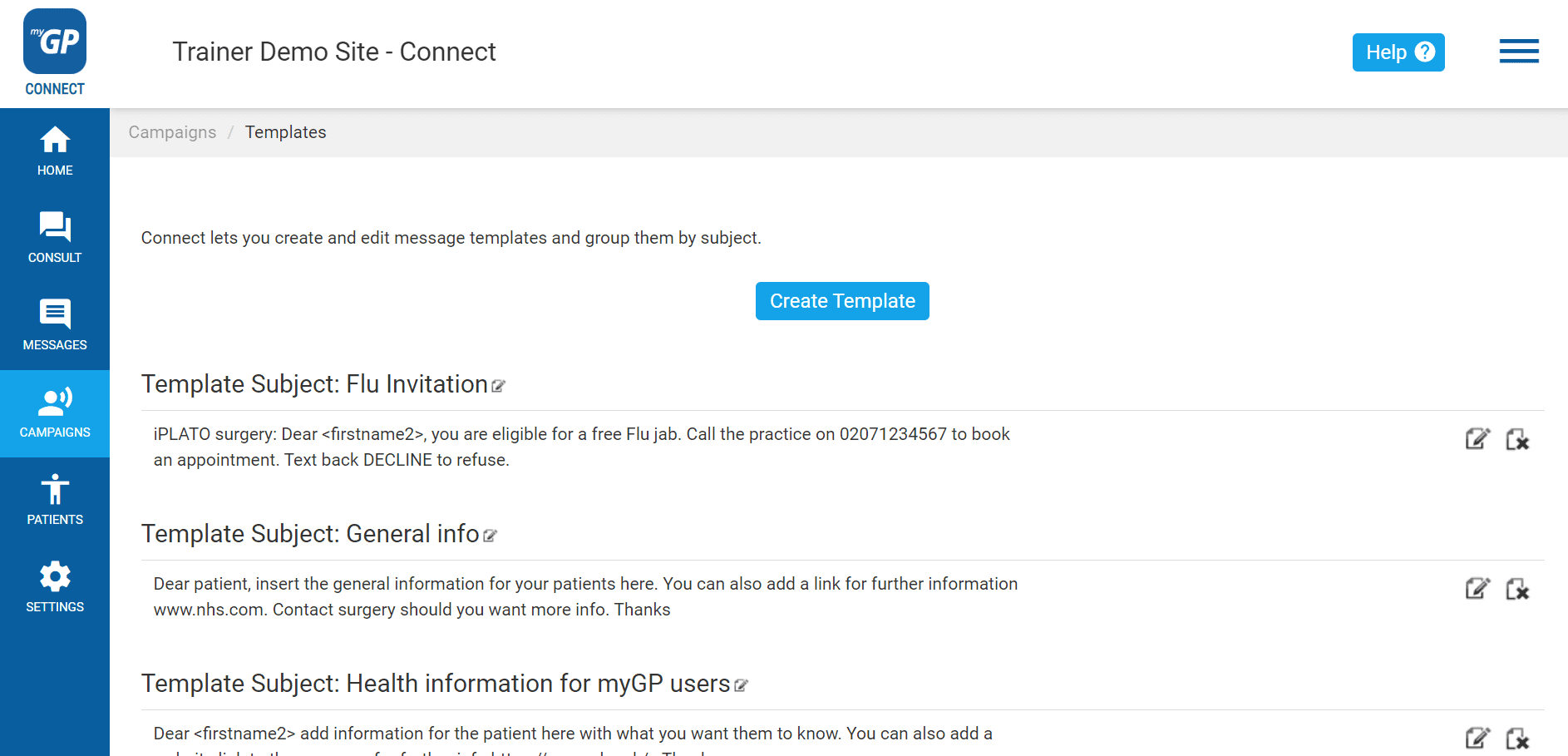
On this page, you will be able to create a template for an ongoing message. To create this, do the following steps:
- Click Create Template
- This will bring up the Manual Template Message pop-up box
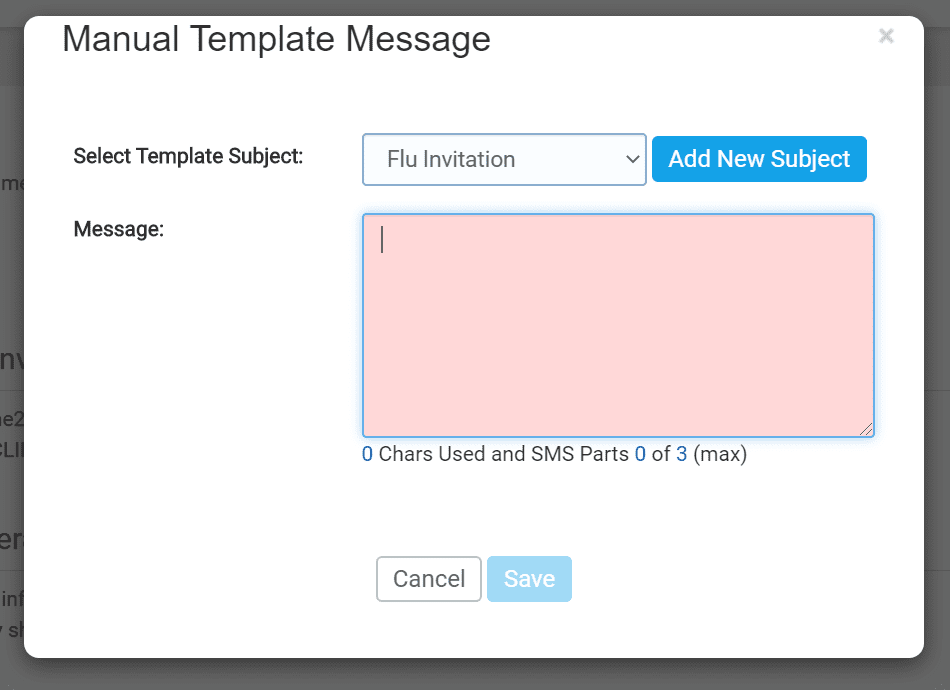
- First click on the Add New Subject button
- This will clear the Select Template Subject field
- Name your template in this field (e.g. Flu Invitation)
- Then type in your template into the Message field
- Click Save
Now your template will be saved as an entry on the page and will be accessible in the New Message section.
© 2026 iPLATO. All rights reserved