

How to send out a Coronavirus Vaccination Campaign message
December 18, 2020
Now to create the actual message for your Coronavirus Vaccination Campaign:
- Click on Campaigns tab found on the left-hand side menu
- Click on Templates
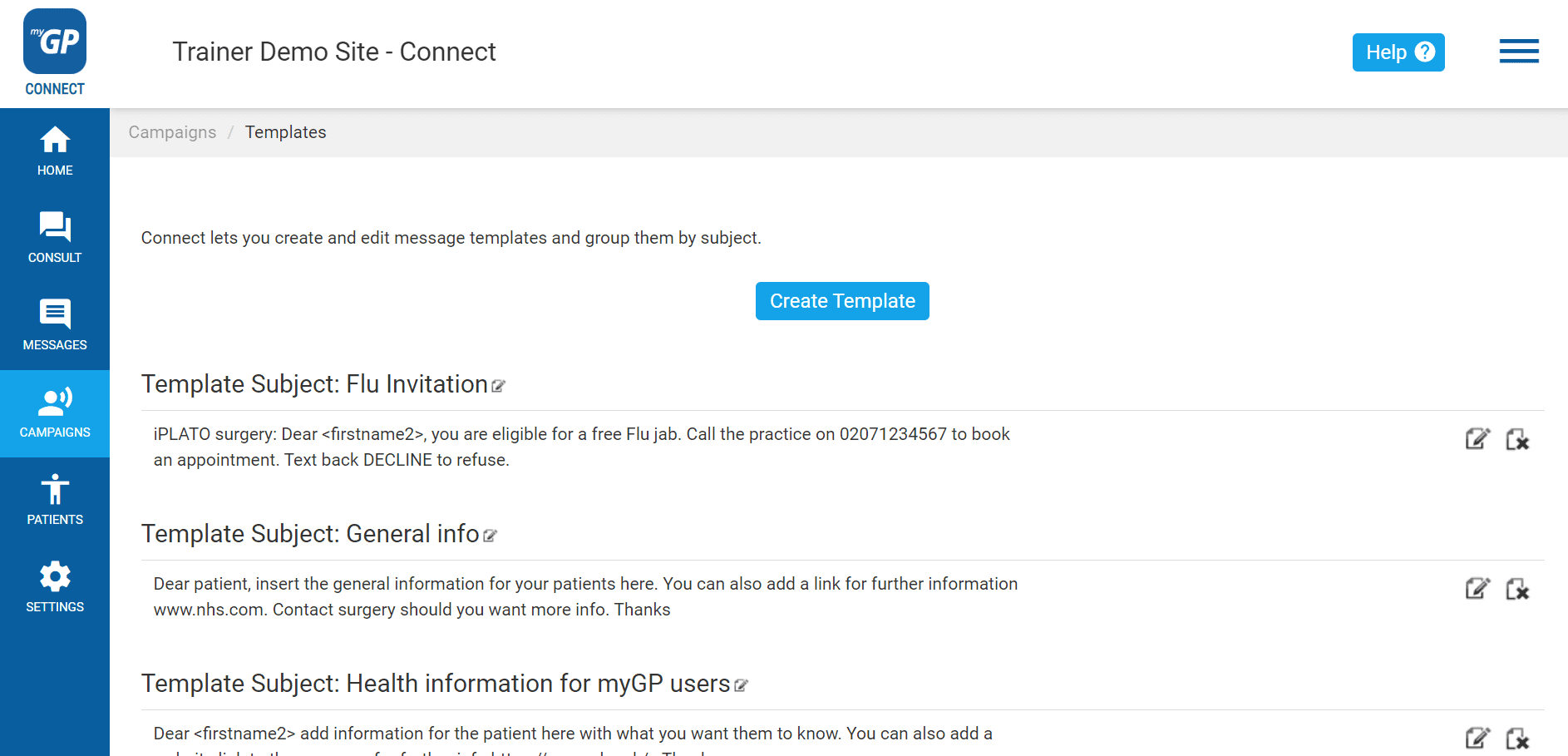
On this page, you will be able to create a template for Invitation message. To create this, do the following steps:
- Click Create Template
- This will bring up the Manual Template Message pop-up box
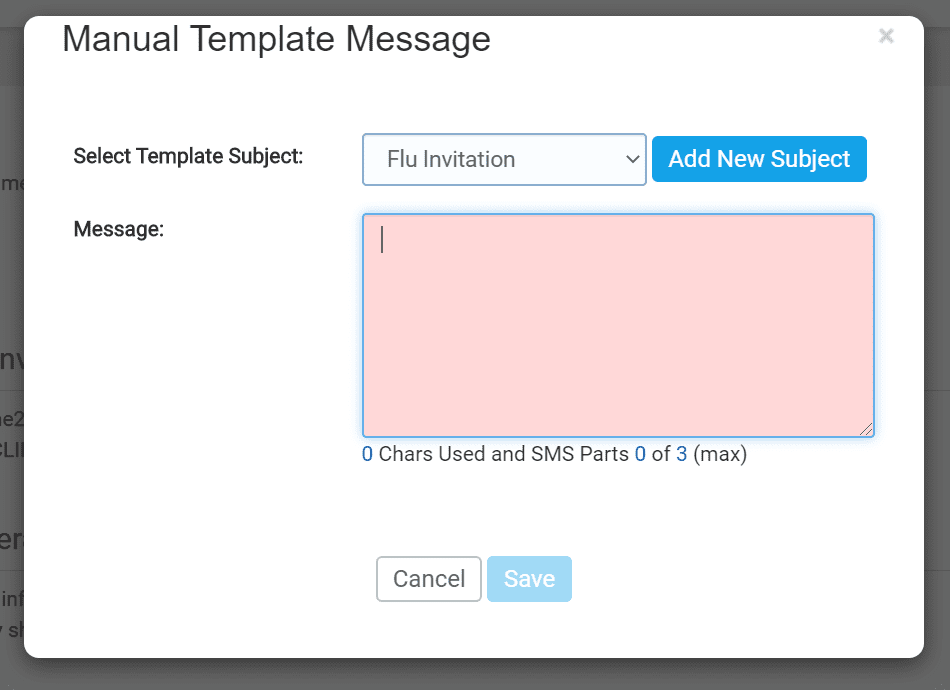
- First click on the Add New Subject button
- This will clear the Select Template Subject field
- Name your template (e.g. Coronavirus Vaccination Campaign)
- Then type your invitation into the Message field
An example of a best practice templates for a Coronavirus Vaccination Campaign is found below (alternatively, you can also create your own):
“From (surgery name): Dear <firstname2>, you are eligible for a free Covid vaccination. Call the practice on xxxxxxxxxx to book an appt. Text back REJECT to refuse .”
REJECT is set up to be the Trigger Word for this template.
- Once text is inserted, click Save
Now your template will be saved as an entry on the page and will be accessible in the New Message section.


© 2026 iPLATO. All rights reserved
Practice Area
How to send out a Coronavirus Vaccination Campaign message
December 18, 2020
Now to create the actual message for your Coronavirus Vaccination Campaign:
- Click on Campaigns tab found on the left-hand side menu
- Click on Templates
On this page, you will be able to create a template for Invitation message. To create this, do the following steps:
- Click Create Template
- This will bring up the Manual Template Message pop-up box
- First click on the Add New Subject button
- This will clear the Select Template Subject field
- Name your template (e.g. Coronavirus Vaccination Campaign)
- Then type your invitation into the Message field
An example of a best practice templates for a Coronavirus Vaccination Campaign is found below (alternatively, you can also create your own):
“From (surgery name): Dear <firstname2>, you are eligible for a free Covid vaccination. Call the practice on xxxxxxxxxx to book an appt. Text back REJECT to refuse .”
REJECT is set up to be the Trigger Word for this template.
- Once text is inserted, click Save
Now your template will be saved as an entry on the page and will be accessible in the New Message section.
© 2026 iPLATO. All rights reserved
How to send out a Coronavirus Vaccination Campaign message
December 18, 2020
Now with all elements created, we can send out our message:
- Click on Campaigns found on the left-hand side menu
- Click on New Message
- You will be directed to the Select Recipients page
On this page you will select your Season Flu Invitation group:
- Refer to the Select Recipient Group(s) box on the bottom left
- Select your Group (e.g. Coronavirus Vaccination Campaign) and then click the Move Selected arrow to the right
- This will move the patient’s names and details to the Recipients box to the right
- Now click Next at the lower right of the page
- This will direct you to the Create Message page.
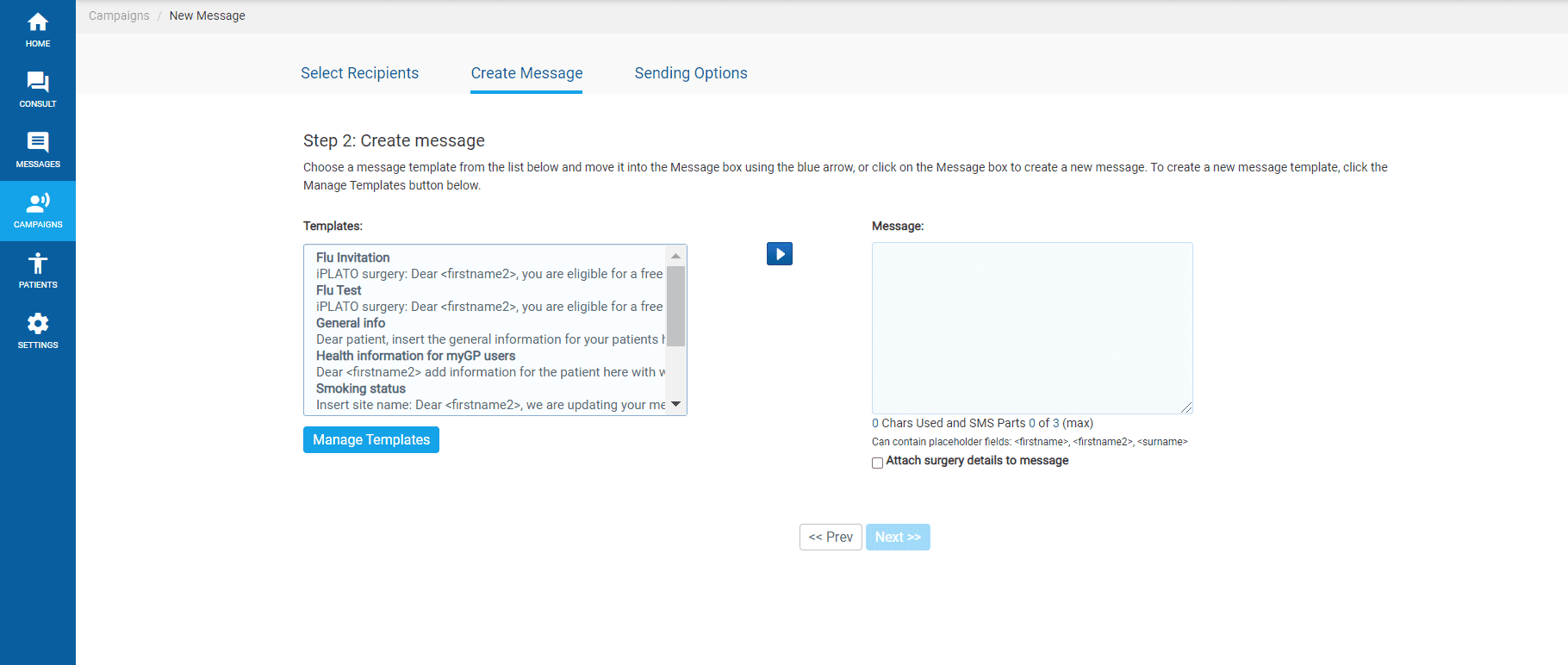
On this page, you will assign the Seasonal Flu Invitation template you created:
- Refer to the Templates box on left
- Click on the template (e.g. Coronavirus Vaccination Campaign)
- Click the Move Selected arrow
- This will move your template to the Message box to the right
- Click on Next
Please Note: If your message exceeds 160 characters, it will cost more then 1 credit to be sent out. A pop-up will appear to notify you of this. Click OK to proceed.
- You will now be brought directly to the Sending Options page.
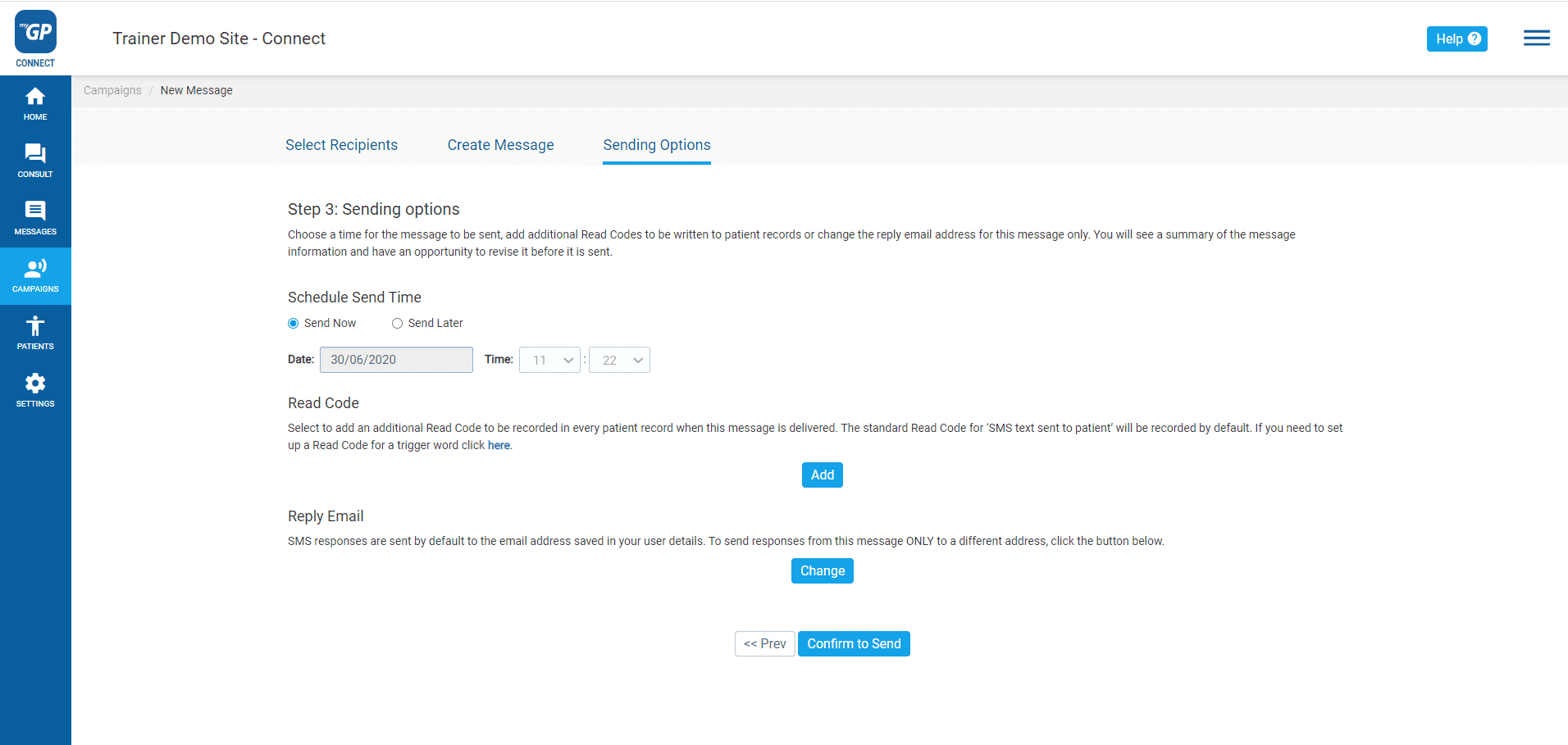
This is the final step to send out the campaign message:
- Choose your Sending Options
Choose a time for the message to be sent, either Send Now or Send Later
- Assign the clinical code to message with Read Code
(Optional) – To add an additional Read Code/ Snomed when the message is delivered, select the Add button and type in the clinical code required, then select Save.
- Reassign the Reply Email if necessary
(Optional) – SMS responses are sent by default to the email address saved in your user details. To send responses to a different address, click the Change button, tick the Custom box, click into the Add Email field, and type the preferred email address. Then click on the plus button and click Save.
- Click Confirm to Send
- You will receive a Message Confirmation Summary pop-up box
(Optional) – If you wish to change any details, click Cancel, then modify what is necessary.
- If everything is correct, click the Send
- You will receive a confirmation pop-up message
- Click OK
Your campaign message has now been successfully sent.
© 2026 iPLATO. All rights reserved