

How to create a trigger word for Coronavirus Vaccination Campaign
December 18, 2020
Now to create the actual message for your Coronavirus Vaccination Campaign:
- Click on Campaigns tab found on the left-hand side menu
- Click on Templates
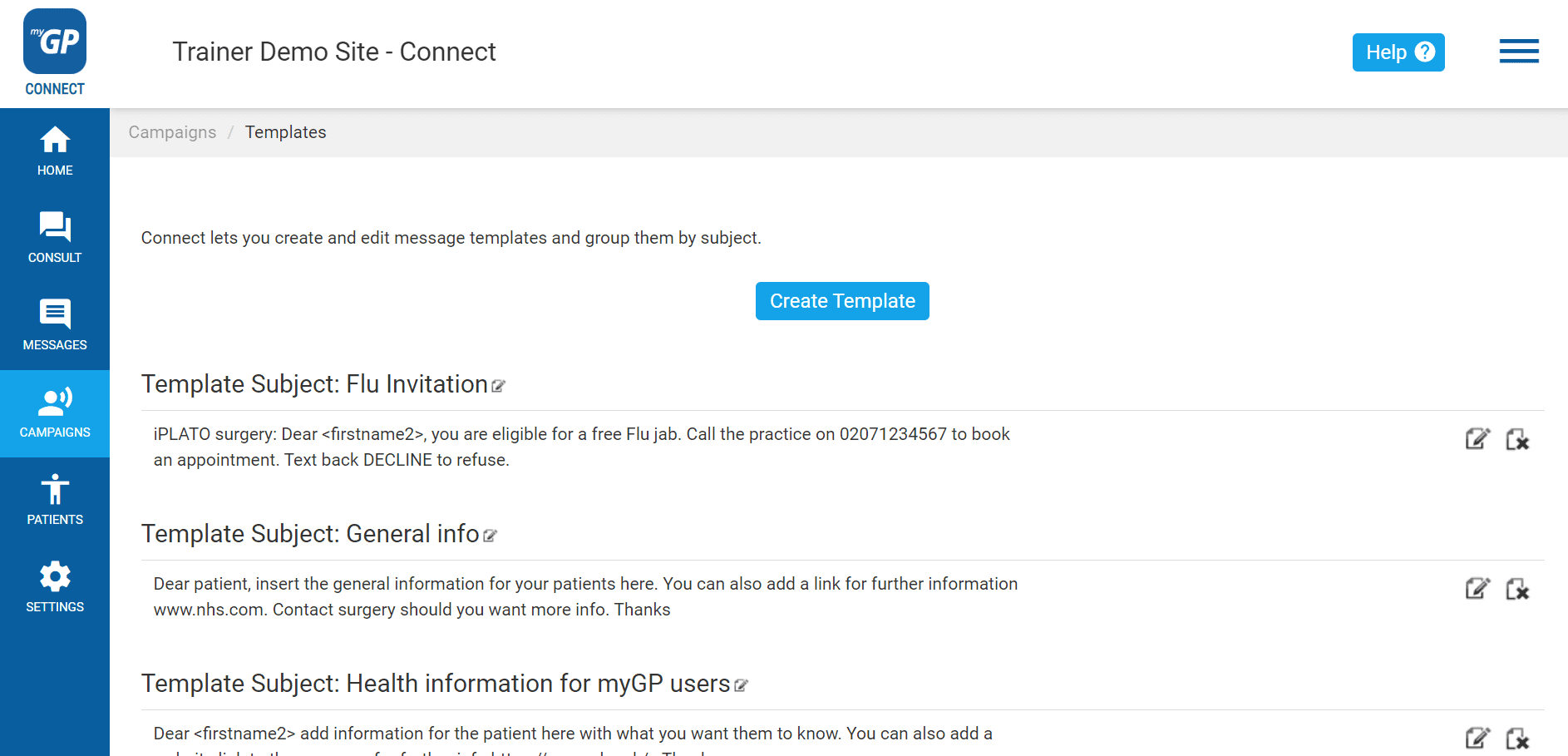
On this page, you will be able to create a template for Invitation message. To create this, do the following steps:
- Click Create Template
- This will bring up the Manual Template Message pop-up box
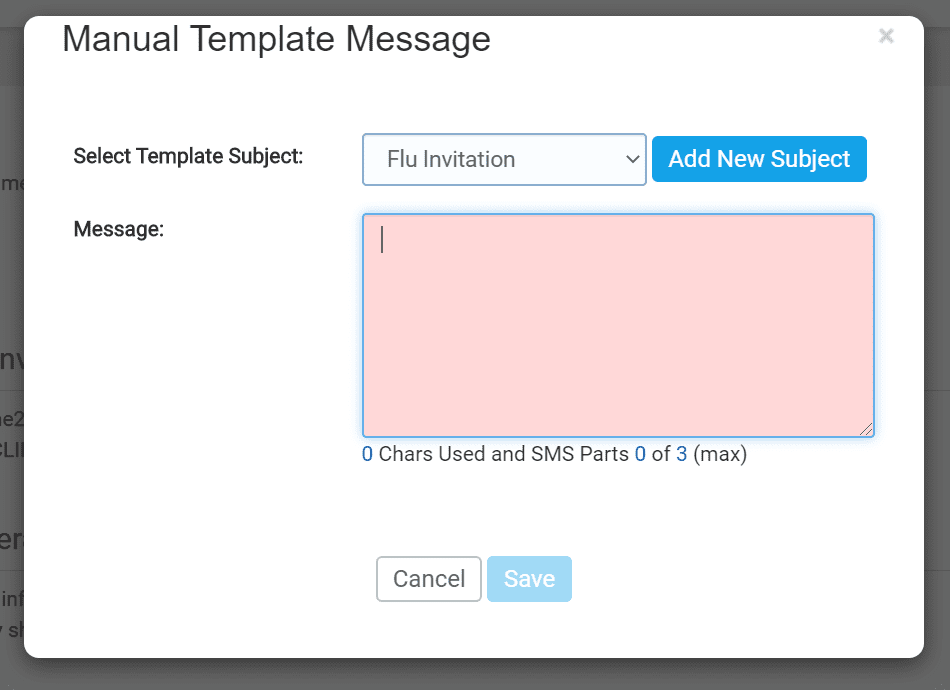
- First click on the Add New Subject button
- This will clear the Select Template Subject field
- Name your template (e.g. Coronavirus Vaccination Campaign)
- Then type your invitation into the Message field
An example of a best practice templates for a Coronavirus Vaccination Campaign is found below (alternatively, you can also create your own):
“From (surgery name): Dear <firstname2>, you are eligible for a free Covid vaccination. Call the practice on xxxxxxxxxx to book an appt. Text back REJECT to refuse .”
REJECT is set up to be the Trigger Word for this template.
- Once text is inserted, click Save
Now your template will be saved as an entry on the page and will be accessible in the New Message section.


© 2026 iPLATO. All rights reserved
Practice Area
How to create a trigger word for Coronavirus Vaccination Campaign
December 18, 2020
Now to create the actual message for your Coronavirus Vaccination Campaign:
- Click on Campaigns tab found on the left-hand side menu
- Click on Templates
On this page, you will be able to create a template for Invitation message. To create this, do the following steps:
- Click Create Template
- This will bring up the Manual Template Message pop-up box
- First click on the Add New Subject button
- This will clear the Select Template Subject field
- Name your template (e.g. Coronavirus Vaccination Campaign)
- Then type your invitation into the Message field
An example of a best practice templates for a Coronavirus Vaccination Campaign is found below (alternatively, you can also create your own):
“From (surgery name): Dear <firstname2>, you are eligible for a free Covid vaccination. Call the practice on xxxxxxxxxx to book an appt. Text back REJECT to refuse .”
REJECT is set up to be the Trigger Word for this template.
- Once text is inserted, click Save
Now your template will be saved as an entry on the page and will be accessible in the New Message section.
© 2026 iPLATO. All rights reserved
How to create a trigger word for Coronavirus Vaccination Campaign
December 18, 2020
A Trigger Word is a word within an outgoing message that has been assigned a clinical code. If a patient responds with this word, the clinical code will be recorded on your clinical system to your patent’s record. Using the example template from the last step, your Trigger Word will be REJECT.
To create a Trigger Word, please do the following steps:
- Click on Campaigns found on the left-hand side menu
- Click on Trigger Words
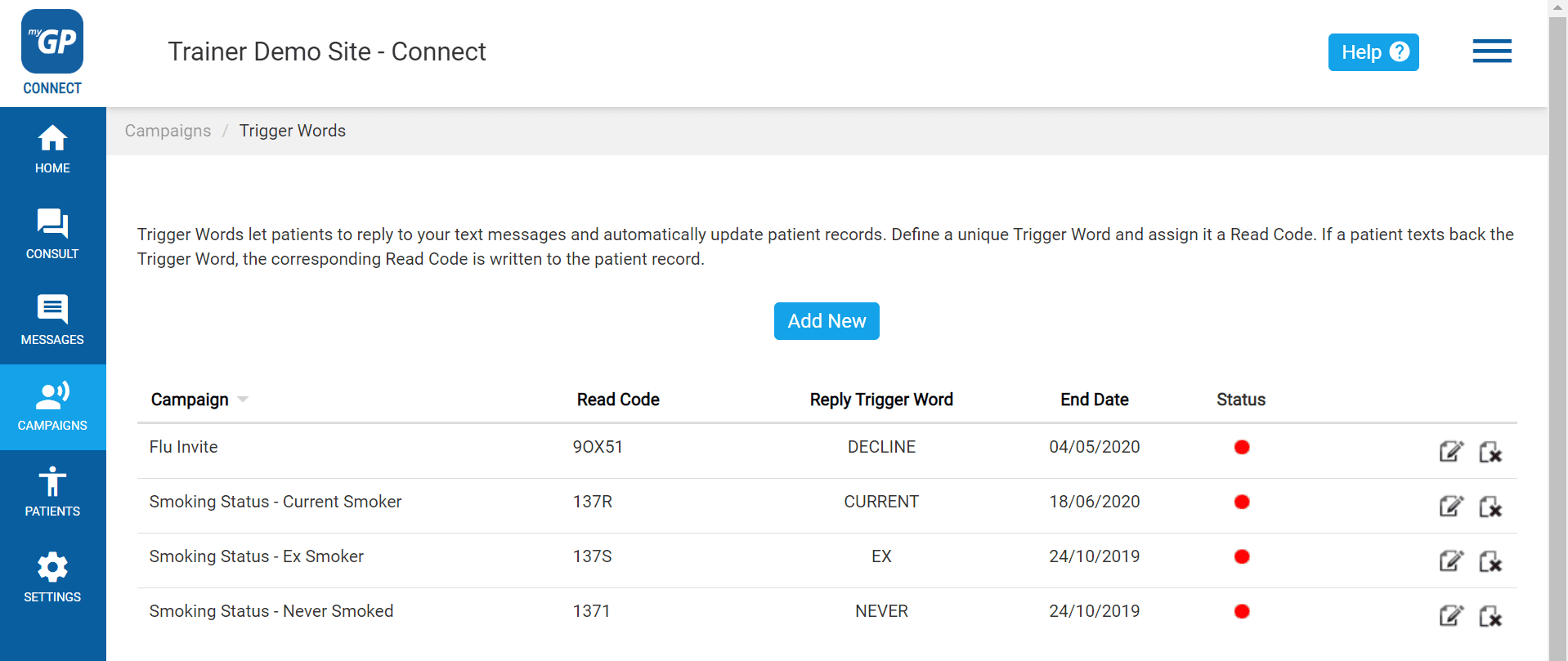
From this page we can assign the formerly created REJCT Trigger Word with a clinical code:
- Click Add New
- The Add Campaign pop-up box will appear
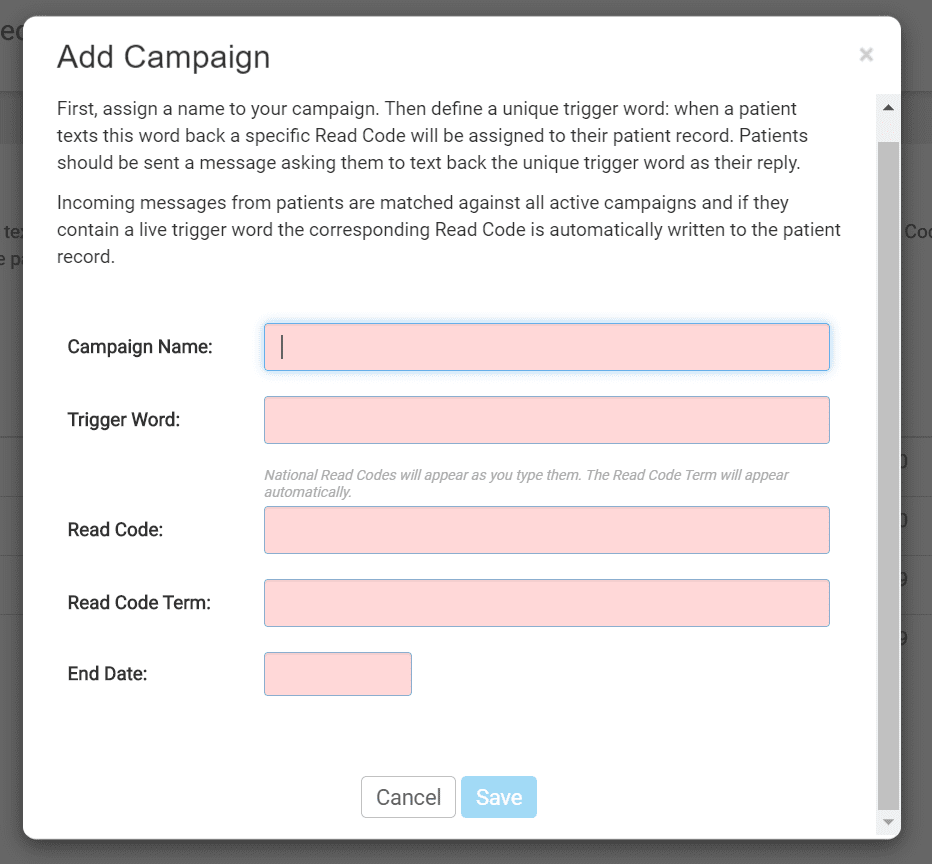
- Fill in the Campaign Name of COVID Vaccination Invitation
- Fill in the Trigger Word of REJECT
- Add the clinical code (e.g. 8IAI.00 – 2019-nCoV (novel coronavirus) vaccination declined) into the Read Code field
- The Read Code Term will automatically be filled in
- Click on the End Date
- From the calendar pop-up choose a appropriate date for the Trigger Word
- Click Save
This will activate your Trigger Word and save it as an entry on the main screen.
Please Note: If you run multiple campaigns simultaneously, make sure each campaign has a unique Trigger Word assigned to them. If active campaigns contain the same Trigger Word, it can complicate the clinical code sending back.
TOP TIP: You can reactivate a Trigger Word at any point by giving it a new End Date.
© 2026 iPLATO. All rights reserved