

How to create a group for Flu Campaign
July 22, 2020
Now to create the actual message for your Coronavirus Vaccination Campaign:
- Click on Campaigns tab found on the left-hand side menu
- Click on Templates
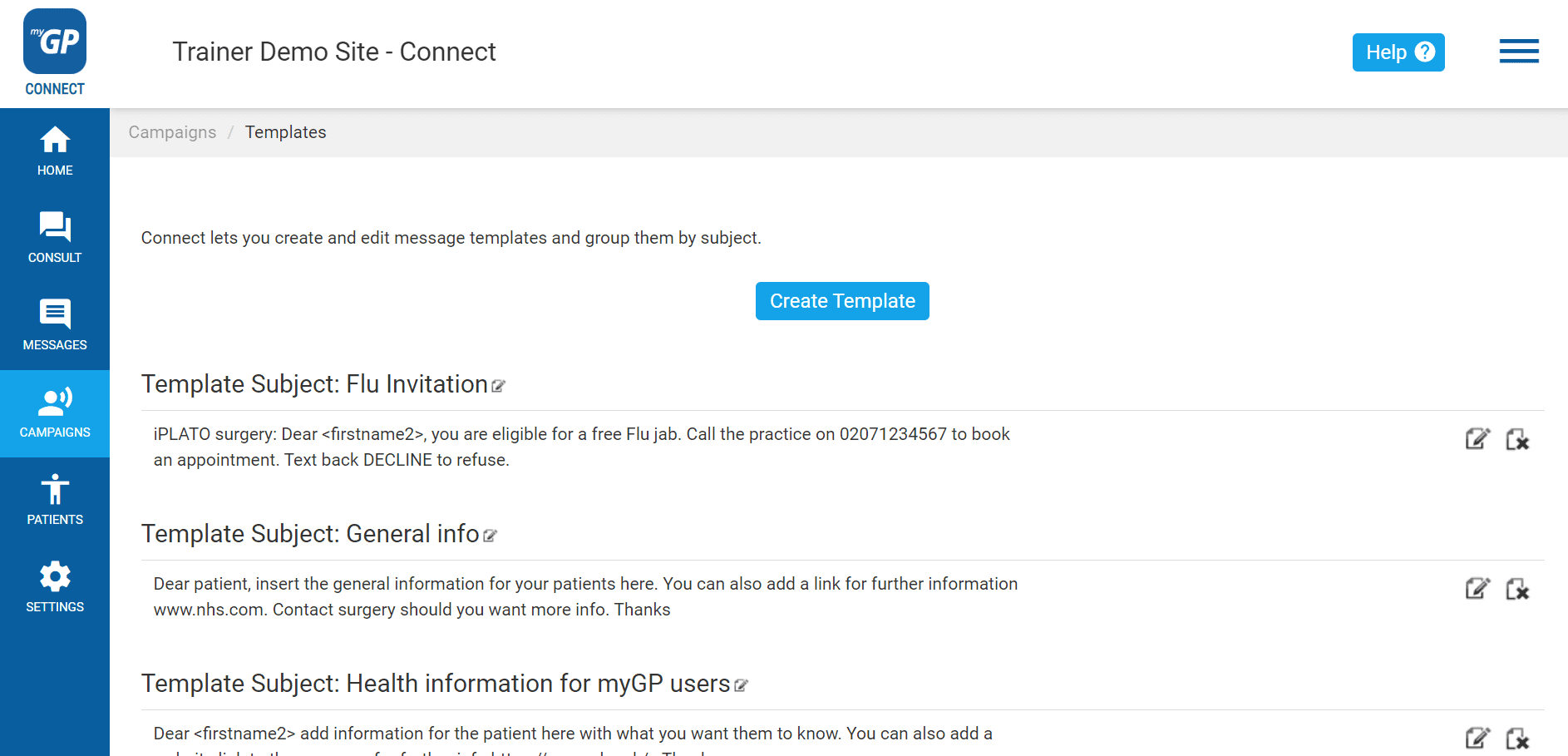
On this page, you will be able to create a template for Invitation message. To create this, do the following steps:
- Click Create Template
- This will bring up the Manual Template Message pop-up box
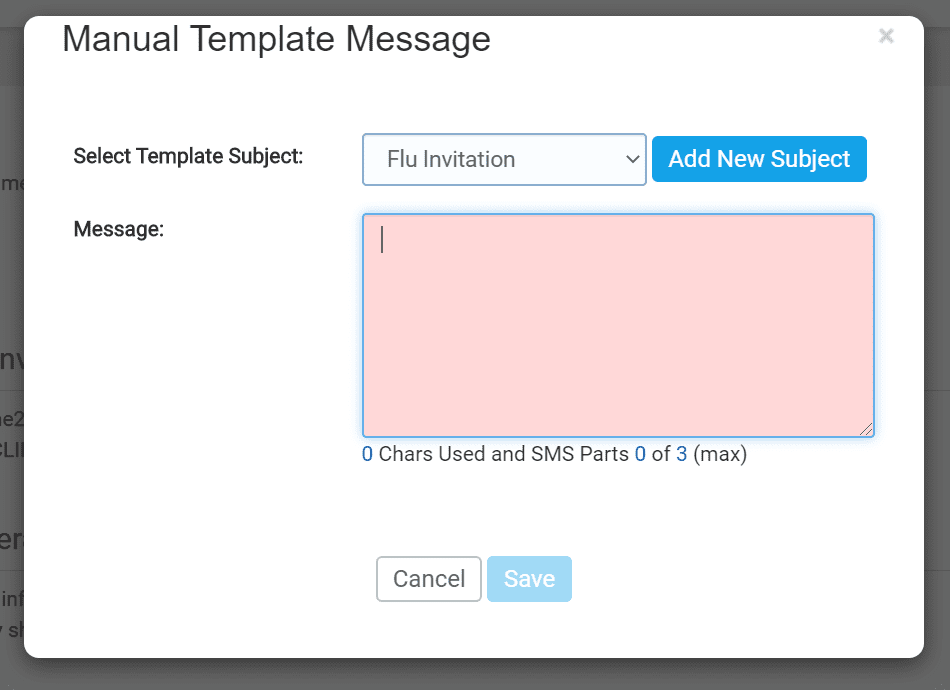
- First click on the Add New Subject button
- This will clear the Select Template Subject field
- Name your template (e.g. Coronavirus Vaccination Campaign)
- Then type your invitation into the Message field
An example of a best practice templates for a Coronavirus Vaccination Campaign is found below (alternatively, you can also create your own):
“From (surgery name): Dear <firstname2>, you are eligible for a free Covid vaccination. Call the practice on xxxxxxxxxx to book an appt. Text back REJECT to refuse .”
REJECT is set up to be the Trigger Word for this template.
- Once text is inserted, click Save
Now your template will be saved as an entry on the page and will be accessible in the New Message section.


© 2026 iPLATO. All rights reserved
Practice Area
How to create a group for Flu Campaign
July 22, 2020
Now to create the actual message for your Coronavirus Vaccination Campaign:
- Click on Campaigns tab found on the left-hand side menu
- Click on Templates
On this page, you will be able to create a template for Invitation message. To create this, do the following steps:
- Click Create Template
- This will bring up the Manual Template Message pop-up box
- First click on the Add New Subject button
- This will clear the Select Template Subject field
- Name your template (e.g. Coronavirus Vaccination Campaign)
- Then type your invitation into the Message field
An example of a best practice templates for a Coronavirus Vaccination Campaign is found below (alternatively, you can also create your own):
“From (surgery name): Dear <firstname2>, you are eligible for a free Covid vaccination. Call the practice on xxxxxxxxxx to book an appt. Text back REJECT to refuse .”
REJECT is set up to be the Trigger Word for this template.
- Once text is inserted, click Save
Now your template will be saved as an entry on the page and will be accessible in the New Message section.
© 2026 iPLATO. All rights reserved
How to create a group for Flu Campaign
July 22, 2020
Watch video
To create a group, follow these steps:
- Log in to myGP Connect system
- Click on Campaigns tab found on the left-hand side menu
- Click on Groups
- You will be directed to the Groups page
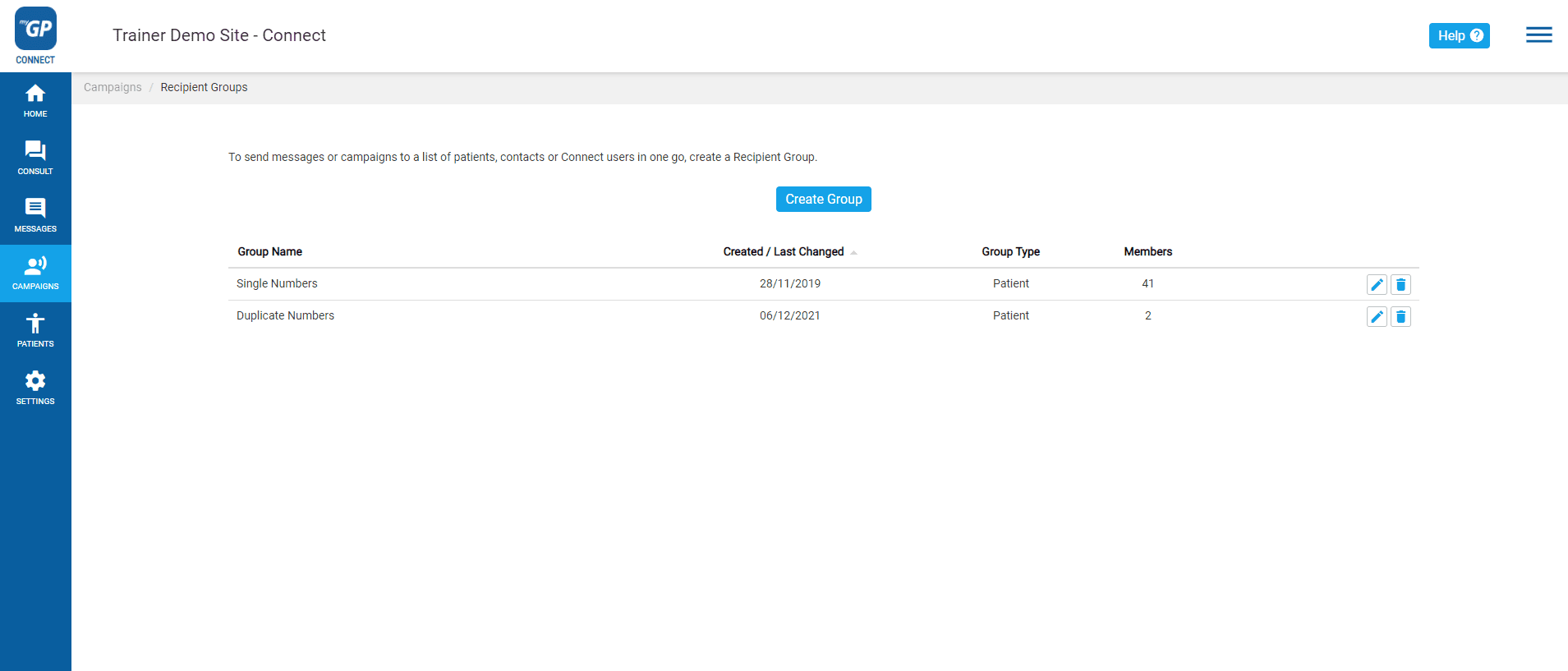
Here you can create a group from your clinical search. Please do the following:
- Click the Create Group button
- You will see the Create Recipient Group pop-up box
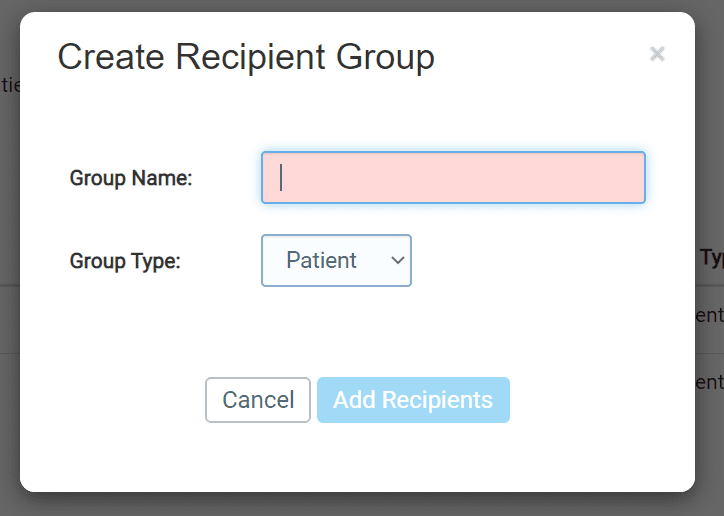
- Name your group Seasonal Flu Invitation in the Group Name field
- Choose from Group Type options
- Then click Add Recipients
- This will bring you to the Edit Group pop-up box
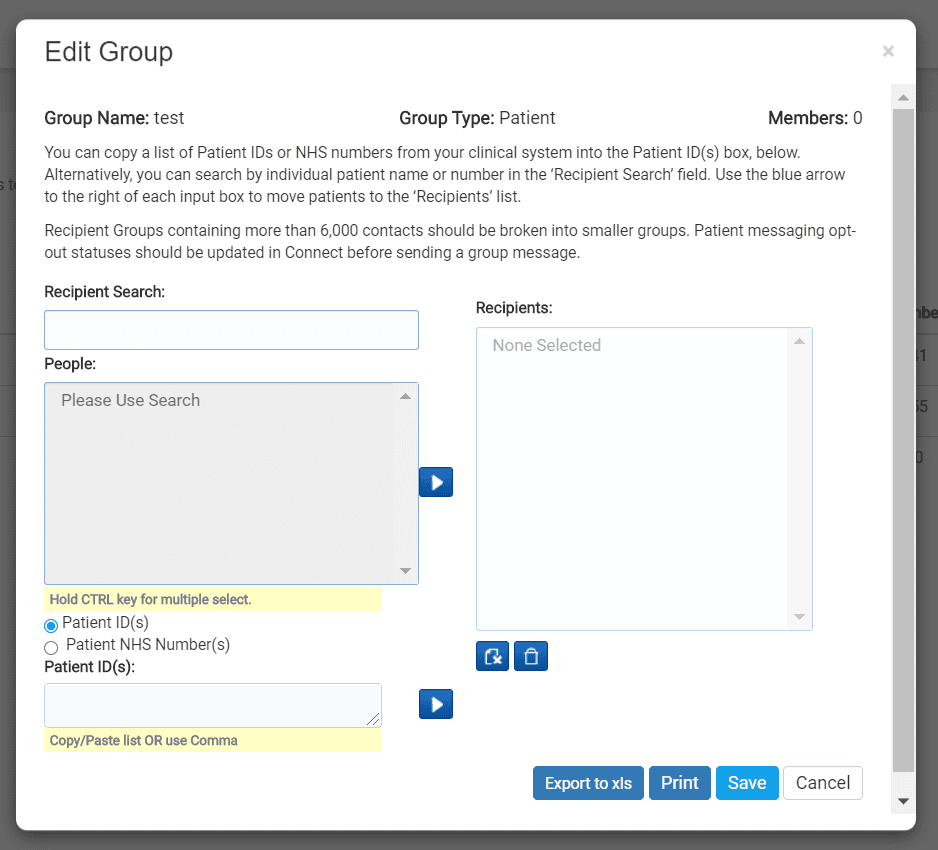
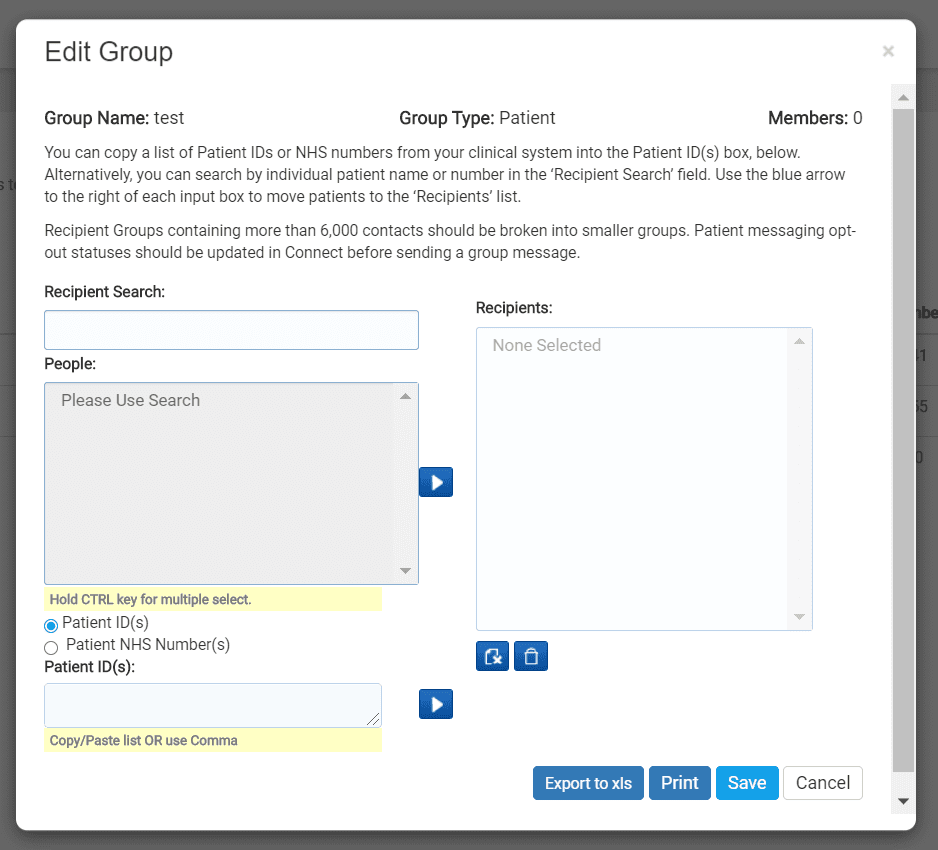
On this page we have the option to add in your clinical search group of patients. To add patients, you can do it via these different methods:
For Emis users: add patients via Patient ID
- Paste the Patient ID numbers into the Patient ID box on the lower left
- Click the Move Selected arrow to the lower right
- Your patient will appear in the Recipient box to the right
- Click Save
For TPP/SystmOne users: add patients via patient NHS number
- Select the Patient NHS Number option from the lower left box
- Paste your NHS numbers into the NHS Number box on the lower left
- Click the Move Selected arrow to the lower right
- Your patient will appear in the Recipient box to the right
- Click Save
This will save your Group as an entry on the main page.
Please Note: When you move your patients over to Recipient, a button named Excluded will appear. This will show you all non-mobile registered users that will not receive this campaign message. You will need to contact these patients by other means (e.g. email, home phone call).
© 2026 iPLATO. All rights reserved