

Coronavirus Vaccination Campaign Help Page
December 17, 2020
Now to create the actual message for your Coronavirus Vaccination Campaign:
- Click on Campaigns tab found on the left-hand side menu
- Click on Templates
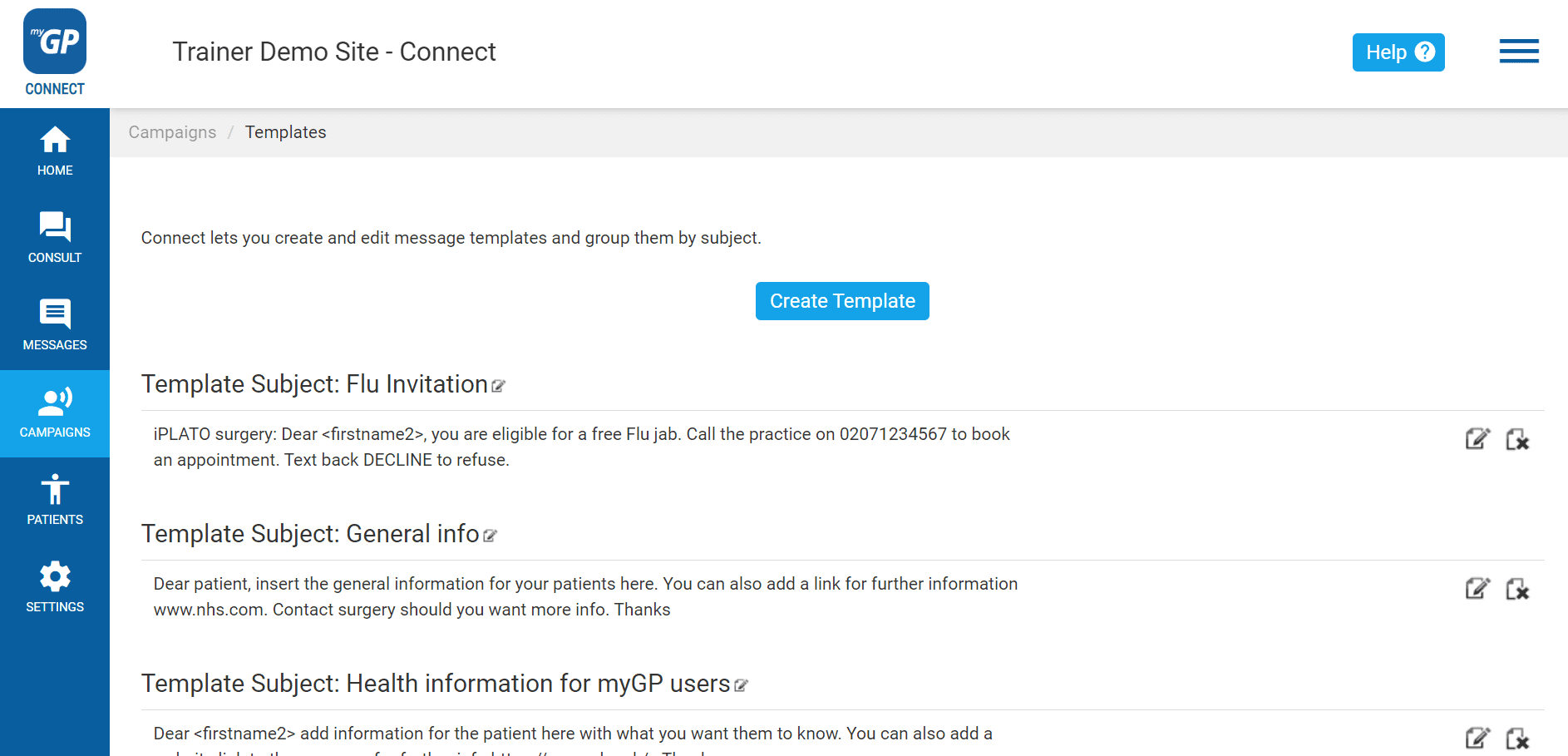
On this page, you will be able to create a template for Invitation message. To create this, do the following steps:
- Click Create Template
- This will bring up the Manual Template Message pop-up box
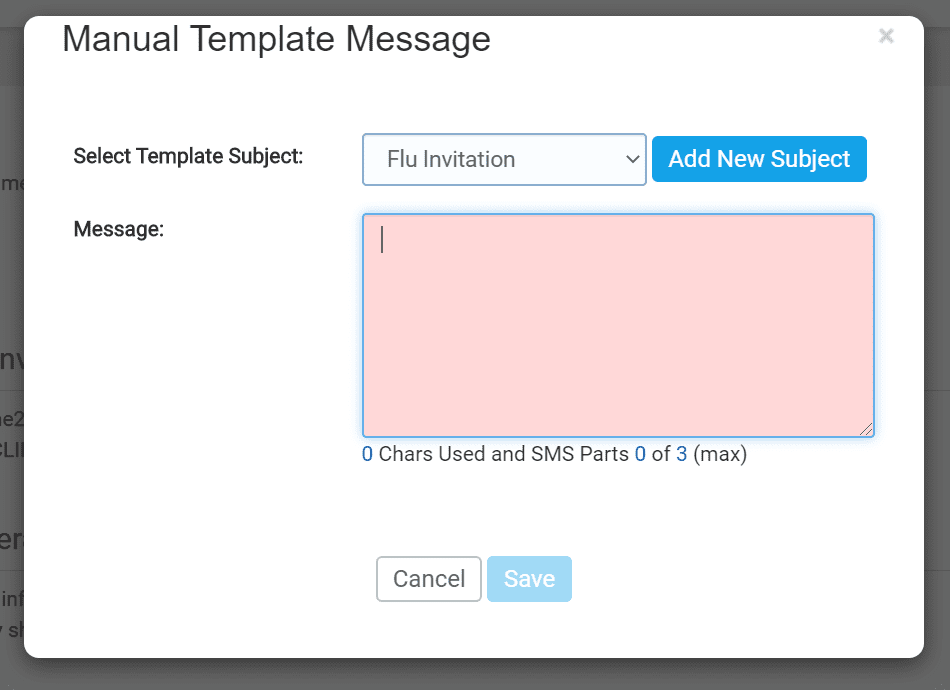
- First click on the Add New Subject button
- This will clear the Select Template Subject field
- Name your template (e.g. Coronavirus Vaccination Campaign)
- Then type your invitation into the Message field
An example of a best practice templates for a Coronavirus Vaccination Campaign is found below (alternatively, you can also create your own):
“From (surgery name): Dear <firstname2>, you are eligible for a free Covid vaccination. Call the practice on xxxxxxxxxx to book an appt. Text back REJECT to refuse .”
REJECT is set up to be the Trigger Word for this template.
- Once text is inserted, click Save
Now your template will be saved as an entry on the page and will be accessible in the New Message section.


© 2026 iPLATO. All rights reserved
Practice Area
Coronavirus Vaccination Campaign Help Page
December 17, 2020
Now to create the actual message for your Coronavirus Vaccination Campaign:
- Click on Campaigns tab found on the left-hand side menu
- Click on Templates
On this page, you will be able to create a template for Invitation message. To create this, do the following steps:
- Click Create Template
- This will bring up the Manual Template Message pop-up box
- First click on the Add New Subject button
- This will clear the Select Template Subject field
- Name your template (e.g. Coronavirus Vaccination Campaign)
- Then type your invitation into the Message field
An example of a best practice templates for a Coronavirus Vaccination Campaign is found below (alternatively, you can also create your own):
“From (surgery name): Dear <firstname2>, you are eligible for a free Covid vaccination. Call the practice on xxxxxxxxxx to book an appt. Text back REJECT to refuse .”
REJECT is set up to be the Trigger Word for this template.
- Once text is inserted, click Save
Now your template will be saved as an entry on the page and will be accessible in the New Message section.
© 2026 iPLATO. All rights reserved
Coronavirus Vaccination Campaign Help Page
December 17, 2020
The COVID-19 pandemic has changed how a regular GP practice communicates and interacts with all its patients.
To help stay on top of things, we have provided tips and info on how to fully utilise your myGP Connect system to help your practice with the current situation.
Our solutions include:
- Messaging – to invite patients to get the jab
- Appointment reminder customisation – to make sure your reminders work for you during the “new normal”
- Barcode – scan a barcode of the patient’s NHS number in the app to speed up vaccination admin
- Call/Recall – to simplify invite and self-service booking of vaccination appointments
- myGP preGP – to sign-post patients to the many local NHS services and charities that can help them (additional purchase)
Example templates
Below you will find helpful information showing Coronavirus related template messages, and variable fields you can use in myGP Connect:
How to send a campaign to multiple patients
Here is a guide of how to create and send a Coronavirus Vaccination Campaign using myGP Connect. Each page covers the steps in a detailed text guide with screenshots:
- Step 1: Create a Coronavirus Vaccination group
- Step 2: Create a Coronavirus Vaccination template
- Step 3: Create a Coronavirus Vaccination trigger word
- Step 4: Send out your Coronavirus Vaccination Campaign
Webinar – Sending Invitations for a Coronavirus Vaccination Campaign
The below video is a recording of our recent Webinar on how to send out a Coronavirus Vaccination Campaign:
Watch video
Live webinar
Book yourself into one of our live webinars where we will take you through the above, along with a live Q&A session.
How to send a single message to a patient
If you wish to send out a single message to a patient (e.g. with Coronavirus related information), or send an individual a vaccination invite, please refer to our following guide:
Updating your Appointment Reminders
If you wish to update your systems Appointment Reminders with a Coronavirus related notification, please refer to our following guide:
How to create a Custom Appointment Reminder
If you wish to create a customised Appointment Reminder with a Coronavirus information, please refer to the following guide:
Wait there’s more…
Barcode
We have launched a new feature in the myGP app that allows patients to display a barcode of their NHS number within the app.
Call/Recall
If you have activated the myGP app and would prefer to send your Coronavirus Vaccination invite as a Call/Recall Campaign, follow the below link to find our step-by-step guide. This will give patients the option of booking their appointment directly from the seasonal flu invitation they have been sent. You can also run multiple campaigns using this feature at the same time. This will reduce the number of incoming calls into your practice and will also reduce the number of patients you need to contact to book their vaccination.
myGP preGP (additional purchase)
Here is a direct link to see how the additional purchase of preGP will signpost patients attempting to book an appointment with the myGP app based on Coronavirus symptoms.
I have a problem
If you seem to be having technical issues with Appointment Reminders, check out the below links for assistance.
© 2026 iPLATO. All rights reserved