

How to set up the Summary Report for cancelled appointments
June 23, 2020
Watch video
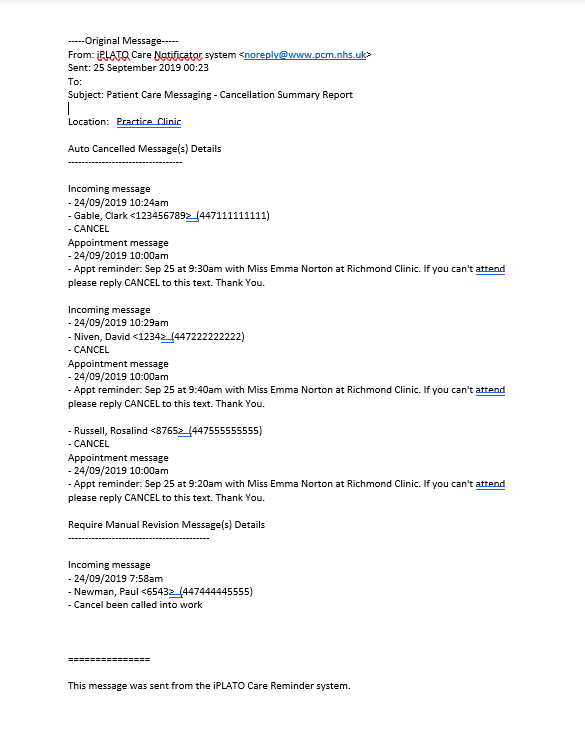
A Cancellation Summary Report is an automatically generated daily report that will summarise any cancellations your practice has on that day, or any appointments that requires a manual cancellation.
Look below for a visual example of this report:
In order to receive the Summary Report, you will need to assign it to a specific email address. Do so by following these specific steps:
- Log in to your myGP Connect system
- Click on Settings from the left-hand side menu
- Select Cancellation
- From the Cancellation page click on the sub-tab of Summary Report
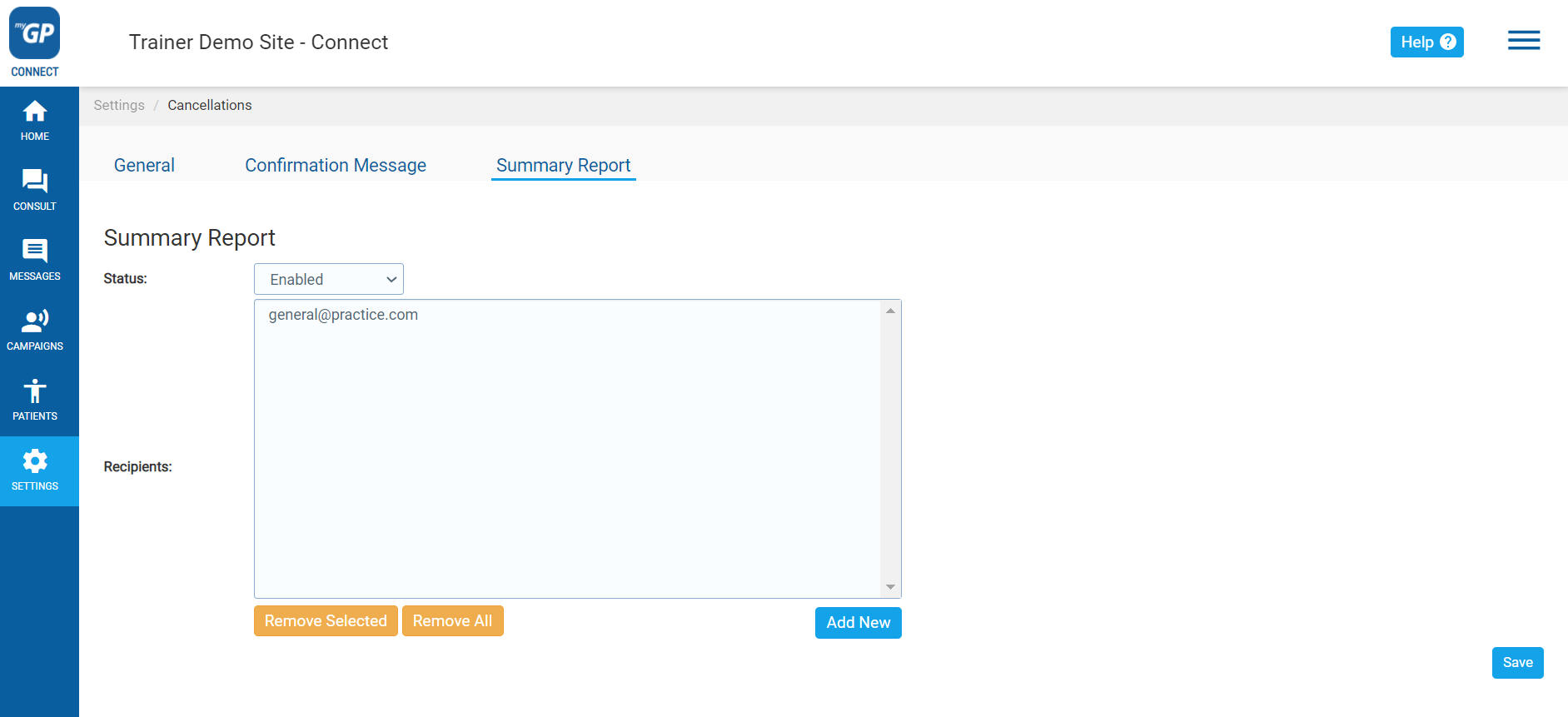
- From the Summary Report section, refer to the Status column
- Now click on Disabled and choose Enabled
- Then click on the Add New button to the right
- This will bring up an Add Recipient Email pop-up box
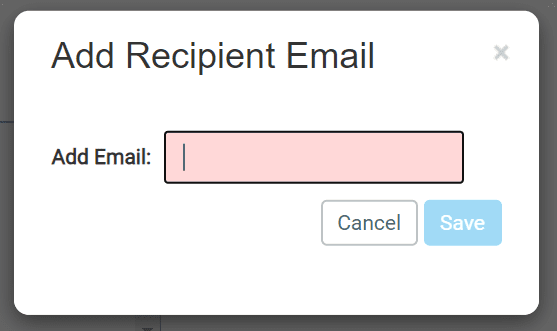
- Type in the Add Email field the selected email you wish to receive the Summary Report
- Click Save, this will close the pop-up box and bring you back to the main page
- Click Save once again on the main page and the assigned email address will appear in the main Recipient box


© 2026 iPLATO. All rights reserved
Practice Area
How to set up the Summary Report for cancelled appointments
June 23, 2020
Watch video
A Cancellation Summary Report is an automatically generated daily report that will summarise any cancellations your practice has on that day, or any appointments that requires a manual cancellation.
Look below for a visual example of this report:
In order to receive the Summary Report, you will need to assign it to a specific email address. Do so by following these specific steps:
- Log in to your myGP Connect system
- Click on Settings from the left-hand side menu
- Select Cancellation
- From the Cancellation page click on the sub-tab of Summary Report
- From the Summary Report section, refer to the Status column
- Now click on Disabled and choose Enabled
- Then click on the Add New button to the right
- This will bring up an Add Recipient Email pop-up box
- Type in the Add Email field the selected email you wish to receive the Summary Report
- Click Save, this will close the pop-up box and bring you back to the main page
- Click Save once again on the main page and the assigned email address will appear in the main Recipient box
© 2026 iPLATO. All rights reserved
How to set up the Summary Report for cancelled appointments
June 23, 2020
Watch video
A Cancellation Summary Report is an automatically generated daily report that will summarise any cancellations your practice has on that day, or any appointments that requires a manual cancellation.
Look below for a visual example of this report:
In order to receive the Summary Report, you will need to assign it to a specific email address. Do so by following these specific steps:
- Log in to your myGP Connect system
- Click on Settings from the left-hand side menu
- Select Cancellation
- From the Cancellation page click on the sub-tab of Summary Report
- From the Summary Report section, refer to the Status column
- Now click on Disabled and choose Enabled
- Then click on the Add New button to the right
- This will bring up an Add Recipient Email pop-up box
- Type in the Add Email field the selected email you wish to receive the Summary Report
- Click Save, this will close the pop-up box and bring you back to the main page
- Click Save once again on the main page and the assigned email address will appear in the main Recipient box
© 2026 iPLATO. All rights reserved