

How to create a new user account
June 23, 2020
Watch video
Each staff member will each need a unique user account in order to access the myGP Connect system. In order to create a new user, please follow these steps:
- Log in to your myGP Connect system
- Click on Settings from the left-hand side menu
- Click on Users
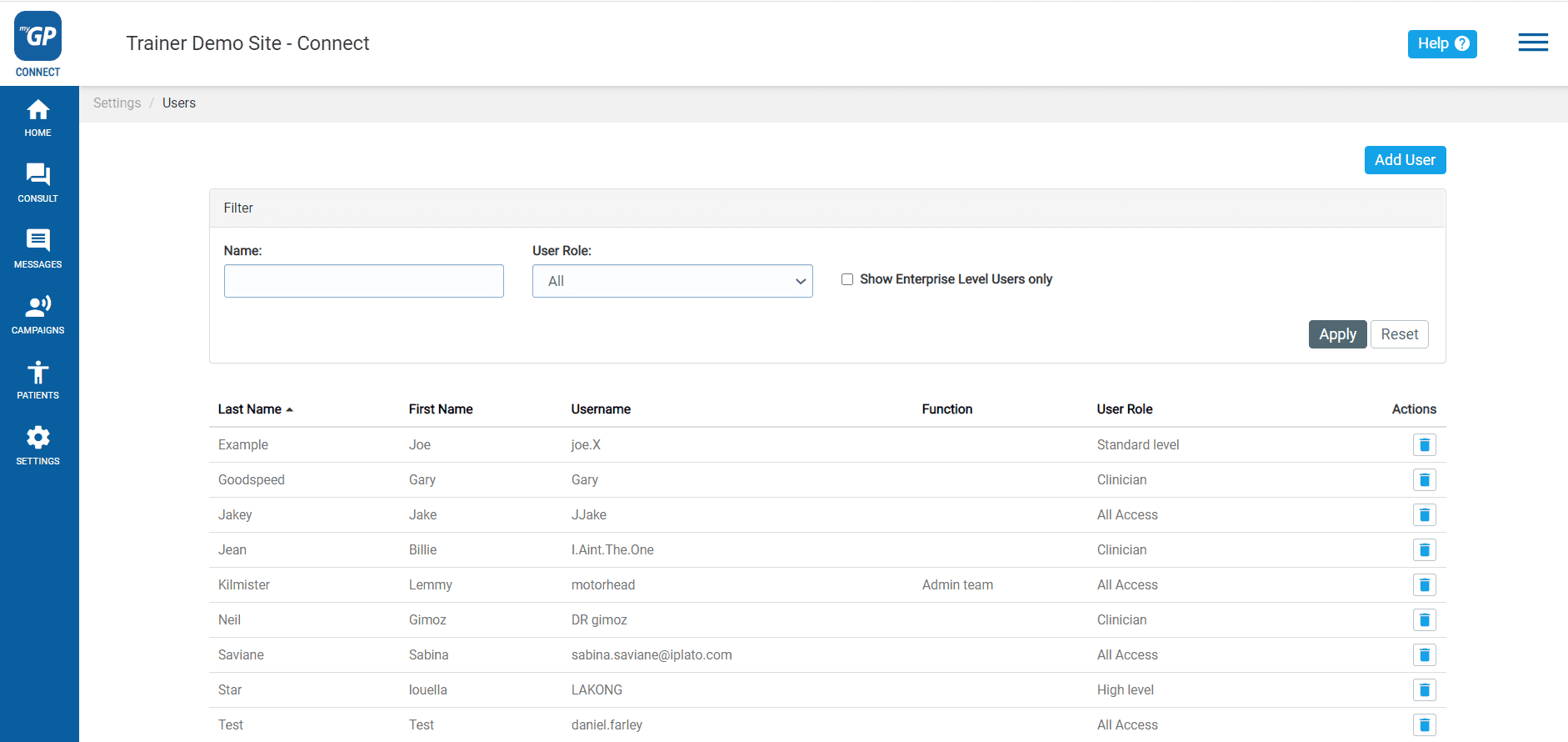
- To create a new user click Add New
- You will be brought to the Add User page
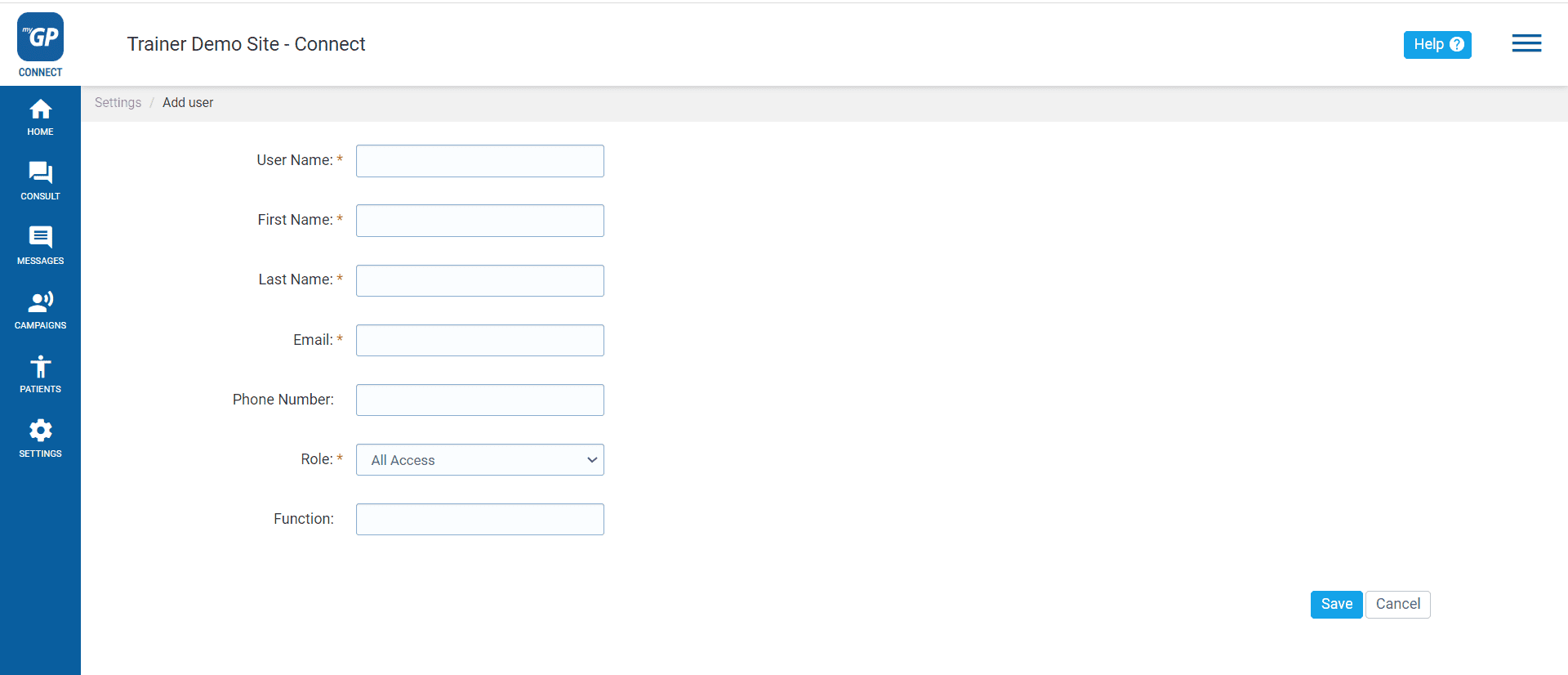
- Fill in all fields of user information
- Mobile and Function are optional fields and can be left blank
- Choose an appropriate Role
- Click Save, it will appear as a saved entry on the main page


© 2026 iPLATO. All rights reserved
Practice Area
How to create a new user account
June 23, 2020
Watch video
Each staff member will each need a unique user account in order to access the myGP Connect system. In order to create a new user, please follow these steps:
- Log in to your myGP Connect system
- Click on Settings from the left-hand side menu
- Click on Users
- To create a new user click Add New
- You will be brought to the Add User page
- Fill in all fields of user information
- Mobile and Function are optional fields and can be left blank
- Choose an appropriate Role
- Click Save, it will appear as a saved entry on the main page
© 2026 iPLATO. All rights reserved
How to create a new user account
June 23, 2020
Watch video
Each staff member will each need a unique user account in order to access the myGP Connect system. In order to create a new user, please follow these steps:
- Log in to your myGP Connect system
- Click on Settings from the left-hand side menu
- Click on Users
- To create a new user click Add New
- You will be brought to the Add User page
- Fill in all fields of user information
- Mobile and Function are optional fields and can be left blank
- Choose an appropriate Role
- Click Save, it will appear as a saved entry on the main page
© 2026 iPLATO. All rights reserved