

How to create a custom Appointment Reminder
June 23, 2020
Watch video
If instead of sending out the default Appointment Reminder, you wished to send out a customized message, please follow these steps:
- Log in to your myGP Connect system
- Click on Settings found on the left-hand side menu
- Click on Custom Reminders
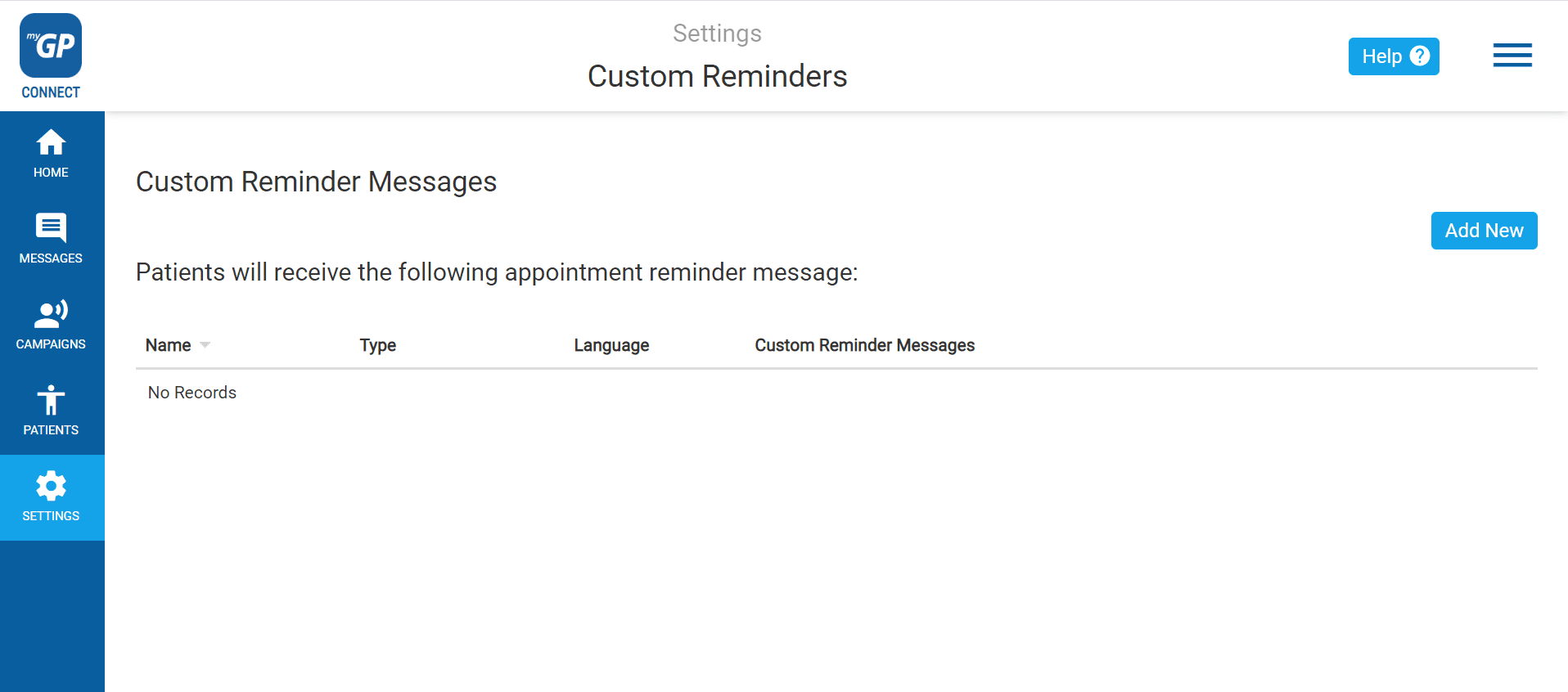
- To create a Custom Reminder click the Add New button
- This will open the Add Custom Reminder pop-up box
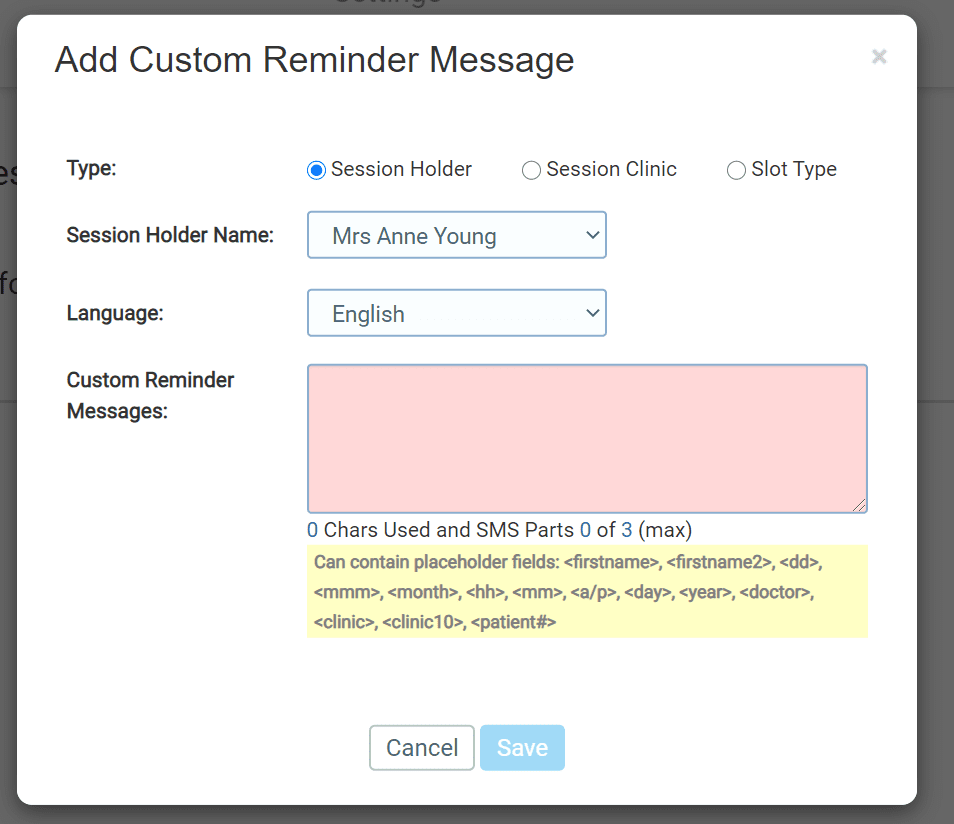
- Select the appointment type in the Type column
- Then select the specific appointment type from the drop-down
- Then fill in the text message within the Custom Reminder Messages box
- Click Save
- Your Custom Reminder will be saved as an entry on the main page.
TOP TIP: You can delete or edit a Custom Reminder at any point. Also, Mail Merges are available to copy and paste into your message below the Custom Reminder Messages text box.


© 2026 iPLATO. All rights reserved
Practice Area
How to create a custom Appointment Reminder
June 23, 2020
Watch video
If instead of sending out the default Appointment Reminder, you wished to send out a customized message, please follow these steps:
- Log in to your myGP Connect system
- Click on Settings found on the left-hand side menu
- Click on Custom Reminders
- To create a Custom Reminder click the Add New button
- This will open the Add Custom Reminder pop-up box
- Select the appointment type in the Type column
- Then select the specific appointment type from the drop-down
- Then fill in the text message within the Custom Reminder Messages box
- Click Save
- Your Custom Reminder will be saved as an entry on the main page.
TOP TIP: You can delete or edit a Custom Reminder at any point. Also, Mail Merges are available to copy and paste into your message below the Custom Reminder Messages text box.
© 2026 iPLATO. All rights reserved
How to create a custom Appointment Reminder
June 23, 2020
Watch video
If instead of sending out the default Appointment Reminder, you wished to send out a customized message, please follow these steps:
- Log in to your myGP Connect system
- Click on Settings found on the left-hand side menu
- Click on Custom Reminders
- To create a Custom Reminder click the Add New button
- This will open the Add Custom Reminder pop-up box
- Select the appointment type in the Type column
- Then select the specific appointment type from the drop-down
- Then fill in the text message within the Custom Reminder Messages box
- Click Save
- Your Custom Reminder will be saved as an entry on the main page.
TOP TIP: You can delete or edit a Custom Reminder at any point. Also, Mail Merges are available to copy and paste into your message below the Custom Reminder Messages text box.
© 2026 iPLATO. All rights reserved